
Onion Skin
Turn on onion skin for a GIF or video when you need to compare nearby frames against the current frame. ArtDeck shows those frames as transparent ghosts over the media item.
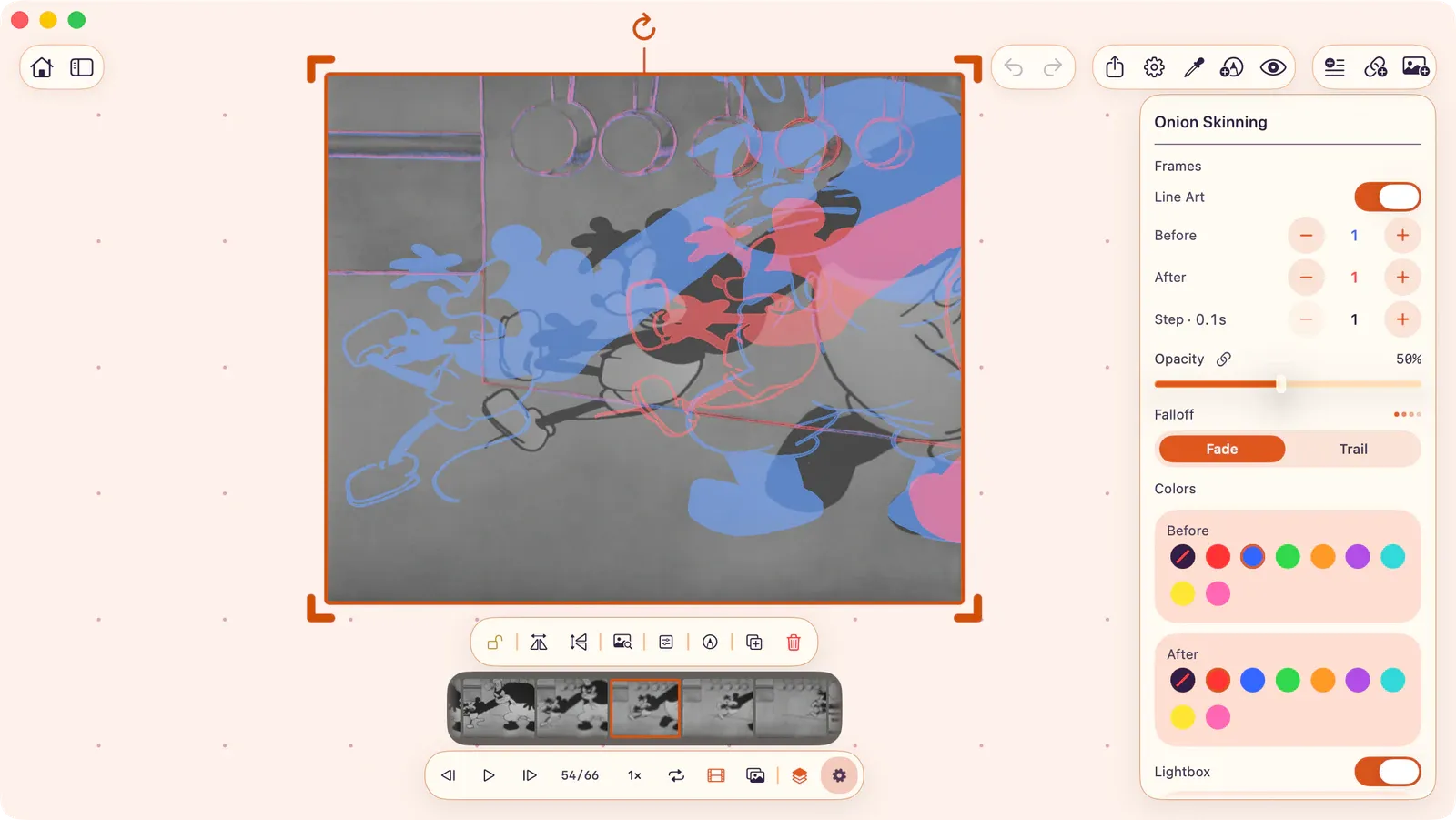
Enabling
Section titled “Enabling”Select a GIF or video, then toggle Onion Skin from the control bar.
Motion Difference and Line Art
Section titled “Motion Difference and Line Art”Motion Difference is the default behavior for studying video motion. It compares each ghost frame against the current frame after video color normalization, then shows changed ghost-frame regions across the base frame.
Turn on Line Art to suppress light backgrounds and keep ink-like strokes visible. Use it for drawings, clean animation cels, or high-contrast clips where background wash is distracting.
Lightbox
Section titled “Lightbox”Turn on Lightbox when the current frame needs more contrast against the ghost frames. It adds a flat color wash behind the onion-skin overlays without changing playback.
Use Amount to set the strength from 0–100%, then choose the lightbox color. White works like a traditional animation light table; a different color can separate ghosts from bright or tinted source footage.
Settings
Section titled “Settings”Open the onion skin settings panel for full control:
| Setting | Description |
|---|---|
| Line Art | Switch from the default Motion Difference video-study behavior to clean ink/background suppression |
| Before Frames | Number of previous frames to show (0–5) |
| After Frames | Number of upcoming frames to show (0–5) |
| Frame Step | Gap between ghost frames (1–10) |
| Colors | Color tint per direction (8 swatches + no-tint) |
| Opacity | Linked or independent per direction (5–100%) |
| Falloff | Choose Fade for lighter distant frames or Trail to keep motion paths visible |
| Lightbox | Optional color wash behind ghost frames, with 0–100% amount and color picker |
Video Playback
Section titled “Video Playback”For videos, onion skin applies adaptive caps during playback to maintain smooth frame delivery. The settings panel shows the applied values separately from your requested values when a cap is active.
- Applied vs. requested: When playback caps are active, the panel displays both the values you requested and the lower values actually used (shown in orange).
- Decode resolution: The panel shows the effective decode resolution used for onion frames during playback (for example, “Effective decode: 960×540”).
- Loading progress: A “Playback ghosts ready: N/M” line tracks how many frames are prepared for smooth playback.
- Force Requested During Playback: Bypasses adaptive caps and uses your exact requested values. This toggle appears only when a cap is active or already overridden. Higher settings can reduce playback stability.
- Orange-dot cap indicator: When playback is capped, the gear button in the control bar shows a small orange dot. The gear icon also spins while frames are loading.
Note: Adaptive cap diagnostics and the Force Requested toggle are only relevant for videos. GIF onion skin is not capped.
Memory Advisory
Section titled “Memory Advisory”With many ghost frames at high resolution, memory usage increases. A warning appears when the configuration approaches device limits.
If playback stutters or the warning appears:
- Reduce Before Frames and After Frames.
- Increase Frame Step so fewer ghosts are decoded.
- Lower Opacity or turn off Lightbox if you only need a quick comparison.
- Leave Force Requested During Playback off unless you need exact requested values for a still frame check.