
Export Your Work
Copy items into another app, or use the export panel to choose a format, resolution, and destination.
Copy Items to Another App
Section titled “Copy Items to Another App”- Select one or more items on the board.
- Choose Copy from the radial menu or menu bar, or press ⌘C with a keyboard.
- Wait for the copy confirmation, then switch to the destination app and paste.
| Selection | Clipboard content |
|---|---|
| One image | Stored source image, with any crop or flip applied in ArtDeck. |
| One video or GIF | Stored media file. The destination app must support its format. |
| One text item | Text content, with formatting where the destination app supports it. |
| One link card | The destination URL as text. |
| Only link cards | One URL per line. |
| One color swatch | Its hex color code as text. |
| Several images or a mixed selection | One transparent PNG, with a longest edge of 2,560 pixels. |
The PNG preserves the arrangement and flattens it into one image. Transparency removes the board background, not backgrounds inside your images.
Tip: To change the resolution or background, open the export panel, use Selected Only, adjust the settings, then choose Copy.
Paste Images into Procreate on iPad
Section titled “Paste Images into Procreate on iPad”Copy your images in ArtDeck. In Procreate, swipe down with three fingers and tap Paste, or use Actions > Add > Paste.
Paste adds a new canvas layer, not an image in the Reference Companion. No need to save to Photos or Files first.
If pasting fails, check that ArtDeck finished copying and that you selected images, not text or link cards.
Procreate guides: Copy and paste, Reference Companion.
Paste a Sampled Color into Procreate
Section titled “Paste a Sampled Color into Procreate”- In ArtDeck, open the contextual menu on an empty area of the board and choose Pick Color. Sample your reference; ArtDeck automatically copies the hex code.
- In Procreate, tap the active color at the top right, then choose Value.
- Touch and hold the Hexadecimal field and choose Paste.
Tip: Tap a color in ArtDeck’s picked-color history to copy its hex code again. For an extracted palette, use Copy Hex in the Color lens.
See Procreate’s hexadecimal color guide.
Opening the Export Panel
Section titled “Opening the Export Panel”- From an open board, choose Export from the contextual menu.
- From the Gallery, open a board card’s action menu and choose Export.
- Press ⌘E to export the board.
- Press ⌘⇧E to export the current frame (useful for media).
Note: The Gallery entry point opens the same export panel as an open board. Use it when you want to export a board without opening it first.
Export Options
Section titled “Export Options”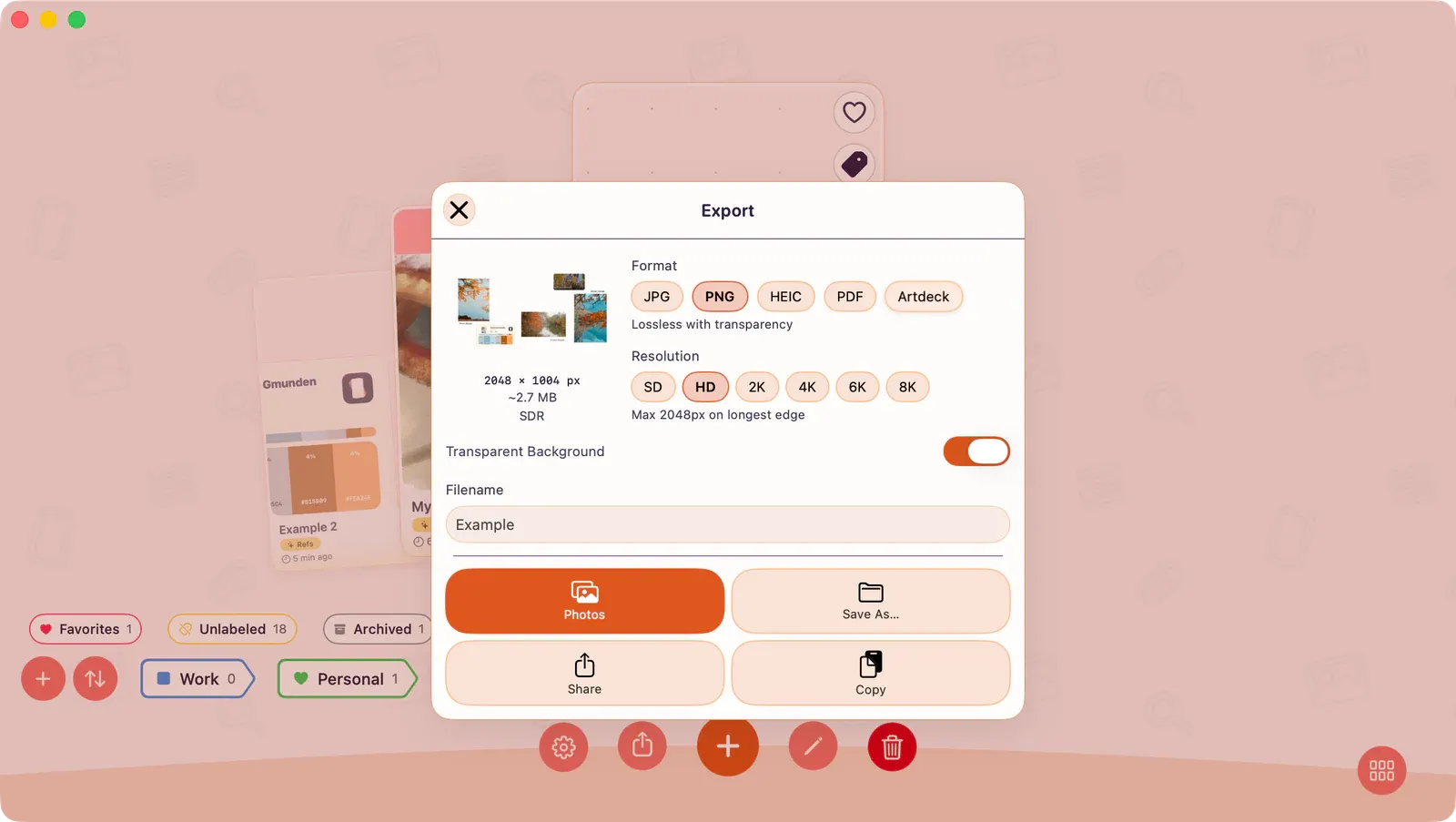
- Full Board: Export everything on the board.
- Selected Only: Export only the currently selected items.
Format
Section titled “Format”Choose JPG, PNG, HEIC, PDF, or Artdeck. See Supported Formats for details.
| Format | Use it for |
|---|---|
| JPG | Smaller image files and broad compatibility |
| PNG | Lossless image export and transparent background |
| HEIC | Efficient image export, including HDR-capable output |
| Print-ready board snapshots | |
| Artdeck | A restorable full-board backup file |
Note: The Artdeck format can only be saved to Files on iPhone and iPad, saved with Save As on Mac, or shared through the system share sheet. It is not available for Photos or Copy.
Resolution
Section titled “Resolution”SD (1024px), HD (2048px), 2K (2560px), 4K (4096px), 6K (6144px), 8K (8192px).
Background
Section titled “Background”- Transparent (PNG only)
- White
- Black
- Board (uses your board’s background)
Dynamic Range
Section titled “Dynamic Range”Choose HDR or SDR output mode.
Export an Artdeck Board File
Section titled “Export an Artdeck Board File”Choose Artdeck when you need a restorable .artdeck board file instead of a flattened image or PDF. The export includes the full board document and the assets needed to import it again later.
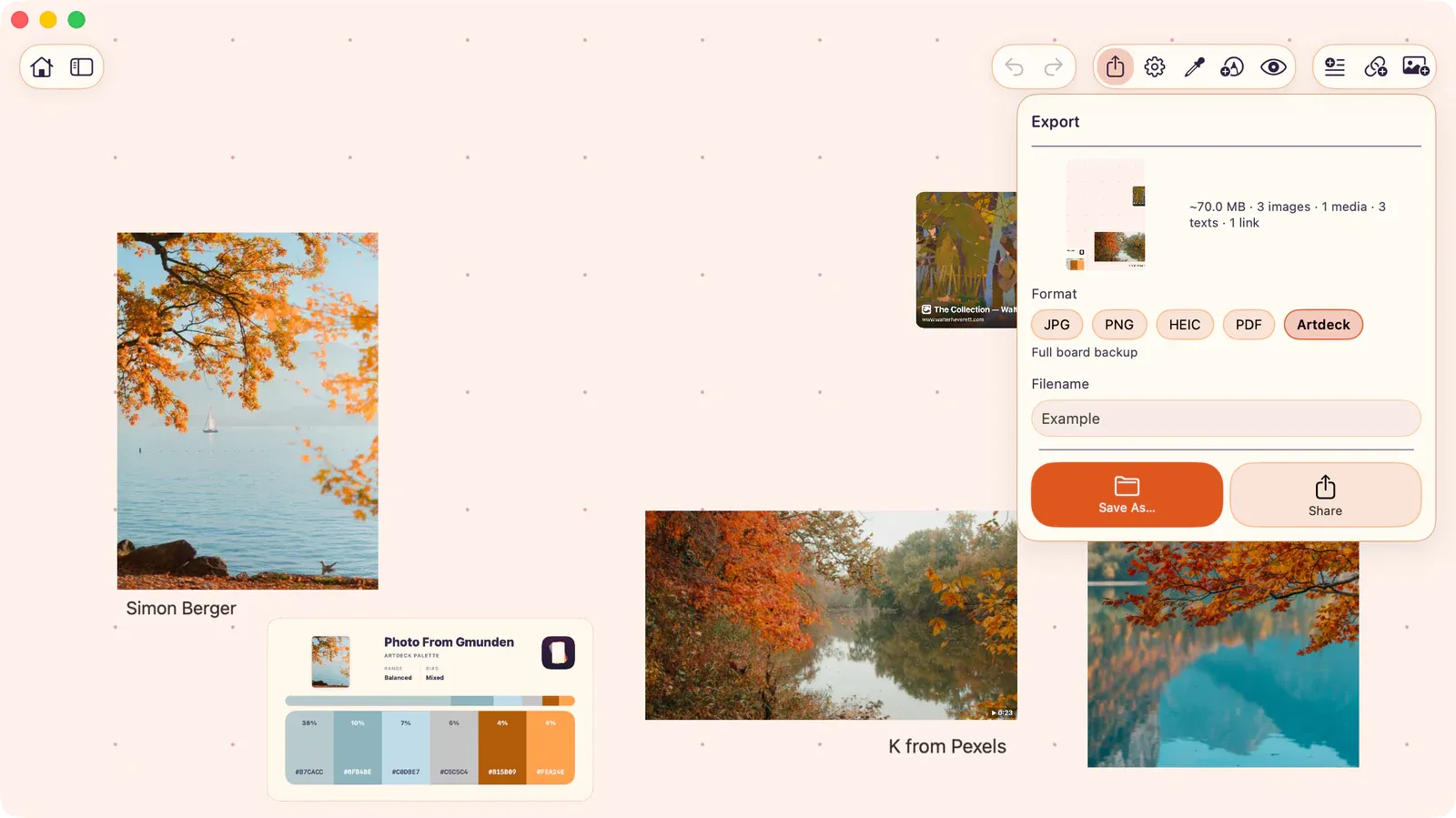
- Open the export panel.
- Set Format to Artdeck.
- Choose Files on iPhone and iPad, Save As on Mac, or Share.
- Export the file.
Artdeck exports the whole board. Scope, resolution, transparent background, and HDR options do not appear because the file is a board package, not a rendered image.
Destinations
Section titled “Destinations”- Mac: Photos, Save As, Share, Copy
- iOS/iPadOS: Photos, Files, Share, Copy
For Artdeck board files, use Save As on Mac, Files on iPhone and iPad, or Share.
If Export Does Not Finish
Section titled “If Export Does Not Finish”| Situation | What to try |
|---|---|
| Export is taking too long | Lower the resolution or export selected items only. |
| Destination fails | Try Files or Save As first, then share the exported file from there. |
| Result looks low quality | Increase the resolution preset and check whether optimized media was imported. |
| Transparent background is unavailable | Choose PNG; transparency is not available for every format. |
| You canceled by mistake | Run export again. Canceling does not change the board. |