
Labels and Smart Groups
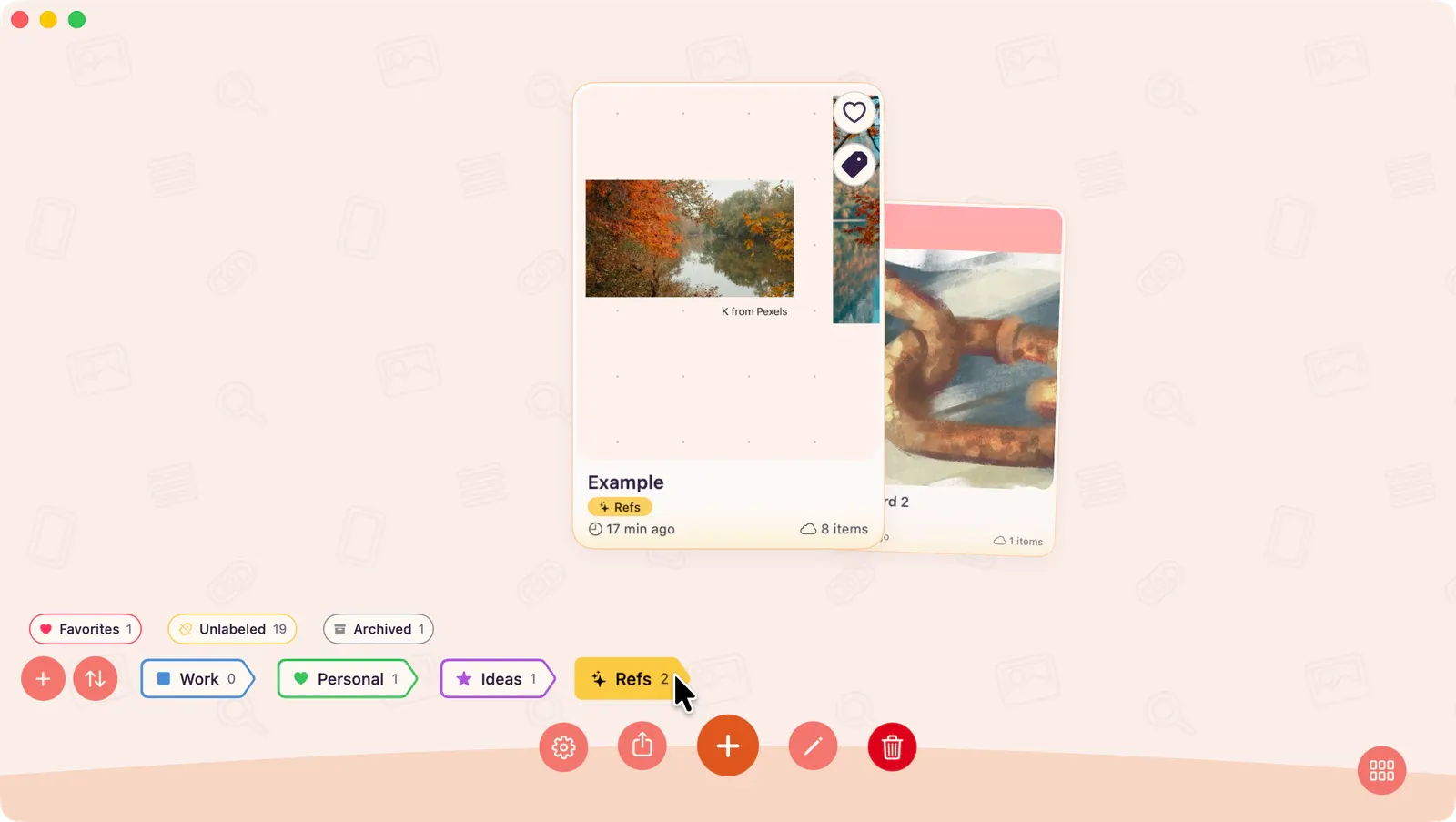
Use labels to group boards by project, client, subject, or status. The Gallery chip bar also includes smart groups for favorites, unlabeled boards, and archived boards, so you can switch between manual labels and built-in board states.
Create a Label
Section titled “Create a Label”ArtDeck starts with a few default labels, and you can add your own from the Gallery.
- In the Gallery chip bar, choose the + label button.
- Enter a label name.
- Choose an icon and color.
- Choose Apply.
The new label appears in the label row. Label chips show how many boards currently use that label.
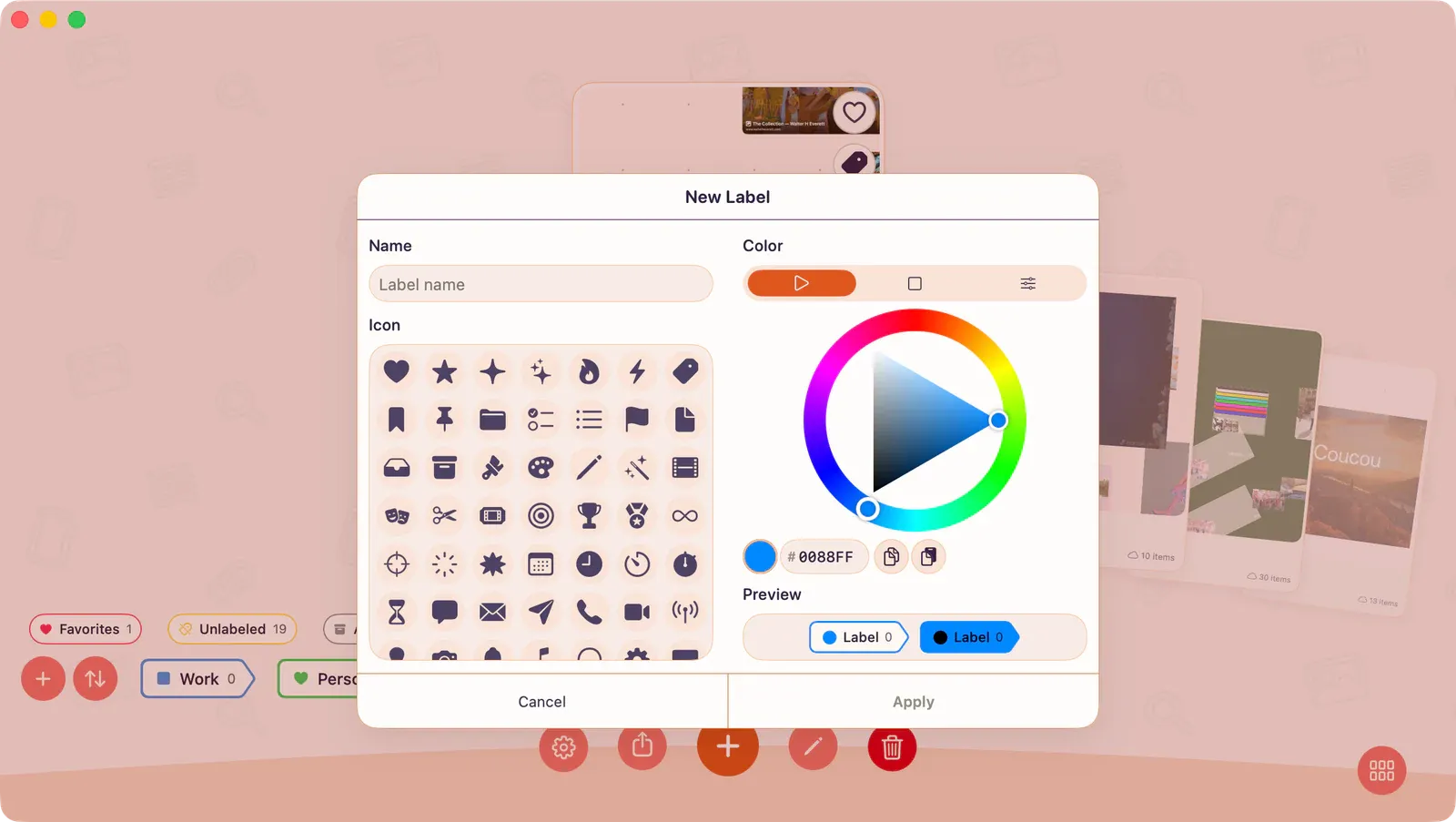
Tip: If you choose Create new label from a board’s Labels picker, ArtDeck creates the label, assigns it to that board, and returns you to the picker.
Assign or Remove Labels
Section titled “Assign or Remove Labels”Use the board card when you want to label one board.
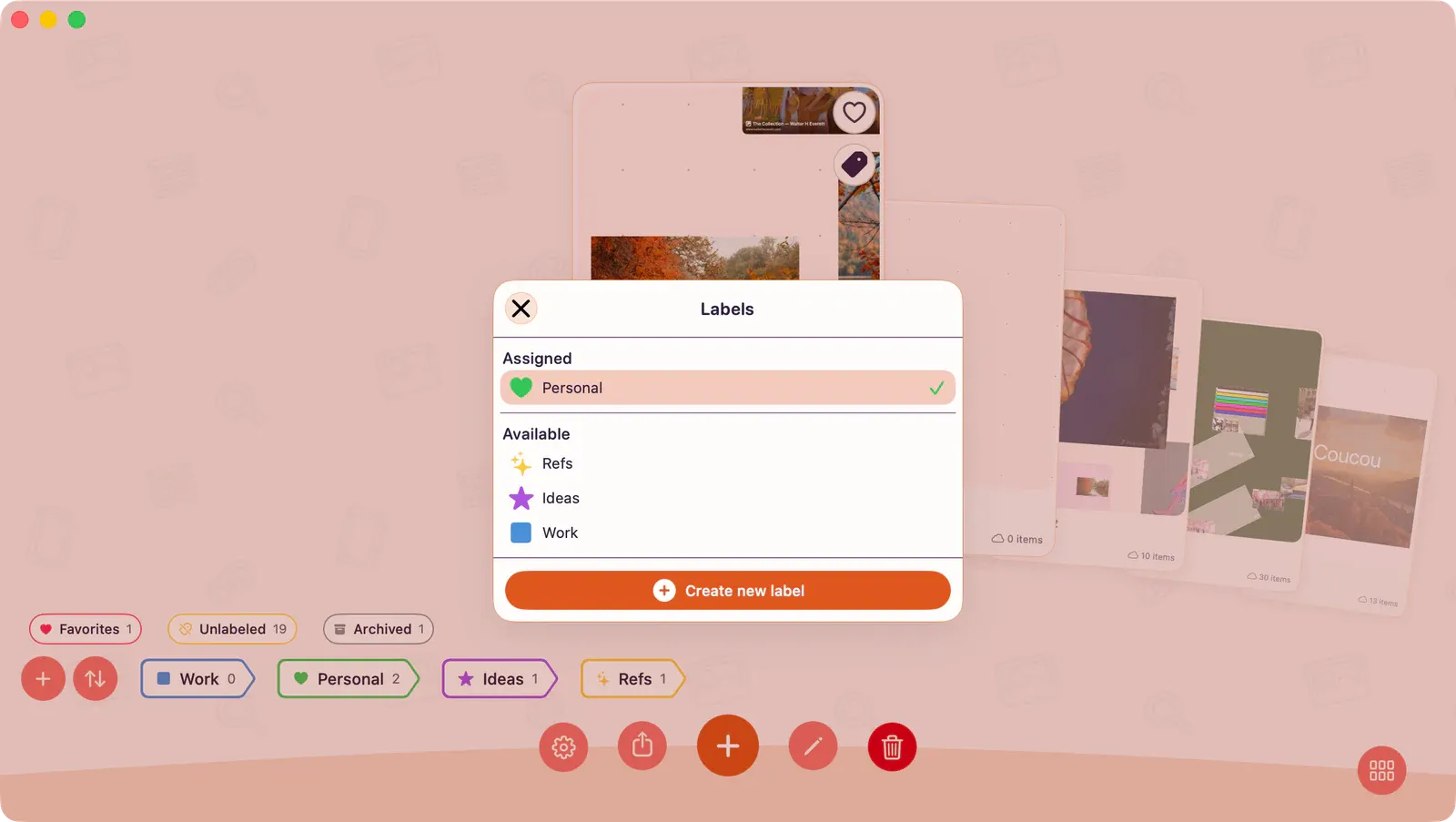
- Choose the tag button on a board card, or open the board card menu and choose Labels.
- In Assigned, choose a label to remove it from the board.
- In Available, choose a label to add it to the board.
Recently used labels appear first in Available.
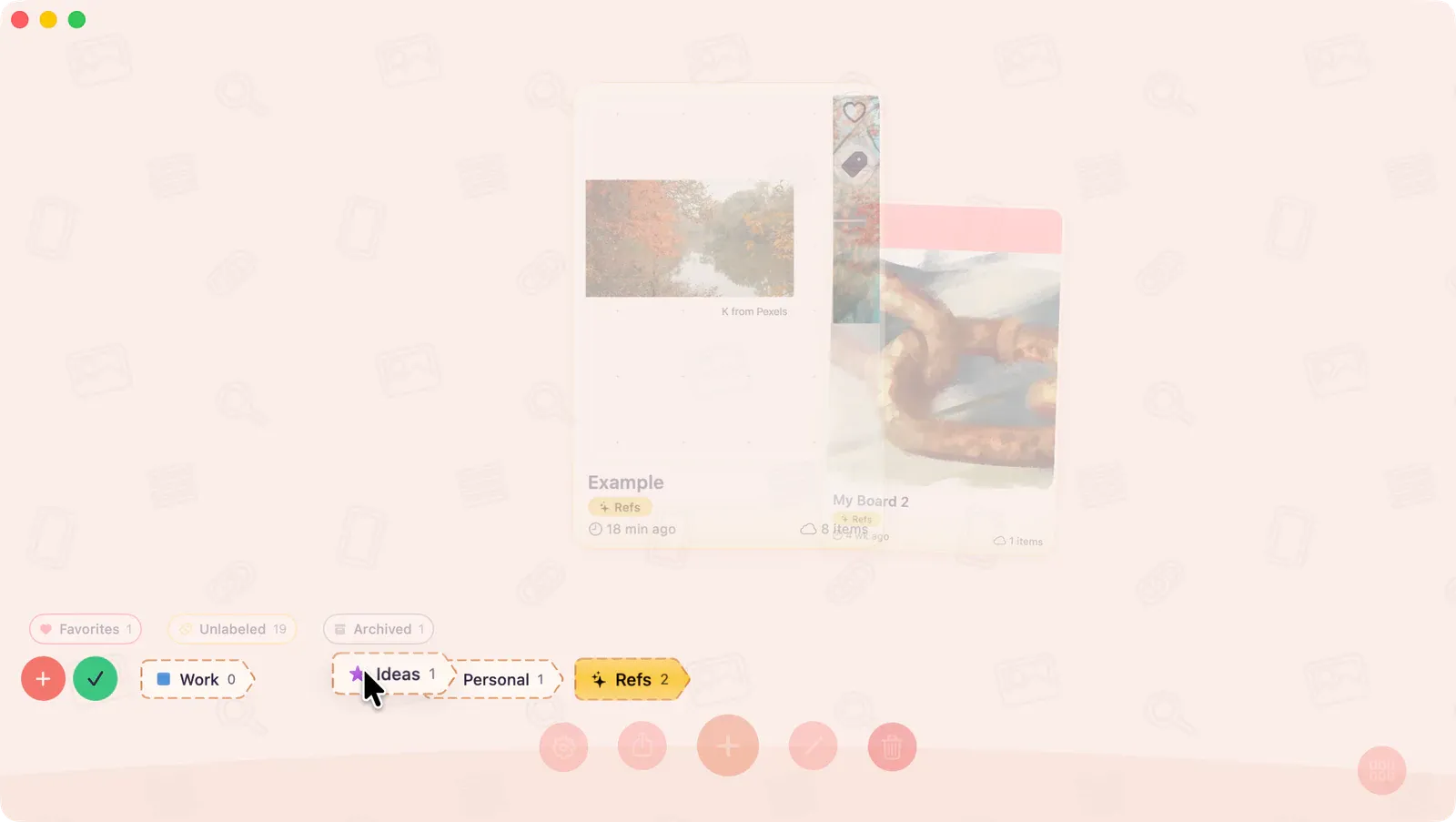
You can also assign labels by dragging. Long-press a label chip, drag it onto a board card, then release. If the board already has that label, dropping it removes the label instead; the card shows a minus indicator while you hover.
Note: Open the board card’s contextual menu to reach the same Labels action. On iPhone and iPad, long-press the board card. On Mac, right-click the board card or use the macOS Gallery menu for the focused board.
Edit, Reorder, or Delete Labels
Section titled “Edit, Reorder, or Delete Labels”Use the label row controls when you want to change the label itself rather than one board’s assignments.
| Action | How |
|---|---|
| Edit a label’s name, icon, or color | Double-tap the label chip, then choose Apply. |
| Reorder labels | Choose the reorder button in the label row, then drag label chips left or right. |
| Delete a label | In reorder mode, drag the label chip vertically to delete it. |
| Finish reordering | Choose the checkmark button. |
Deleting a label removes it from every board. Boards that had only that label can then appear in the Unlabeled smart group.
Filter with Labels
Section titled “Filter with Labels”Tap a label chip to filter the Gallery. Tap more labels to combine them. When more than one label is active, ArtDeck uses AND logic: only boards with every selected label are shown.
Label filters and smart groups are mutually exclusive. Choosing a label clears the active smart group, and choosing a smart group clears the active labels.
Long-press a label chip and release without dragging to enter exclusive view for that label. Exclusive view temporarily shows only that label and saves your previous label selection; tap a label chip again to restore the previous selection.
Filters are remembered, so the Gallery can reopen with your last active label or smart group.
Use Smart Groups
Section titled “Use Smart Groups”Smart groups are the built-in chips at the start of the Gallery chip bar.
| Smart Group | Shows |
|---|---|
| Favorites | Boards marked as favorites, excluding archived boards |
| Unlabeled | Boards with no labels assigned, excluding archived boards |
| Archived | Boards moved to the archive |
Tap an active smart group again to return to the normal Gallery.
Favorite and Archive Boards
Section titled “Favorite and Archive Boards”Use favorites for boards you want to find often. Choose the heart button on a board card, or use Favorite from the board card menu or macOS Gallery menu. Choose Unfavorite to remove it from Favorites.
Use archive for boards you want to keep but hide from the normal Gallery. Choose Archive from the board card menu or macOS Gallery menu. To restore a board, open Archived or a matching label filter, then choose Unarchive from the same menu.
Archived boards are hidden from the normal Gallery, Favorites, and Unlabeled. When a label filter matches archived boards, ArtDeck keeps active boards first and places archived matches at the end.
If a Board Is Missing
Section titled “If a Board Is Missing”Clear the active label or smart group first. If the board still does not appear, check Archived. A favorite board also disappears from Favorites while it is archived. If the board exists on another device, check iCloud Sync.