
Groups
Select related items and group them when you want to move, scale, rotate, or style them as one. Groups can be nested to create a hierarchy of content.
Creating a Group
Section titled “Creating a Group”- Select two or more items.
- Press ⌘G or use the control bar.
The selected items are wrapped in a new group. You can move, resize, and rotate the group as a single unit.
Drill-In Editing
Section titled “Drill-In Editing”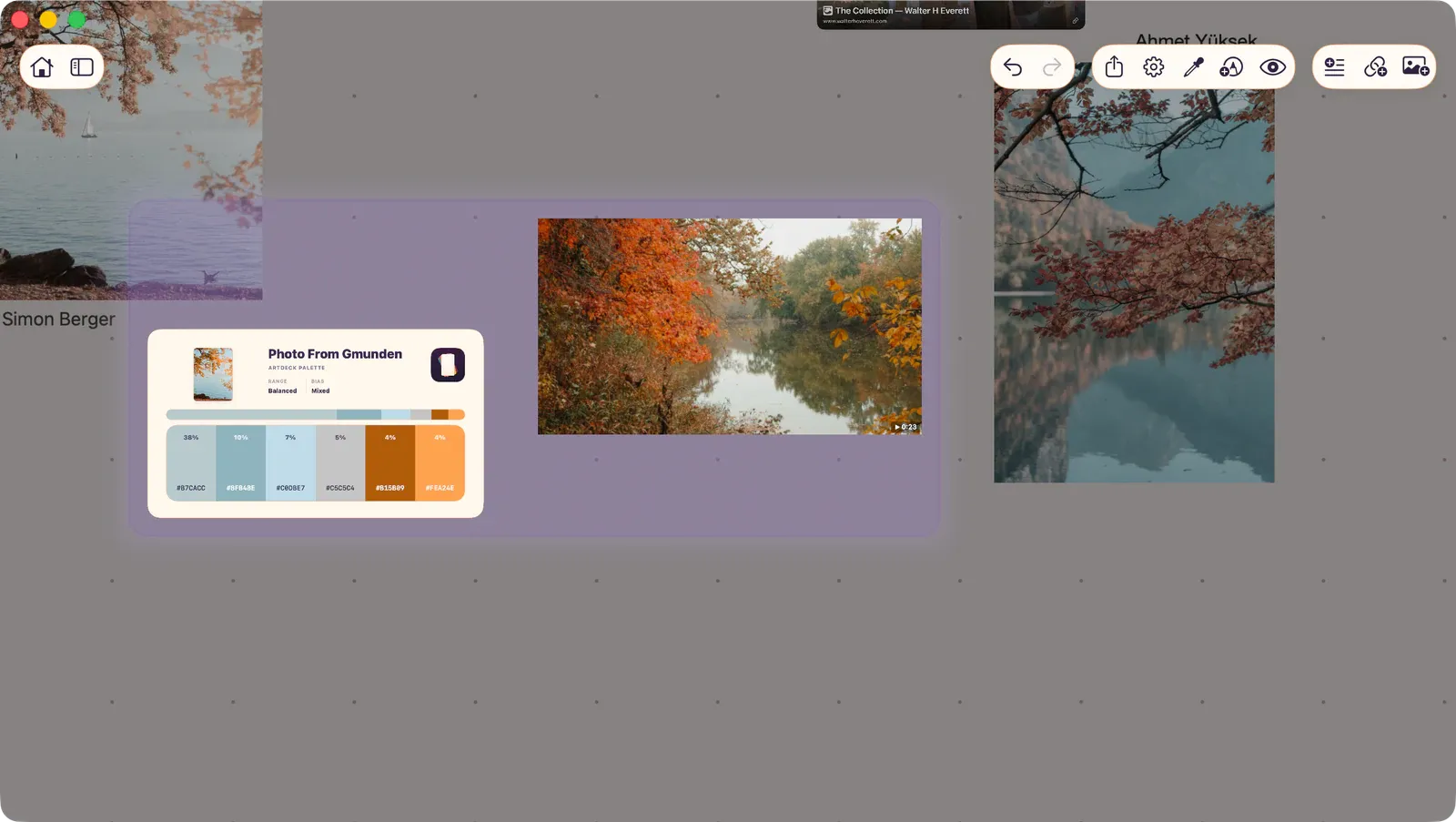
Double-tap a group to “drill in” — the board zooms to the group’s contents, and you can select and edit individual items inside it. Tap outside the group or press Escape to exit.
Group Operations
Section titled “Group Operations”| Action | Shortcut | Description |
|---|---|---|
| Create Group | ⌘G | Wrap selection in a new group |
| Leave Group | ⌘⇧G | Remove an item from its parent group |
| Dissolve | — | Remove the group container, keeping its children in place |
| Join | — | Move selected items into an existing group |
| Fuse | — | Merge multiple groups into one |
Group Styling
Section titled “Group Styling”Groups can have a visual fill:
- Solid color: A flat background color.
- Gradient: A linear gradient with customizable colors and direction.
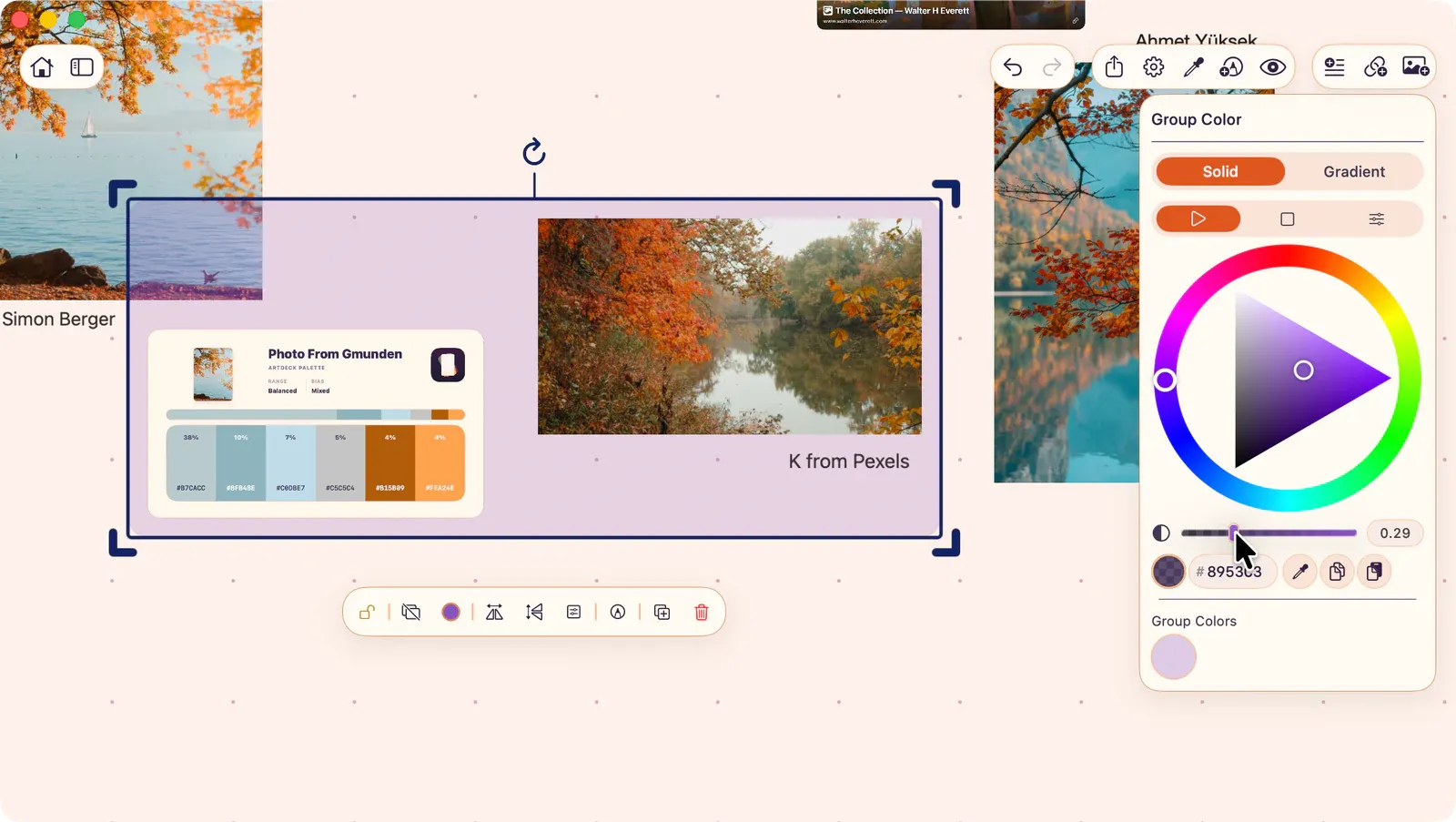
Set group color from the control bar or contextual menu.