
Add and Edit Images
Import photos, screenshots, artwork, or other still images onto a board, then crop, flip, annotate, or analyze them.
Adding Images
Section titled “Adding Images”- Use the import panel (Photos, Files, Camera, Paste)
- Drag and drop from other apps
- Share from any app via the share extension
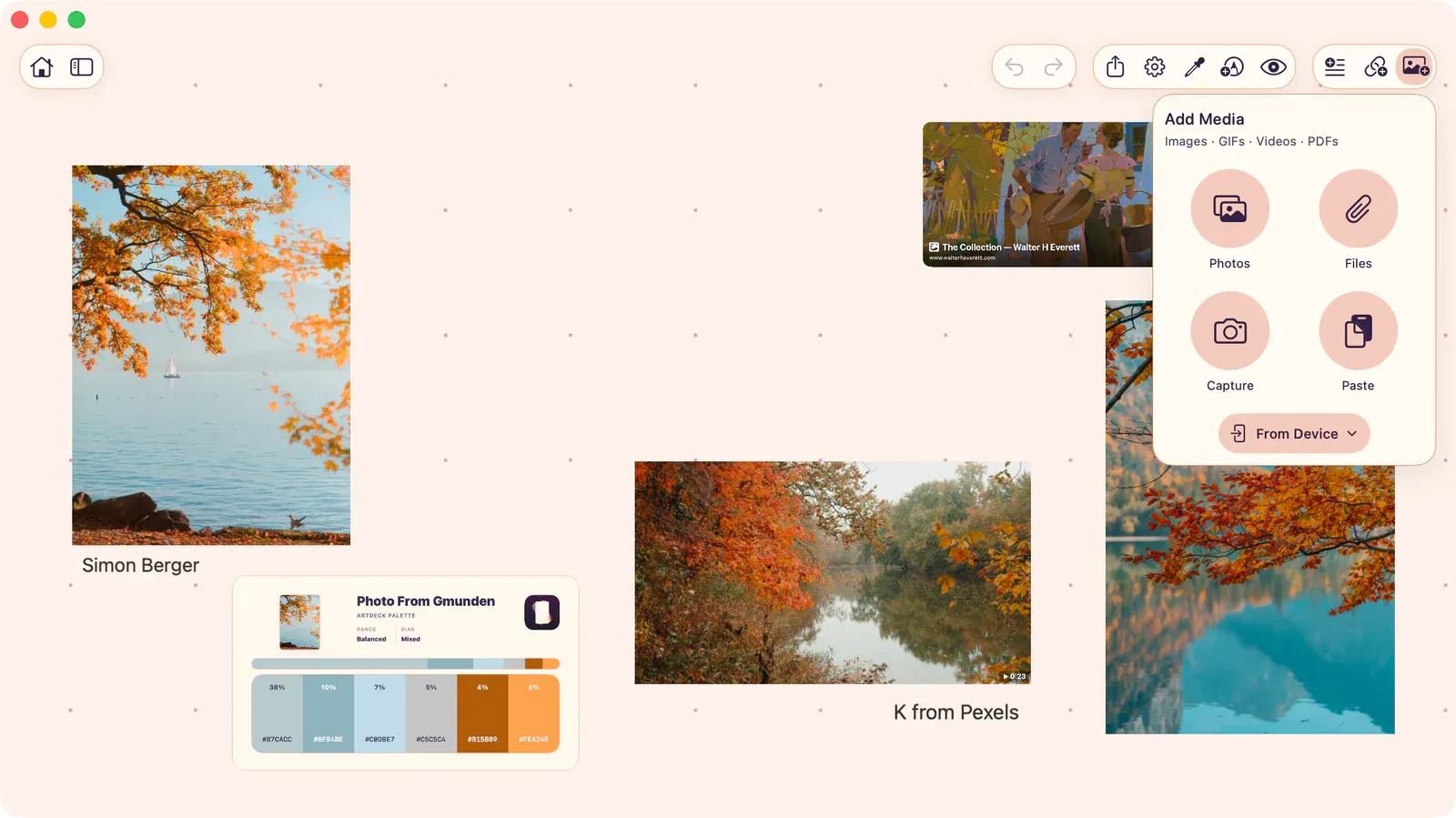
Image Actions
Section titled “Image Actions”Available from the control bar or contextual menu:
| Action | Shortcut | Description |
|---|---|---|
| Crop | — | Enter crop mode to trim the image. Drag edges to adjust. |
| Flip Horizontal | ⇧H | Mirror the image horizontally |
| Flip Vertical | ⇧V | Mirror the image vertically |
| Annotate | — | Draw on top of the image (creates a linked drawing) |
| ToolBox | T | Open image analysis tools |
Cropping
Section titled “Cropping”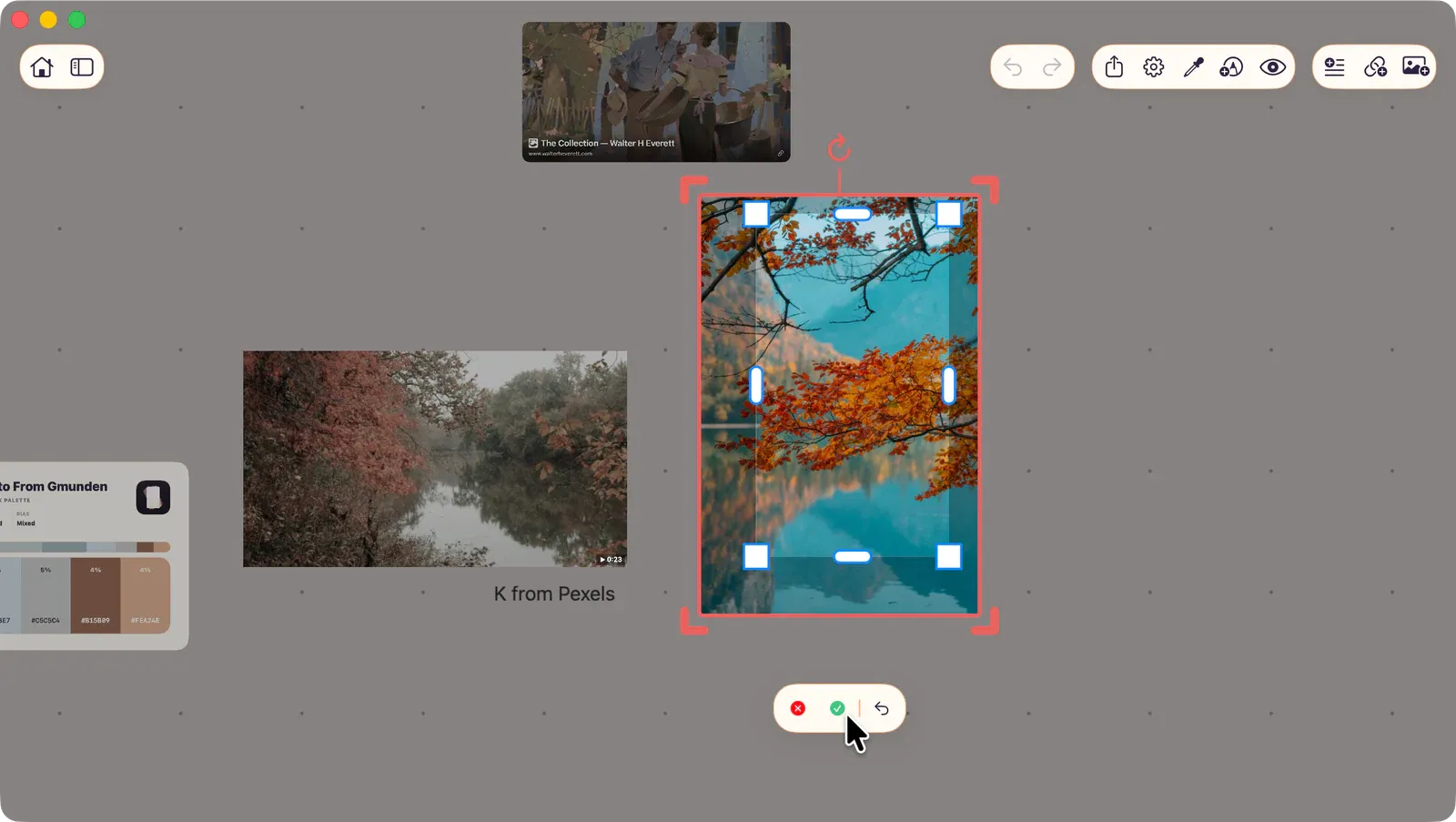
- Select the image and tap the crop button in the control bar.
- Drag the crop handles to define the visible area.
- Tap the confirm button to apply, or cancel to discard.
While in crop mode, the Reset to Full Image button restores the crop region to the full original image — useful if you want to start the crop over.
Cropping is non-destructive — the original image data is preserved and you can re-crop at any time.
If an Image Looks Wrong
Section titled “If an Image Looks Wrong”- Use Reset to Full Image if a crop hides content you expected to see.
- If the wrong file was imported, remove that item from the board and import the correct file.
- Check Supported File Formats if the image fails to import.
Supported Formats
Section titled “Supported Formats”JPG, PNG, HEIC, HEIF, WebP, BMP, TIFF, GIF (still), AVIF, EXR, HDR, JXL, SVG.
SVG files import as raster images. If an SVG depends on scripts, external resources, embedded HTML, or interactive content, export a static image version before importing it.
See also: ToolBox Overview for image analysis tools.