
Resize, Rotate, and Position
Select an item, then drag it or its handles to move, resize, or rotate it on the board.
Moving
Section titled “Moving”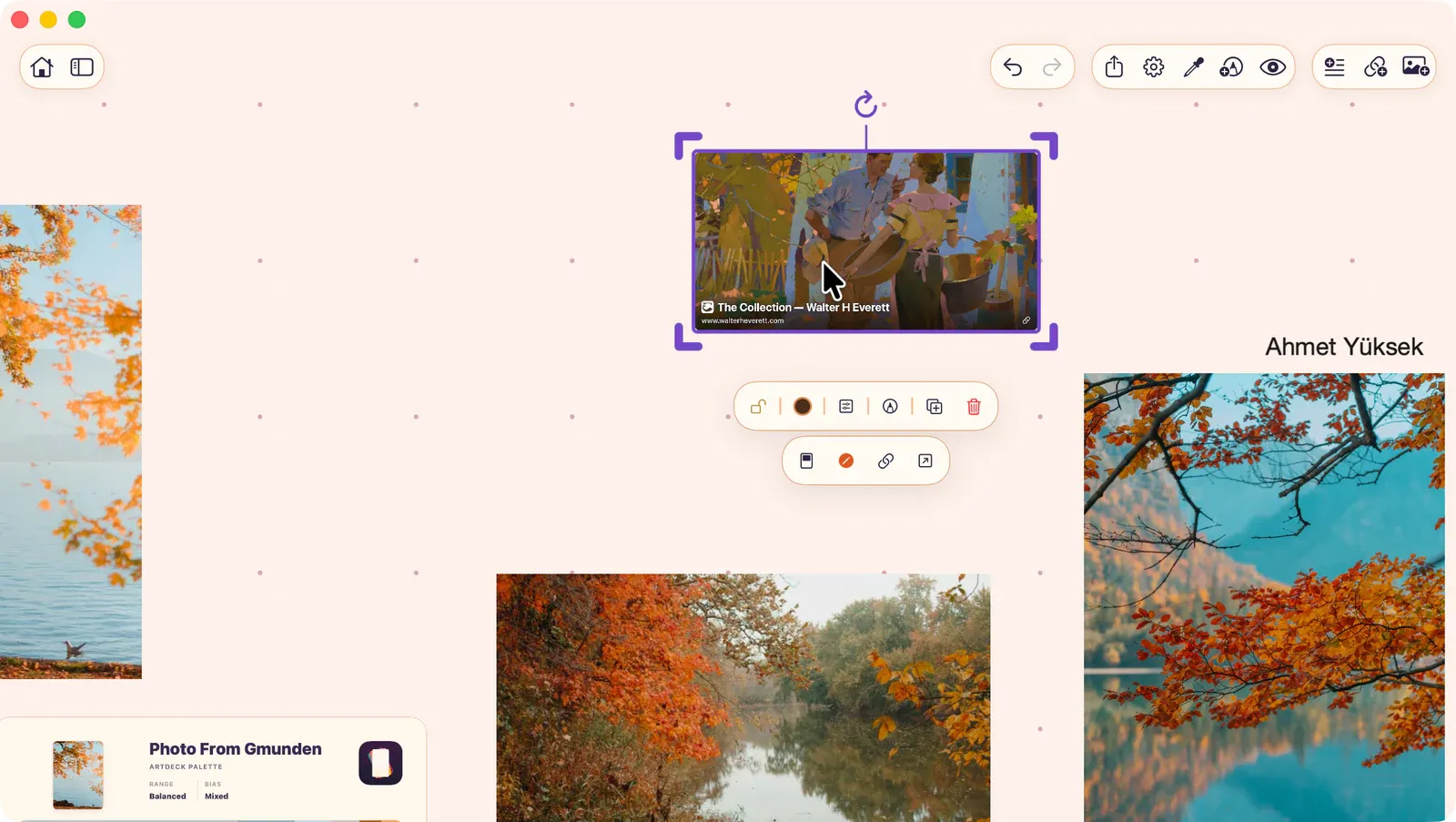
Drag a selected item to reposition it. Items inside groups store local coordinates relative to their parent.
While you drag, ArtDeck temporarily draws the moving item in front of everything else on the canvas. When you release, it returns to its normal layer order.
Resizing
Section titled “Resizing”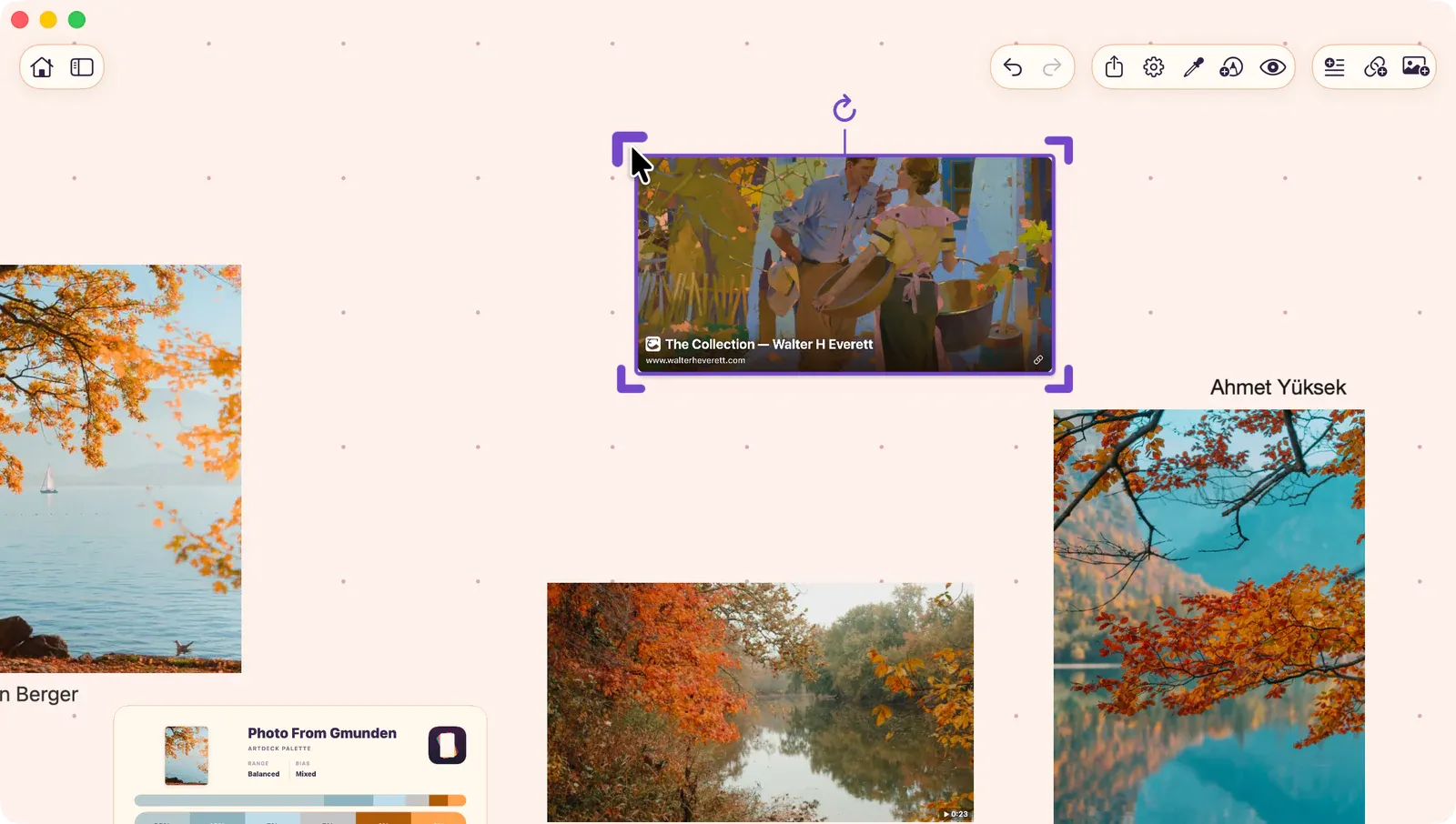
Drag the scale handles at the corners or edges of the selection overlay to resize. The item scales proportionally.
Rotating
Section titled “Rotating”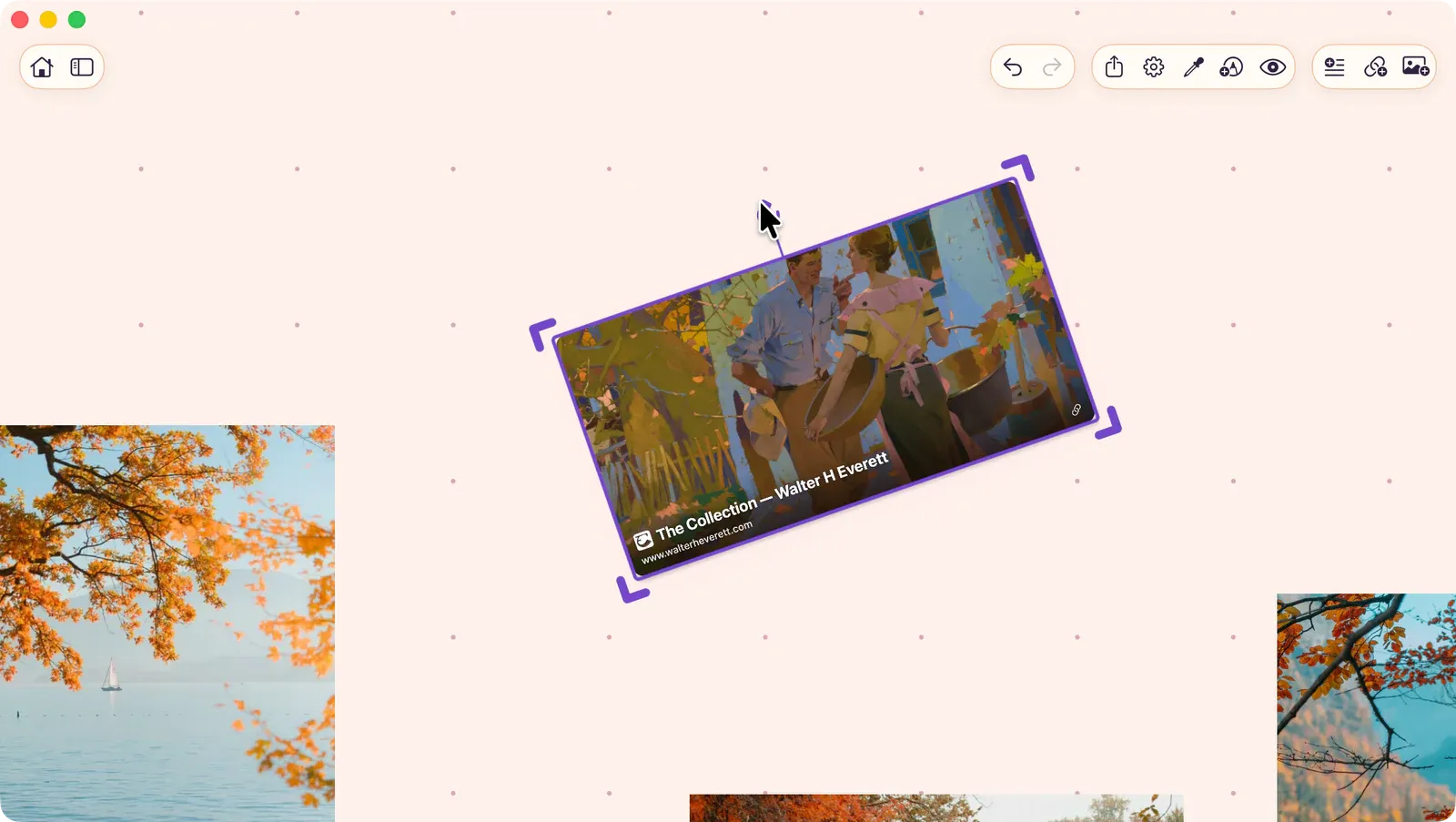
Drag the rotation handle (above the selection) to rotate the item freely.
Snapping
Section titled “Snapping”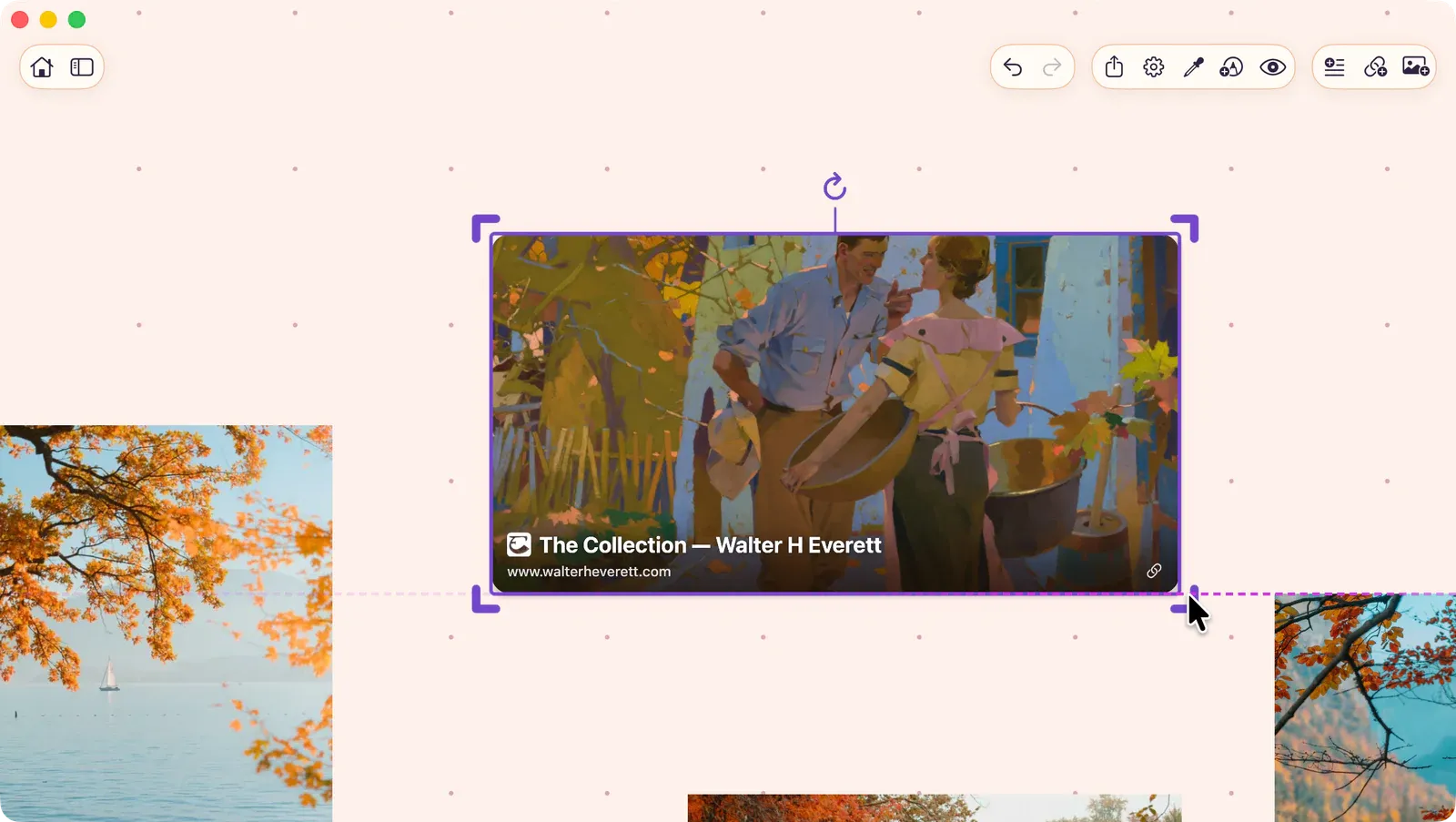
ArtDeck offers three snapping modes, configurable in Board Settings (⌘⇧S):
| Mode | Description |
|---|---|
| Objects | Items snap to edges and centers of nearby items |
| Grid | Items snap to the background grid |
| Rotation 90° | Rotation snaps to 90-degree increments |
Toggle snapping from the board contextual menu for quick access.
With a hardware keyboard, hold Control while moving, resizing, or rotating to temporarily ignore snapping for the current gesture.
Arrow Key Nudge
Section titled “Arrow Key Nudge”Use Arrow keys to nudge selected items by small increments for precise positioning.