
ArtDeck on Mac
Available on Mac
On Mac, ArtDeck adds desktop controls around the shared board tools: menu bar commands, Continuity Camera import, pointer workflows, Help Viewer, window pinning, and standard window management.
Desktop Controls
Section titled “Desktop Controls”- Use the menu bar for board, edit, layout, video, ToolBox, drawing, and help commands. Menu items show keyboard shortcuts where available.
- Use
Add Media > From Deviceto import from a nearby iPhone or iPad with Continuity Camera: Take Photo, Scan Documents, or Add Sketch. - Use the Help menu to open the built-in Help Viewer.
- Resize, full screen, tile, or split the ArtDeck window with standard macOS window controls.
Keep on Top
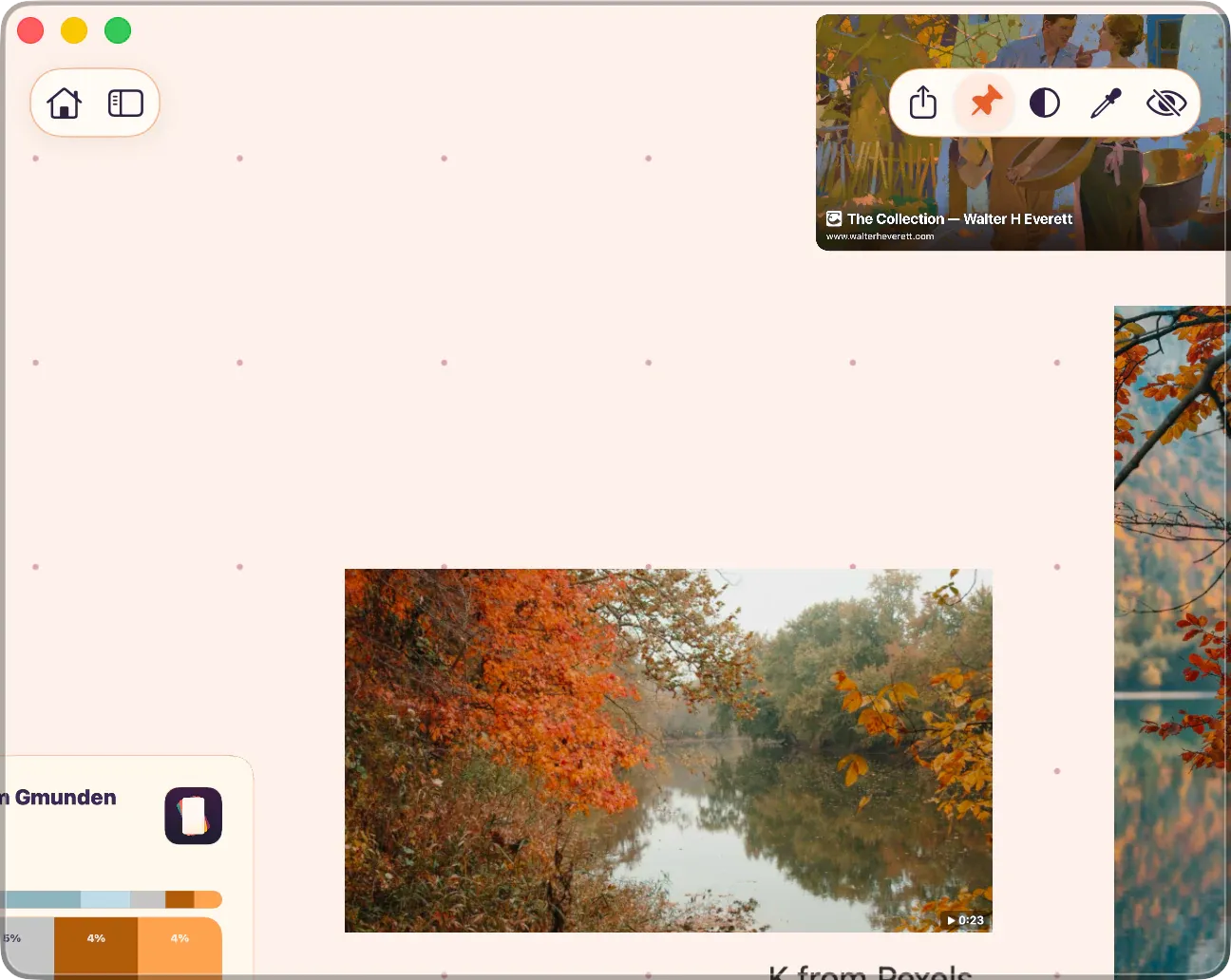
Section titled “Keep on Top”Turn on Keep on Top when you want the ArtDeck window to stay visible above other app windows while you compare references, paint in another app, or keep a board open beside your work.
- In board View Mode, click Pin on Top in the header.
- Or choose
Window > Keep on Topfrom the menu bar. - Press ⌘⌥F to toggle it from the keyboard.
When Keep on Top is enabled, the board window uses a pinned window level and shows the pinned-window outline. Click Unpin, choose Window > Keep on Top again, or press ⌘⌥F to return the window to normal.
Keyboard and Trackpad
Section titled “Keyboard and Trackpad”- The Mac keyboard and trackpad expose the full desktop shortcut and pointer workflow.
- Trackpad gestures for pan and zoom.
- Hold Control while moving, resizing, or rotating to temporarily ignore snapping for the current gesture.
- Hover tooltips on all interactive controls showing the action and shortcut.
- Invert Vertical Canvas Scroll and Invert Horizontal Canvas Scroll toggles in
App Settings > Display & Inputlet you flip the scroll direction to match your trackpad preference.