
Managing Boards
The Gallery is where you create, find, rename, label, duplicate, export, and delete boards.
Create a Board
Section titled “Create a Board”Tap the + button in the gallery to create a new board and open it immediately. The first board is named My First Board; later boards are named in sequence — My Board 2, My Board 3, and so on — so you always start with a unique name you can change later.
Board Actions
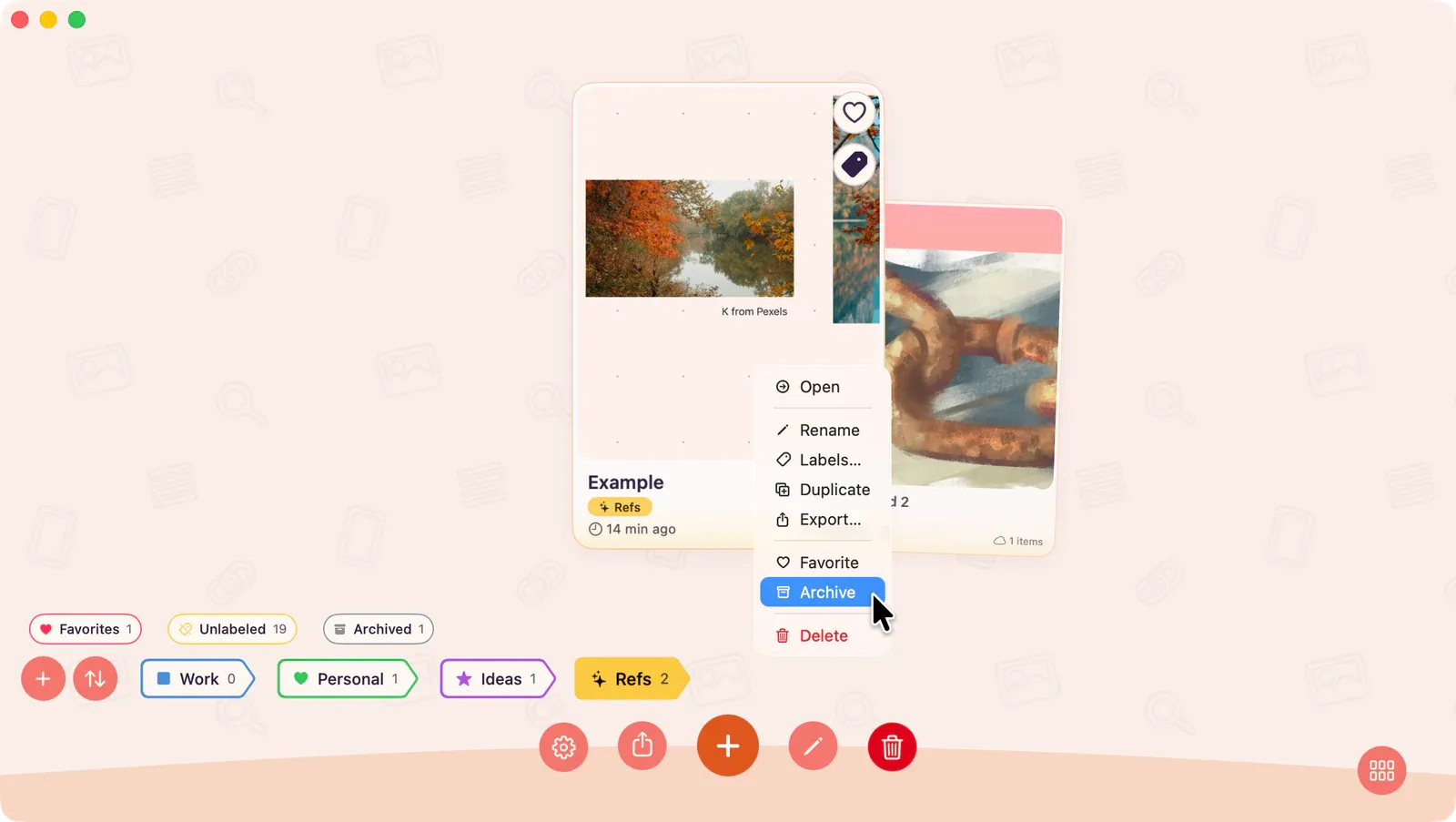
Section titled “Board Actions”Open a board card’s action menu to rename, duplicate, label, archive, export, or delete the board.
Note: On iPhone and iPad, long-press the board card to open the contextual radial menu. On Mac, right-click the board card.
| Action | Description |
|---|---|
| Rename | Change the board name |
| Duplicate | Create an exact copy of the board |
| Labels | Assign labels for organization |
| Favorite | Mark as a favorite for quick access |
| Archive | Move to the archive (hidden from main view) |
| Export | Export the board as an image, PDF, or Artdeck board file |
| Delete | Permanently remove the board |
If a synced board card shows Download, Waiting for Wi-Fi, Tap to Retry, Download Failed, or Files Missing, use Download Boards from iCloud for the cloud download states and recovery path.
Rename a Board
Section titled “Rename a Board”You can also rename from inside the board:
- Tap the board name in the header.
- Or press ⌘⇧R.