
Accessibility
Use ArtDeck with Apple accessibility settings, hardware keyboards, VoiceOver, Voice Control, and theme diagnostics while you work on boards.
Keyboard and Full Keyboard Access
Section titled “Keyboard and Full Keyboard Access”ArtDeck keeps keyboard focus separate from item selection on the canvas. Move the focus ring first, then choose when to select, open, or edit the focused item.
| Action | Keys |
|---|---|
| Move focus through canvas items | Tab / ⇧Tab |
| Select the focused item | Return or Space |
| Enter a focused group | Return or Space |
| Open a focused link card | Return or Space |
| Clear keyboard focus | Escape |
| Move selected items | Arrow keys |
| Move selected items farther | ⇧Arrow keys |
When Return or Space selects a focused item, it replaces the current selection. Use pointer or marquee modifiers for additive selection.
See Keyboard Shortcuts for the complete shortcut list and Gestures for touch and pointer gestures.
VoiceOver and Voice Control
Section titled “VoiceOver and Voice Control”Canvas items are exposed as accessible elements with labels, item types, and state such as selected, locked, or in a group. Use standard VoiceOver navigation to move between items, then activate an item to select it or use its default action.
ArtDeck also keeps gallery cards, sidebars, settings rows, media controls, and common editing controls reachable without dragging. Controls use visible labels or accessibility labels so Voice Control can target them by name where Apple exposes that control.
Apple Accessibility Settings
Section titled “Apple Accessibility Settings”Turn these settings on from Apple accessibility settings. On Mac, ArtDeck also includes an app-level text-size control for its own interface.
| Setting | How ArtDeck responds |
|---|---|
| VoiceOver | Canvas items, gallery cards, settings, media controls, and dialogs expose labels, state, and actions. |
| Full Keyboard Access | Keyboard focus can move through canvas items and major app surfaces without selecting everything first. |
| Larger Text / Dynamic Type | On iPhone and iPad, app chrome follows Larger Text. Board text items keep the font size chosen for the board. |
| Interface Text Size | On Mac, use App Settings > General > Accessibility to scale ArtDeck’s interface text and icons. |
| Bold Text | Supported interface text increases weight where ArtDeck uses its shared text styles. |
| Reduce Motion | ArtDeck shortens or removes major navigation, panel, gallery, menu, and item-removal animations. Direct pan and zoom gestures stay responsive. To reduce motion in ArtDeck only, set Motion to Reduced in App Settings > General > Accessibility. |
| Reduce Transparency | Panels and translucent chrome use more opaque surfaces where ArtDeck owns the visual effect. |
| Increase Contrast | Adaptive themes use high-contrast modes when the system contrast setting is increased. Borders and separators become stronger in supported chrome. |
| Differentiate Without Color | Selected filters, validation states, and other supported status cues add shape, text, or icon cues instead of relying only on color. |
| Smart Invert / Invert Colors | Board content, thumbnails, media, and previews opt out of inversion where changing artwork colors would misrepresent the work. |
| Auto-Play Animated Images | GIF playback follows Apple’s animated-image preference and Reduce Motion behavior. |
Theme Diagnostics and Color Vision
Section titled “Theme Diagnostics and Color Vision”Use App Settings > Themes to check the active theme. The Diagnostics section reports whether the theme passes required role checks, contrast checks, and color-vision checks.
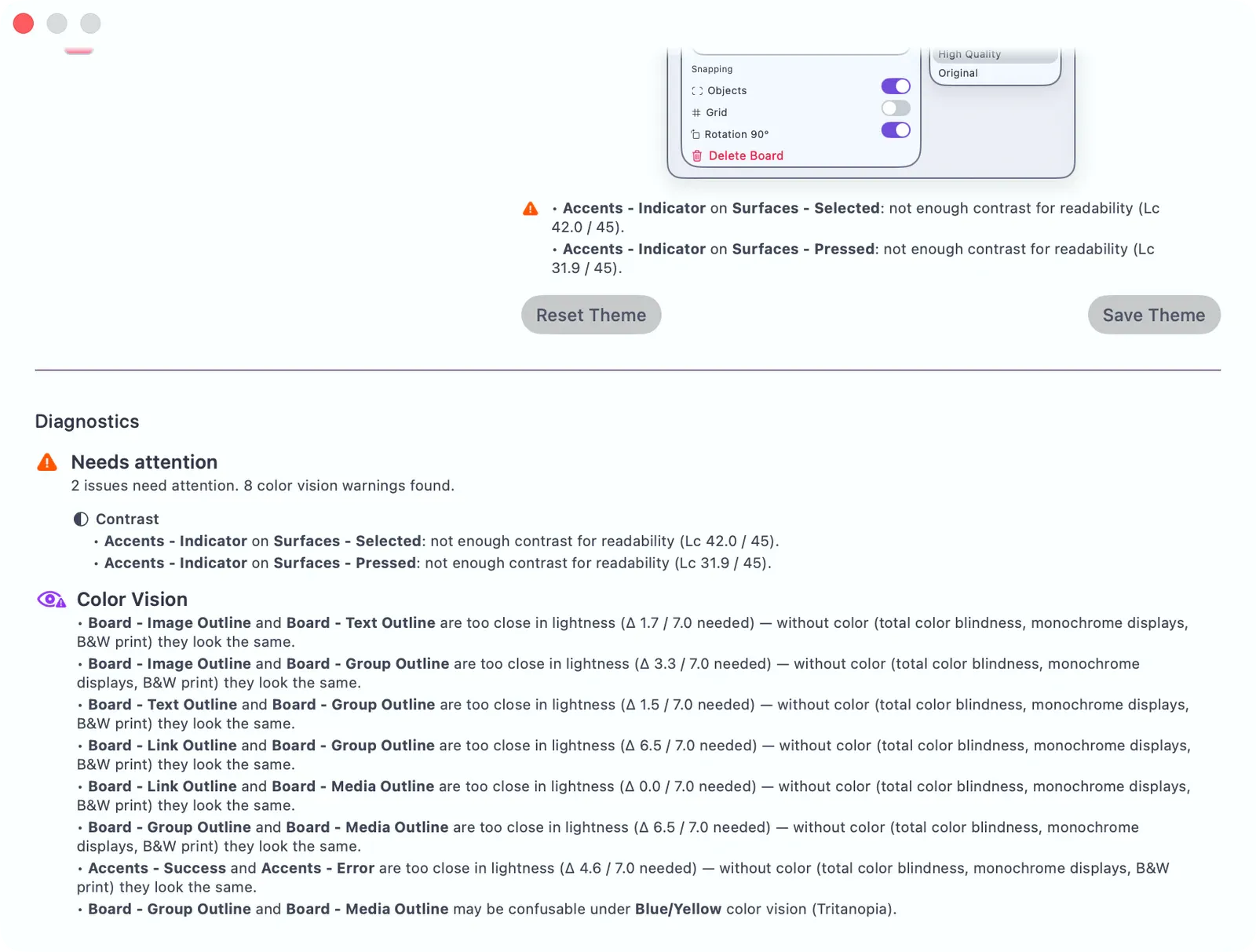
In Theme Editor, warning icons can appear on the role rows that need attention. Open a warned role, adjust the color, and watch the Diagnostics summary update as the preview changes.
| Diagnostic | What it checks |
|---|---|
| Structure | Required color and shadow roles are present for the theme mode. Structural issues must be fixed before saving. |
| Contrast | Text readability, control boundaries, focus rings, status colors, and important non-text UI stay distinguishable. |
| Color Vision | Item feedback colors, status accents, and canvas/background pairs remain distinguishable for common color vision differences and in grayscale or monochrome conditions. |
Contrast and color-vision warnings are informational. They do not prevent you from saving, exporting, or sharing a theme, but they are worth reviewing before other people use it. If two colors are called out as confusable, change more than hue: adjust lightness, saturation, or the related seed color so the roles remain different without relying on color alone.
Standards We Aim For
Section titled “Standards We Aim For”ArtDeck’s accessibility checks use a mix of Apple platform behavior and web accessibility standards:
| Area | Standard or method |
|---|---|
| Web docs and HelpBook | WCAG 2.2 AA target, plus manual checks for VoiceOver, keyboard navigation, zoom, and Help Viewer output. |
| Text readability in themes | APCA Lc contrast checks for text and interface readability. |
| Controls, focus, and non-text UI | WCAG 2.x non-text contrast checks, including focus-ring and control-boundary checks. |
| Color vision | Color-vision simulation, grayscale checks, and lightness-distance checks for color-coded roles. |
| Platform behavior | Native Apple accessibility APIs for VoiceOver, keyboard focus, Reduce Motion, Increase Contrast, Dynamic Type, and related settings. |
These checks do not replace testing with real assistive technologies. They make the common failure cases visible while you choose themes, navigate boards, and use ArtDeck across devices.
Input Alternatives
Section titled “Input Alternatives”Most editing actions are available from more than one surface: keyboard shortcuts, the control bar, contextual menus, and VoiceOver actions. For tasks that normally involve dragging, use keyboard nudge, menu commands, marquee modifiers, or named actions where available.
On iPad, Pencil Only Drawing lets Apple Pencil draw while finger gestures still pan and zoom. Turn it on from App Settings > General > Display & Input.
See also: App Settings, Choose and Manage Themes, Theme Editor, Keyboard Shortcuts, Gestures.