Use this page as a quick reference for touch, pointer, trackpad, marquee, undo, redo, ToolBox, and media gestures.
| Action | Touch | Pointer or trackpad |
|---|
| Pan the board | Drag empty board area with one finger, or two-finger drag to avoid selecting or moving items | Two-finger scroll |
| Zoom in or out | Pinch | Pinch, or scroll with the zoom modifier |
| Add content | Tap empty area when nothing is selected | Use the add content controls |
| Clear selection | Tap empty area when items are selected | Click empty area when items are selected |
| Open the board contextual menu | Long-press empty area | Right-click empty area |
| Gesture | Action |
|---|
| Two-finger tap (iPhone and iPad) | Undo |
| Two-finger touch and hold (iPhone and iPad) | Rapid undo |
| Three-finger tap (iPhone and iPad) | Redo |
| Three-finger touch and hold (iPhone and iPad) | Rapid redo |
You can also use the undo and redo buttons in the board header, or ⌘Z and ⌘⇧Z with a hardware keyboard.
| Action | Touch | Pointer or trackpad |
|---|
| Select item | Tap | Click |
| Move selected item | Drag | Drag |
| Resize | Drag handle | Drag handle |
| Rotate | Drag rotation handle | Drag rotation handle |
| Edit text or drill into a group | Double-tap | Double-click |
| Open item contextual menu | Long-press | Right-click item |
| Gesture | Action |
|---|
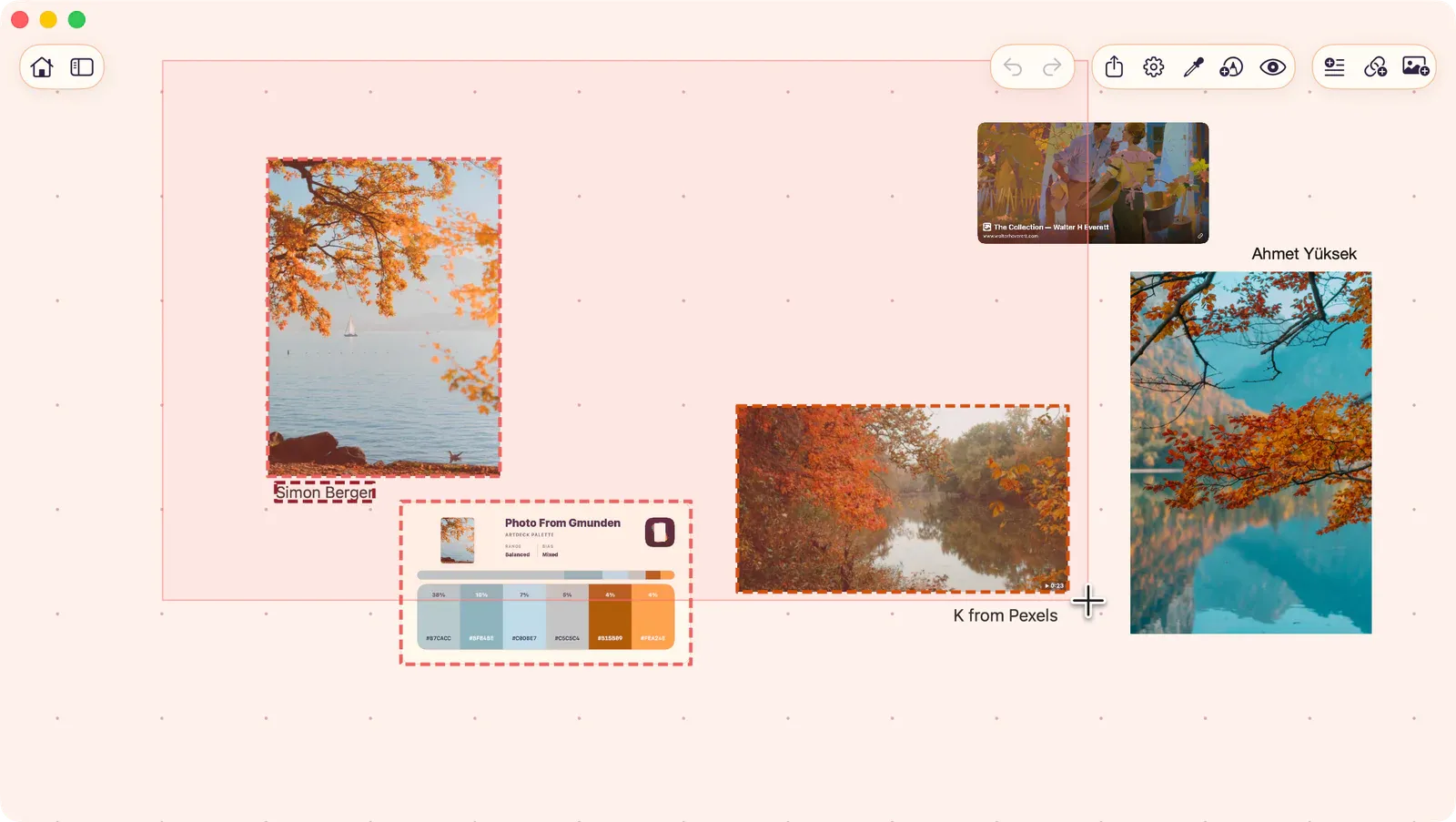
| Drag empty area | Marquee select: replaces the current selection |
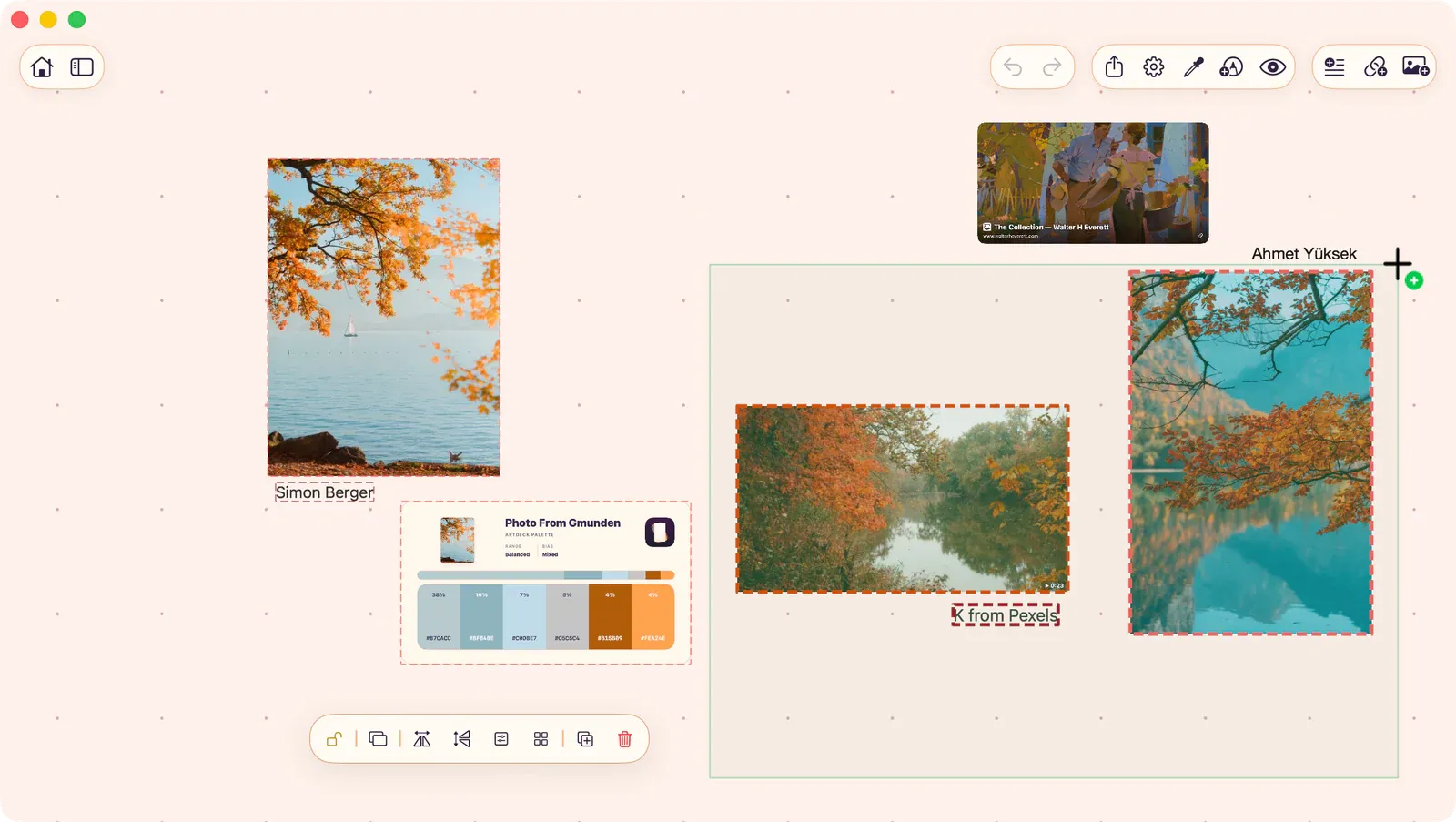
| Shift-drag | Add the marqueed items to the selection (green marquee) |
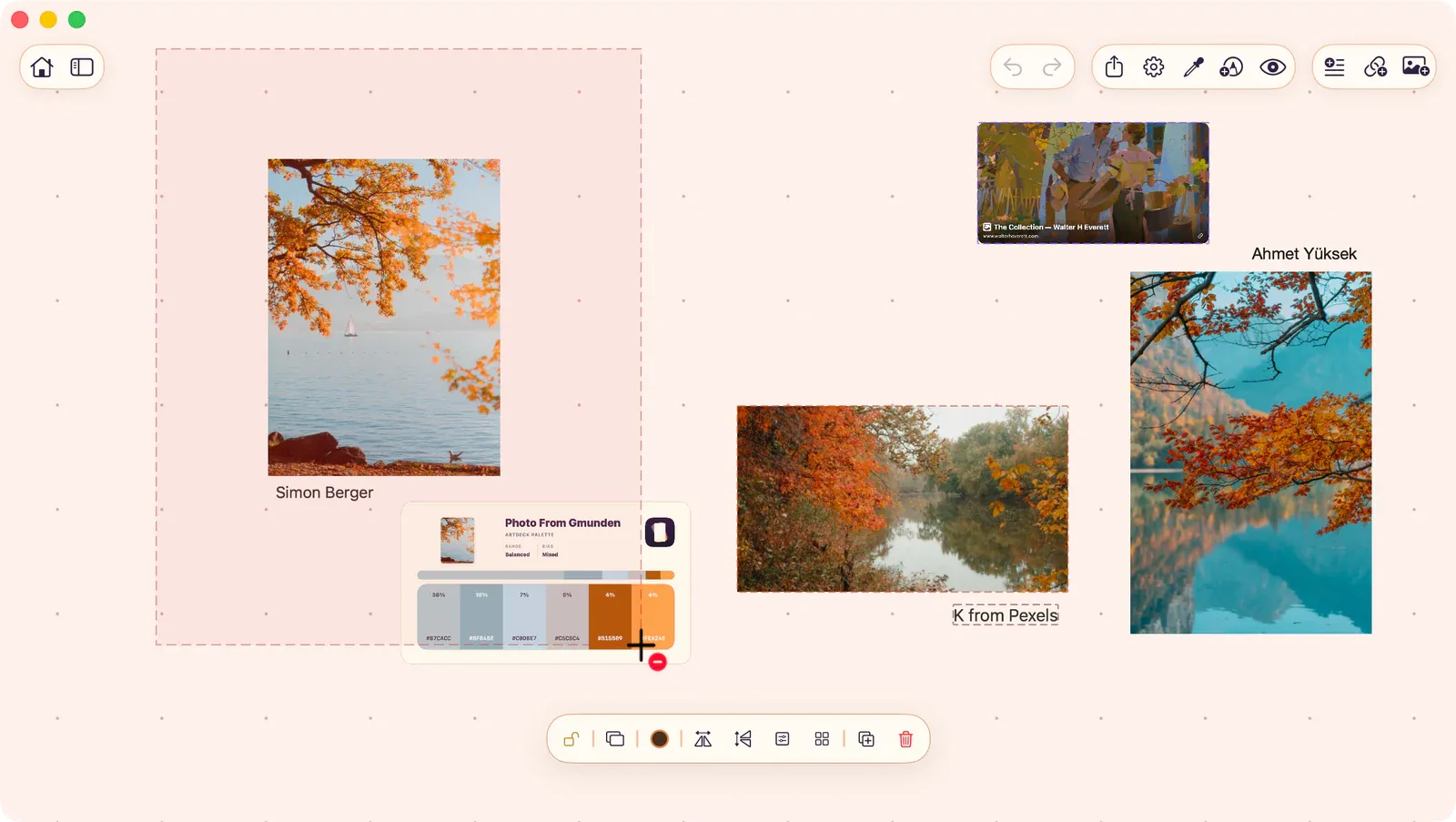
| Option-drag | Remove the marqueed items from the selection (red, dashed marquee) |
The marquee color and item outlines update live to preview the result before you release. The screenshots below show replace, add, and remove states. For the full walkthrough, see Selecting Items.
| Gesture | Action |
|---|
| Tap board card | Open board |
| Long-press board card (iPhone and iPad) | Gallery contextual menu (radial on touch) |
| Right-click board card (Mac, iPad with pointer) | Gallery contextual menu |
| Swipe (carousel) | Browse boards |
| Gesture | Action |
|---|
| Drag on board | Position viewfinder, symmetry axis, Scope, measure tools |
| Drag edges/corners | Resize viewfinder or Scope |
| Arrow keys | Nudge measure tool positions |
| Gesture | Action |
|---|
| Drag seek bar | Scrub through video |
| Tap filmstrip frame | Jump to GIF frame |
| Long-press + drag filmstrip | Extract frame as new image |
| Swipe down (fullscreen video) | Exit fullscreen |
