
Fix iCloud Sync Issues
Start with the status ArtDeck shows in the gallery, board settings panel, or App Settings > General > iCloud. Most sync issues resolve by reconnecting to the network, opening ArtDeck on another synced device, or retrying the affected board.
Board Sync Statuses
Section titled “Board Sync Statuses”Open the board settings panel to see the current sync status.
| Status | What it means | What to do |
|---|---|---|
| Up to Date | All changes have synced. | No action needed. |
| Syncing now… | Changes are uploading or downloading. | Keep ArtDeck open. |
| Waiting to Sync | Local changes are queued. | Wait for the next sync pass. |
| Waiting for Wi-Fi | Changes are saved locally and waiting for an allowed network. | Connect to Wi-Fi or enable cellular sync on an iPhone or Wi-Fi + Cellular iPad. |
| Offline. This board will sync when you’re connected. | No usable network is available. | Reconnect to the internet. |
| Setting Up | ArtDeck is preparing iCloud Sync for this device. | Keep ArtDeck open. |
| Checking iCloud | ArtDeck is checking the current iCloud account or cloud state. | Wait, then check the account if the status stays. |
| Sign In to iCloud | Sync is on, but this device is not signed in to iCloud. | Sign in with the Apple Account that owns the boards. |
| iCloud Restricted | iCloud access is blocked by a device or account policy. | Check device management, Screen Time, or account restrictions. |
| Storage Full | Your iCloud storage is full. | Free up iCloud storage or upgrade your plan. |
| Paused | Some records paused after repeated errors or rate limits. | Open App Settings and tap Retry. |
| Needs Attention | Some records need another retry. | Open App Settings for the recovery row. |
| Original file unavailable | A synced item is missing its original file on this device. | Open ArtDeck on the source device or request the original again. |
| Can’t sync to iCloud | An item repeatedly failed to upload. The file is still on this device. | Open the board settings panel (or App Settings) and tap Retry. |
| iCloud Off | App-level iCloud Sync is off. | Turn on Sync with iCloud in App Settings. |
Recovery Rows in App Settings
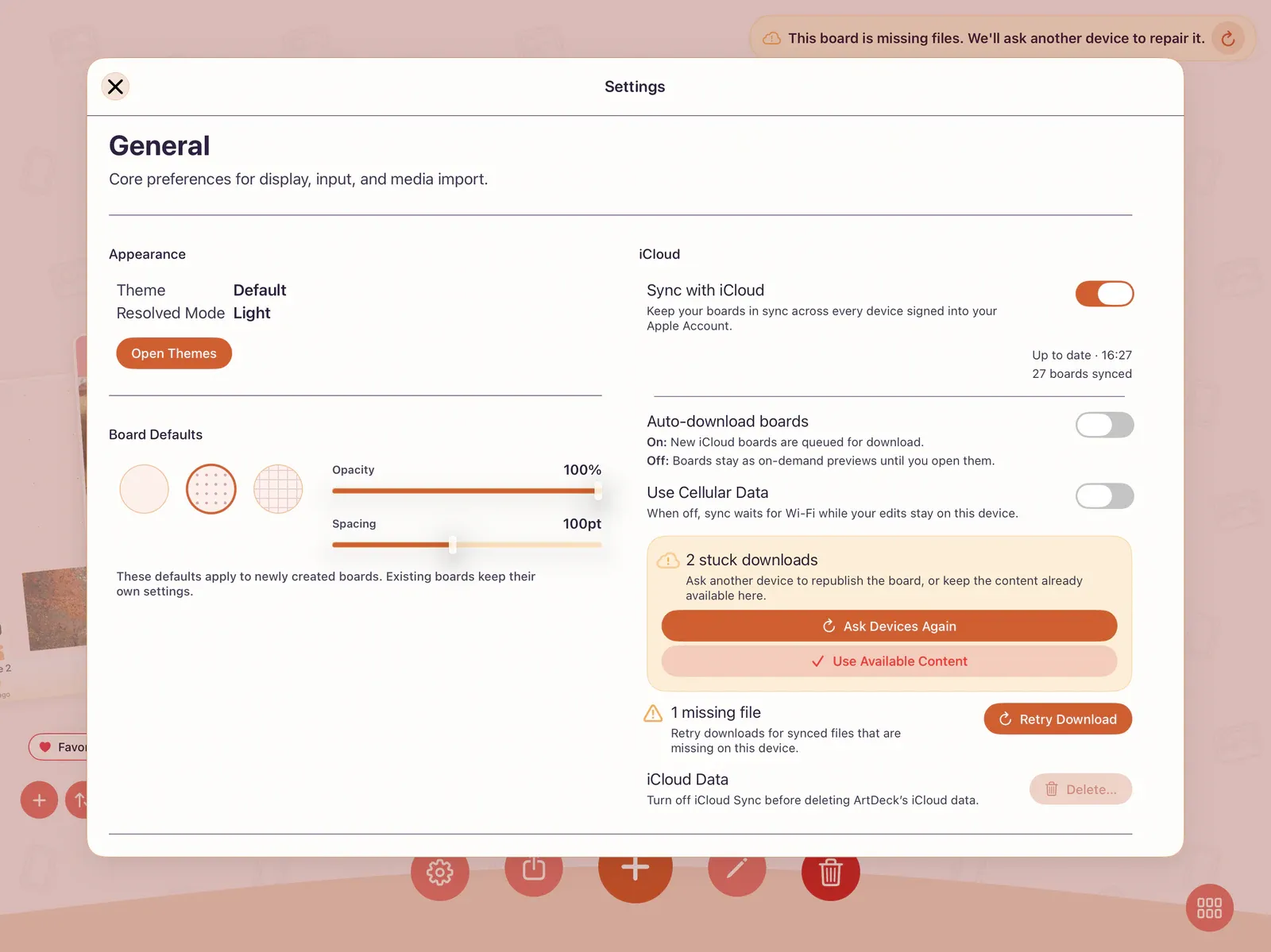
Section titled “Recovery Rows in App Settings”When ArtDeck needs a decision or retry, the iCloud card in App Settings > General > iCloud shows a recovery row.
| Message | What it means | Action |
|---|---|---|
| Could not sync | Some records paused after repeated sync errors. | Tap Retry. |
| Missing files | Synced files are expected but missing on this device. | Tap Retry Download. |
| Stuck downloads | A board has partial content and needs help finishing. | Tap Ask Devices Again, or use Use Available Content if you want to keep what is already here. |
| Boards need review | A device returned with newer board content after available content was kept here. | Review the affected board before continuing work. |
Board Missing on Another Device
Section titled “Board Missing on Another Device”Make sure both devices are signed in to the same Apple Account, Sync with iCloud is on in App Settings, and Sync This Board is on for that board. If the board exists in iCloud but is not downloaded on this device yet, it appears in the gallery with a cloud download control.
Files Missing or Needs Another Device
Section titled “Files Missing or Needs Another Device”Open ArtDeck on the device that has the full board or original files, keep it online, then return to this device and tap Retry Download or Ask Devices Again from App Settings > General > iCloud.
Use Use Available Content only when you want to keep the content already available on this device instead of waiting for another device to republish missing files. If another device later returns with newer content, ArtDeck may ask you to review the board.
iCloud Storage Full
Section titled “iCloud Storage Full”If your iCloud storage is full, ArtDeck saves your changes locally and shows Storage Full. Your work is not lost. To resume syncing:
- iPhone and iPad:
Settings > [your name] > iCloud > Manage Account Storage - Mac:
System Settings > [your name] > iCloud > Manage
Free up space or upgrade your iCloud plan, and sync will resume automatically. See Apple Support for iCloud storage options.
iCloud Account Unavailable
Section titled “iCloud Account Unavailable”If iCloud Sync is on but ArtDeck shows an account error, open Settings > [your name] on iPhone and iPad, or System Settings > [your name] on Mac. Sign in to iCloud, or check that iCloud is not restricted by device policy.