
Contextual Menus
Use contextual menus for quick actions on the canvas, selected items, and gallery board cards. On iPhone and iPad, long-press opens a radial menu. On Mac, right-click opens the native contextual menu. On iPad with a mouse, trackpad, or Universal Control pointer, right-click opens the native contextual menu too.
The available actions change based on where you open the menu.

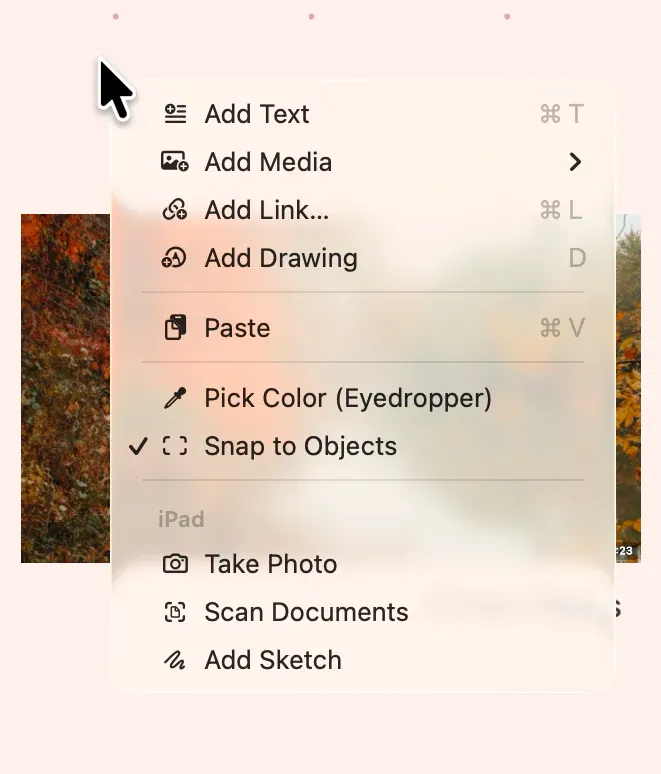
Board Contextual Menu
Section titled “Board Contextual Menu”Open the contextual menu on an empty area of the board:
- Photos: Open the photo picker
- Add Text: Create a text item
- Paste: Paste clipboard content
- Pick Color: Pick a color from the board
- Add Drawing: Start a freehand drawing
- Add Link: Create a link card
- Selection: Arm a rectangle selection for the next empty-canvas drag
- Snap toggle: Turn snapping on or off
Item Contextual Menu
Section titled “Item Contextual Menu”Open the contextual menu on a selected item. Actions vary by item type:
- On touch, the radial menu keeps common actions in stable slots: duplicate, copy, lock/unlock, delete. The right-click contextual menu lists the same item actions in native menu form.
- The Z-Order submenu appears in the touch radial menu and the right-click contextual menu; additional arrange actions remain available in the accessible linear menu and other controls.
- Image: ToolBox, crop, annotate
- Text: Edit, text color, formatting
- Link: Open link, copy link, edit metadata, toggle card style
- Group: Dissolve, leave group, group color
- Media: ToolBox, play/pause, loop, export frame, annotate; Leave Group appears when the item is inside a group
- Drawing: Edit drawing
- Multi-selection: Create group, join, fuse
Gallery Contextual Menu
Section titled “Gallery Contextual Menu”Open the contextual menu on a board card in the gallery:
- Edit: Rename, duplicate, labels
- Manage: Favorite, archive, delete
- Export: Open export settings