
Use View Mode
Use View Mode when you want to review, present, or study a board without accidentally selecting or moving items.
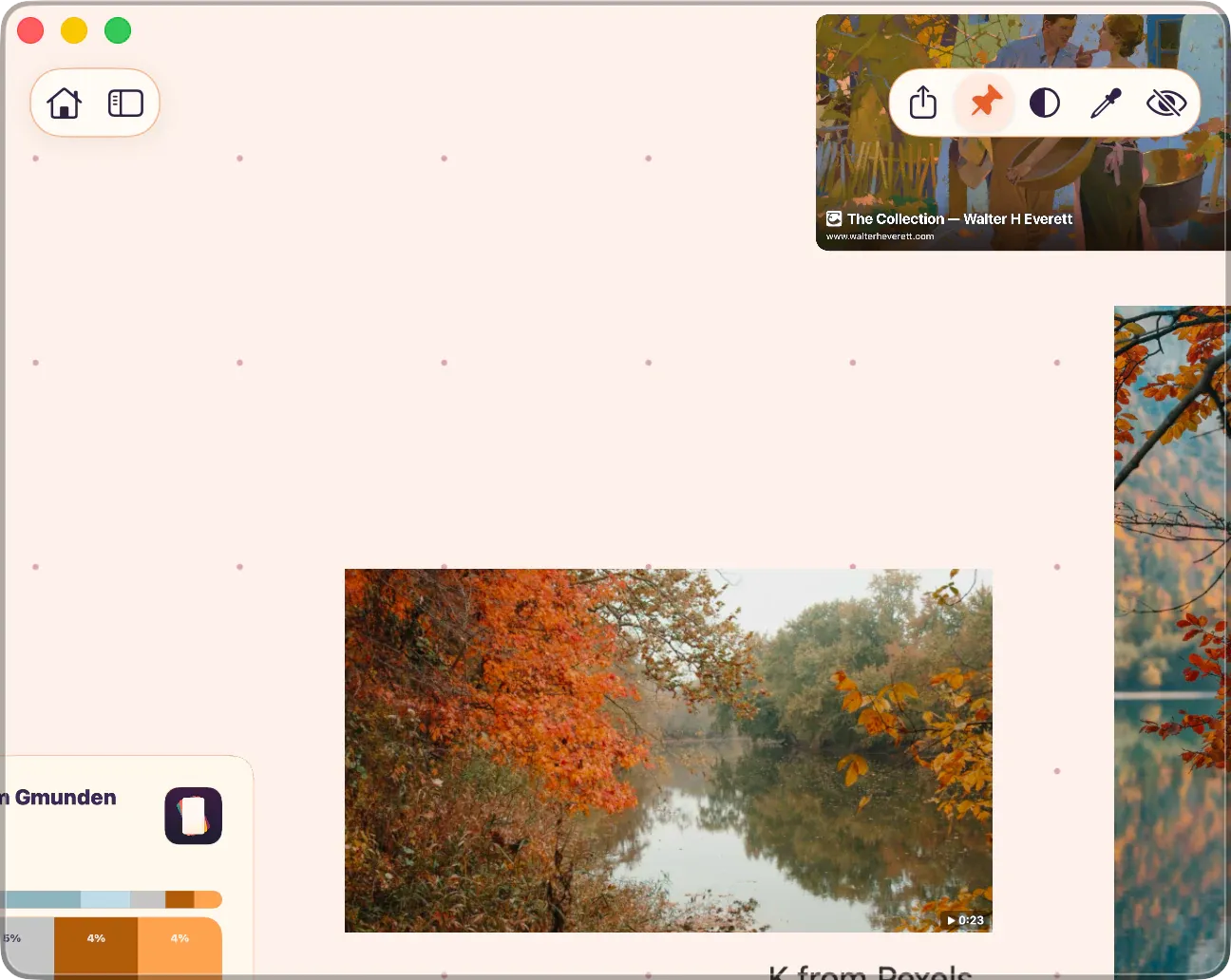
Turn View Mode On or Off
Section titled “Turn View Mode On or Off”- Click or tap the View Mode button in the board header.
- On Mac, choose
Board > View Modefrom the menu bar. - With a keyboard connected, press ⌘⇧P.
Press the same shortcut or use the Edit Mode button to return to editing.
What Changes
Section titled “What Changes”View Mode keeps the board readable and reduces editing chrome:
- Current selections, crop handles, and text editing are cleared.
- Floating panels close.
- Board items stop accepting edit gestures, so clicks and touches are for viewing and navigation.
- The board header can hide while you are reviewing the board.
Panning, zooming, exporting, color picking, and returning to the gallery still stay available.
Grayscale Preview
Section titled “Grayscale Preview”Grayscale Preview turns the board display black and white without changing your items or theme. Use it to check value structure, contrast, and whether a composition still reads without color.
- Press ⌘Y.
- Or choose
View > Grayscale Preview. - In View Mode, use the Grayscale Preview button in the board header.
Turning View Mode off also turns Grayscale Preview off.
Mac Window Pinning
Section titled “Mac Window Pinning”On Mac, View Mode also exposes the Pin on Top button. Use it when you want the ArtDeck window to stay above other app windows while you compare references or work in another app. See ArtDeck on Mac for the Mac-specific behavior and shortcut.