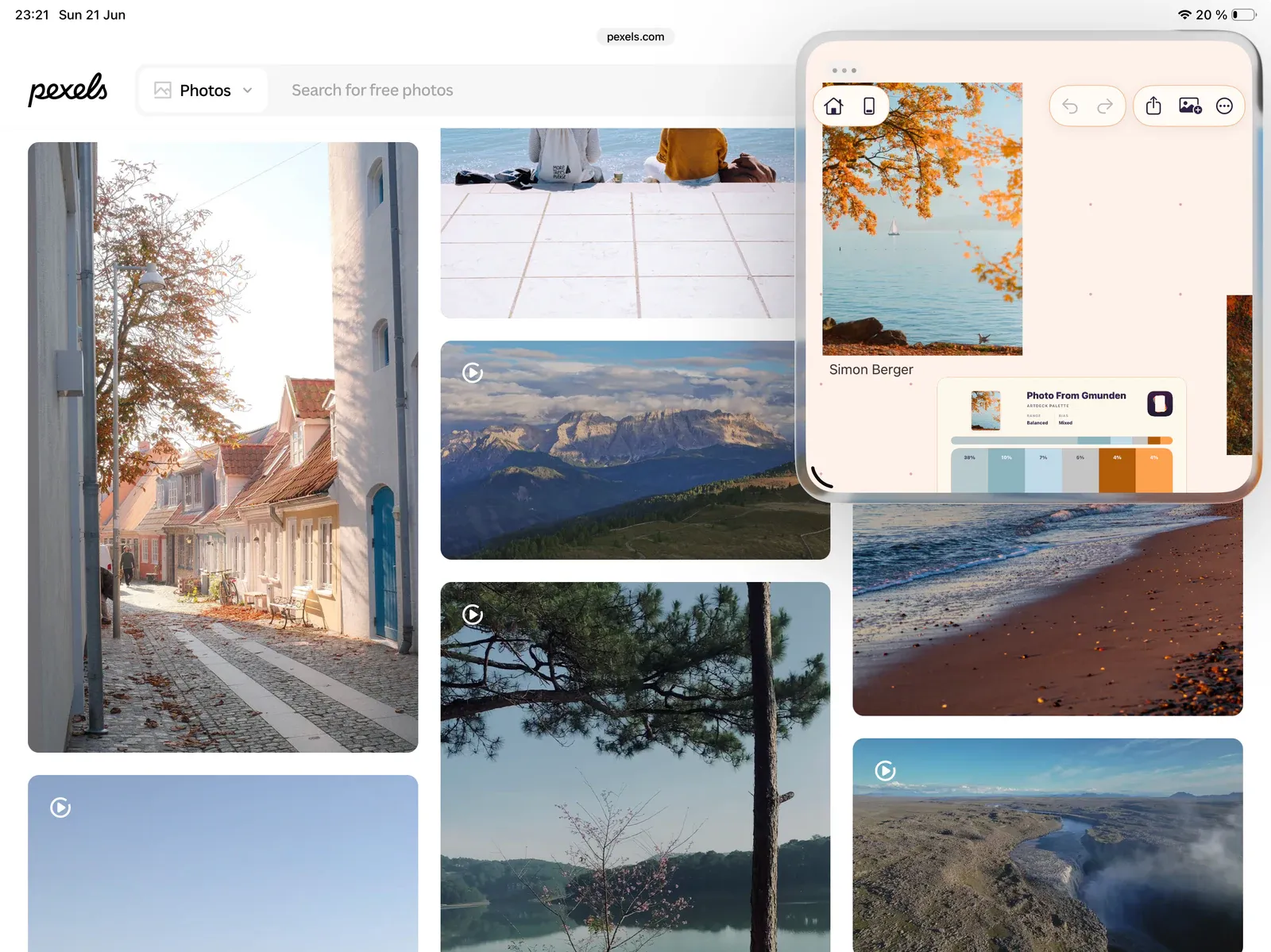
ArtDeck on iPad
On iPad, ArtDeck keeps the roomy board layout while adding iPadOS touch, Pencil, keyboard, and multitasking workflows.
Touch and Camera Input
Section titled “Touch and Camera Input”ArtDeck uses the same core touch gestures on iPad and iPhone, with extra room for Apple Pencil, pointer, keyboard, and multitasking workflows.
- Use two-finger tap for undo and three-finger tap for redo. Touch and hold with the same number of fingers to repeat undo or redo.
- Long-press items, the board, or gallery cards for contextual radial menus.
- With a mouse, trackpad, or Universal Control pointer, right-click items, the board, or gallery cards for native contextual menus.
- Use
Add Media > Scan Documentto scan physical pages with the iPad camera. - Use
Add Media > Capturefor camera photos or video.
See Gesture Reference for the full touch, pointer, and trackpad gesture table.
While moving, resizing, or rotating an item with a hardware keyboard connected, hold Control to temporarily ignore snapping for that gesture.
Apple Pencil
Section titled “Apple Pencil”ArtDeck fully supports Apple Pencil for drawing and annotation on iPad.
- Draw with Pencil: Tap the Annotate button (draw icon) or press D to enter Annotation Mode, then draw directly on the canvas or on an item using your Pencil.
- Pencil Only Drawing: Enable this toggle in
App Settings > Display & Inputto restrict canvas drawing to Apple Pencil only. Finger drawing is disabled, but two-finger pan and zoom still work normally.
See Annotation Tools for the full set of brushes, eraser, lasso, and ruler tools.
Multitasking
Section titled “Multitasking”Use ArtDeck in Split View or Slide Over when you want another app beside your board. Drag supported content from another app directly onto the canvas, or connect a keyboard and use the same shortcut set documented in Keyboard Shortcuts.