
Arrange Items
Use Arrange when selected items need cleaner spacing, matching edges, a different layer order, a compact pack, matching scale, or matching visual dimensions.
Open Layout Controls
Section titled “Open Layout Controls”Open Arrange from the selected-item control bar when you want the full layout set in one place. On Mac, you can also use the Arrange menu. On iPad or Mac with a pointer, the contextual menu includes the same layer order, align, distribute, and other arrangement actions.
Use Tidy Up from the selected-item control bar when you want ArtDeck to clean up the current selection automatically.
Before You Arrange
Section titled “Before You Arrange”Layer order actions need at least one selected item. Align, Pack, Match Scale, Match Visual Size, Match Width, and Match Height need at least two selected items. Distribute and Tidy Up need at least three selected items. If an item does not move, check whether it is locked before trying the arrangement action again.
Use layer order when items overlap and one item needs to move in front of or behind another. Newer items appear on top by default.
While you drag an item on the canvas, ArtDeck temporarily draws it in front of other items. When you release, the item returns to its normal layer order unless you change it.
| Shortcut | Action |
|---|---|
| ⌥⇧Up | Bring to Front: move selection to the topmost layer |
| ⌥Up | Bring Forward: move selection one layer up |
| ⌥Down | Send Backward: move selection one layer down |
| ⌥⇧Down | Send to Back: move selection to the bottommost layer |
| Shortcut | Action |
|---|---|
| ⌥A | Align Left: match left edges |
| ⌥D | Align Right: match right edges |
| ⌥W | Align Top: match top edges |
| ⌥S | Align Bottom: match bottom edges |
| ⌥H | Align Center Horizontally |
| ⌥V | Align Center Vertically |
Distribute
Section titled “Distribute”The Arrange panel has two distribution variants for each axis:
- Distribute Horizontally / Vertically: Spaces items evenly across the current selection span when there is room. If the selected items are too tight, ArtDeck expands them outward using its minimum gap.
- Distribute Spacing Horizontally / Vertically: Places items from the first item outward with a fixed 10 px gap between item edges.
Only the standard distribute actions have keyboard shortcuts:
| Shortcut | Action |
|---|---|
| ⌘⌥D | Distribute Horizontally |
| ⌘⌥⇧D | Distribute Vertically |
Pack and Match Sizing
Section titled “Pack and Match Sizing”| Shortcut | Action |
|---|---|
| ⌘⌥P | Pack: move selected items into a compact arrangement |
| ⌘⌥E | Match Scale: set selected items to the same canvas scale while preserving each item’s proportions |
The Arrange panel keeps the sizing actions together in one row. Each action uses the last selected eligible item as its reference. A marquee or Select All keeps the batch’s selection order. To choose a different reference, deselect an item and select it again so it becomes last.
- Match Scale: Set selected images, links, groups, and media to the last selected eligible item’s scale while preserving each item’s proportions.
- Match Visual Size: Resize selected items to the last selected item’s visual size while preserving each item’s proportions.
- Match Width: Resize selected items to the last selected item’s unrotated width while preserving each item’s proportions.
- Match Height: Resize selected items to the last selected item’s unrotated height while preserving each item’s proportions.
Match Visual Size, Match Width, and Match Height work across images, text, links, groups, drawings, and media. Only Match Scale has a keyboard shortcut.
Tidy Up
Section titled “Tidy Up”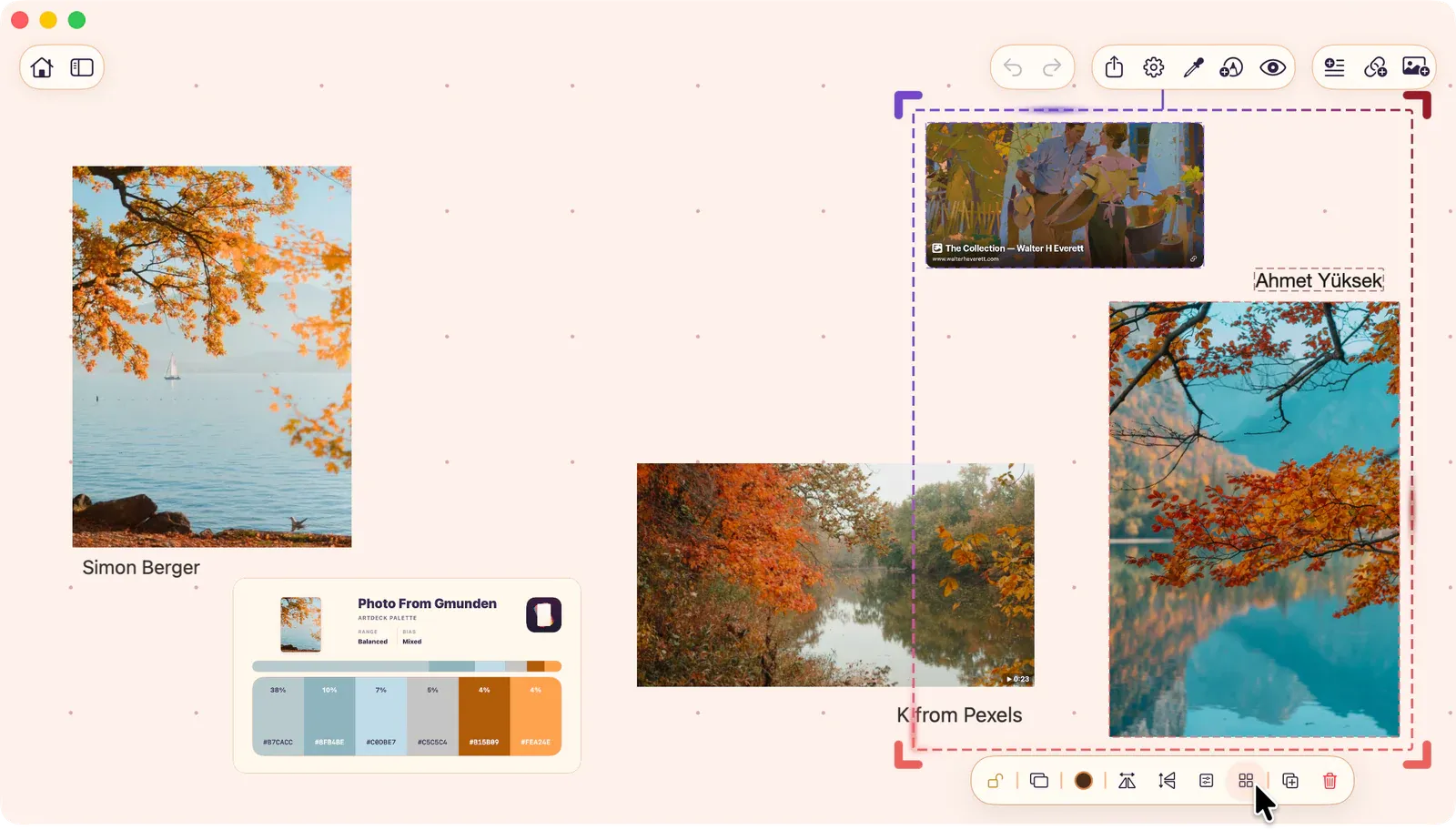
The Tidy Up action (⌘⌥T) arranges selected items into a cleaner row, column, or grid based on the current selection. When the selection has no clear structure to preserve, Tidy Up packs the items into a compact block instead. It appears when ArtDeck can detect a layout worth tidying, and is available from the control bar, contextual menu, and Arrange menu.