
Selecting and Moving Items
Select items before moving, editing, grouping, aligning, or exporting them. The selection overlay and control bar show the actions available for the current item type.
Select an Item
Section titled “Select an Item”Tap an item to select it. A selection overlay appears around the item and the control bar shows above it with contextual actions.
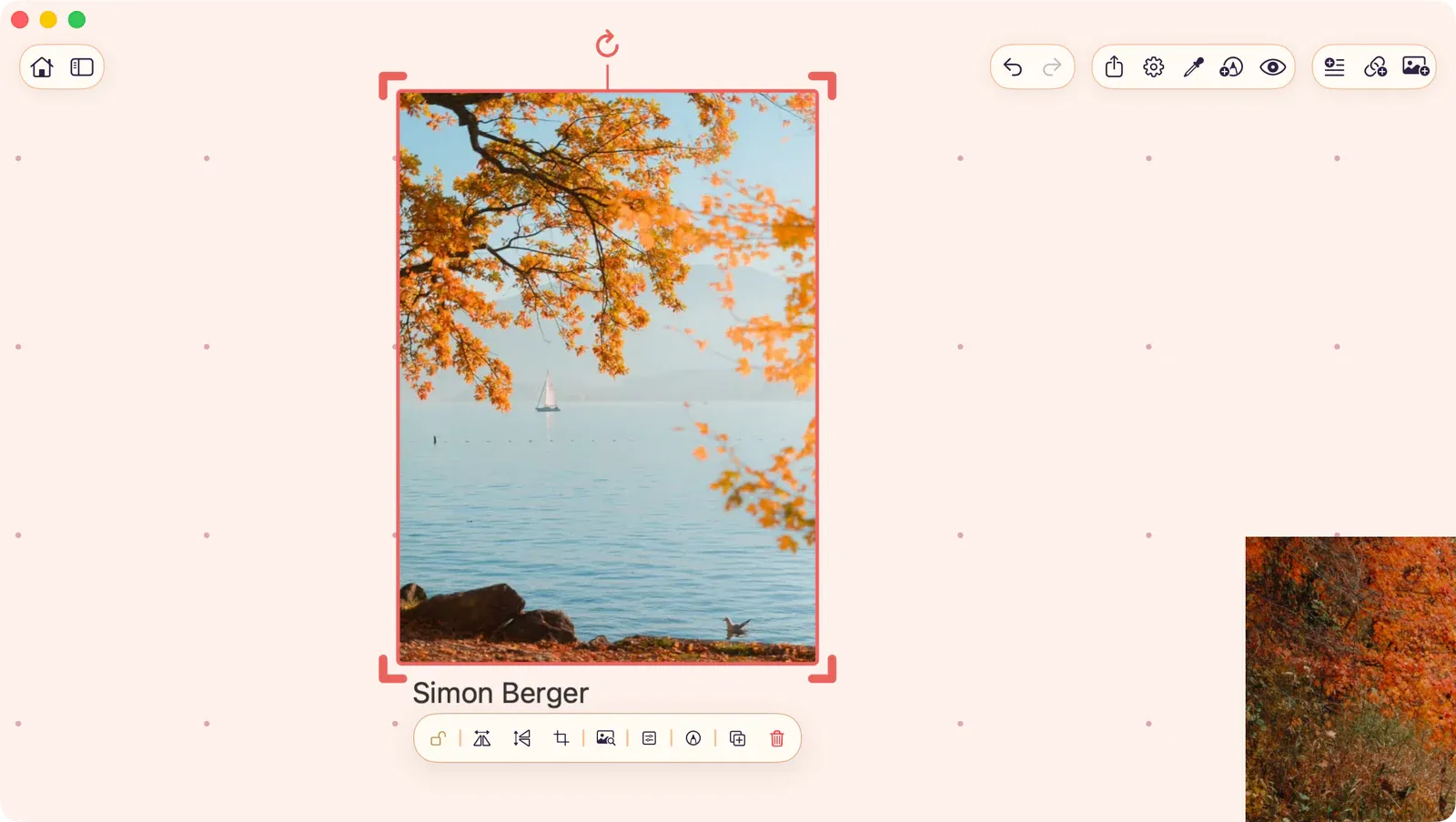
On iPhone and iPad, tapping a second item adds it to the selection. While multiple items are selected, tap a selected item to remove it from the selection.
Double-tap an item to focus that item and perform its primary action: edit text, open a link card, play or pause media, or drill into a group.
With a hardware keyboard, press Tab to move the focus ring through canvas items. Press Return or Space to select the focused item, replacing the current selection. Focused groups open, and focused link cards open their link.
Move an Item
Section titled “Move an Item”Drag a selected item to reposition it on the board.
Multi-Select
Section titled “Multi-Select”- Tap additional items on iPhone or iPad to add them to the selection.
- Tap additional items while holding Command (Mac) to add them to the selection.
- The control bar updates to show actions available for multiple items (align, distribute, group).
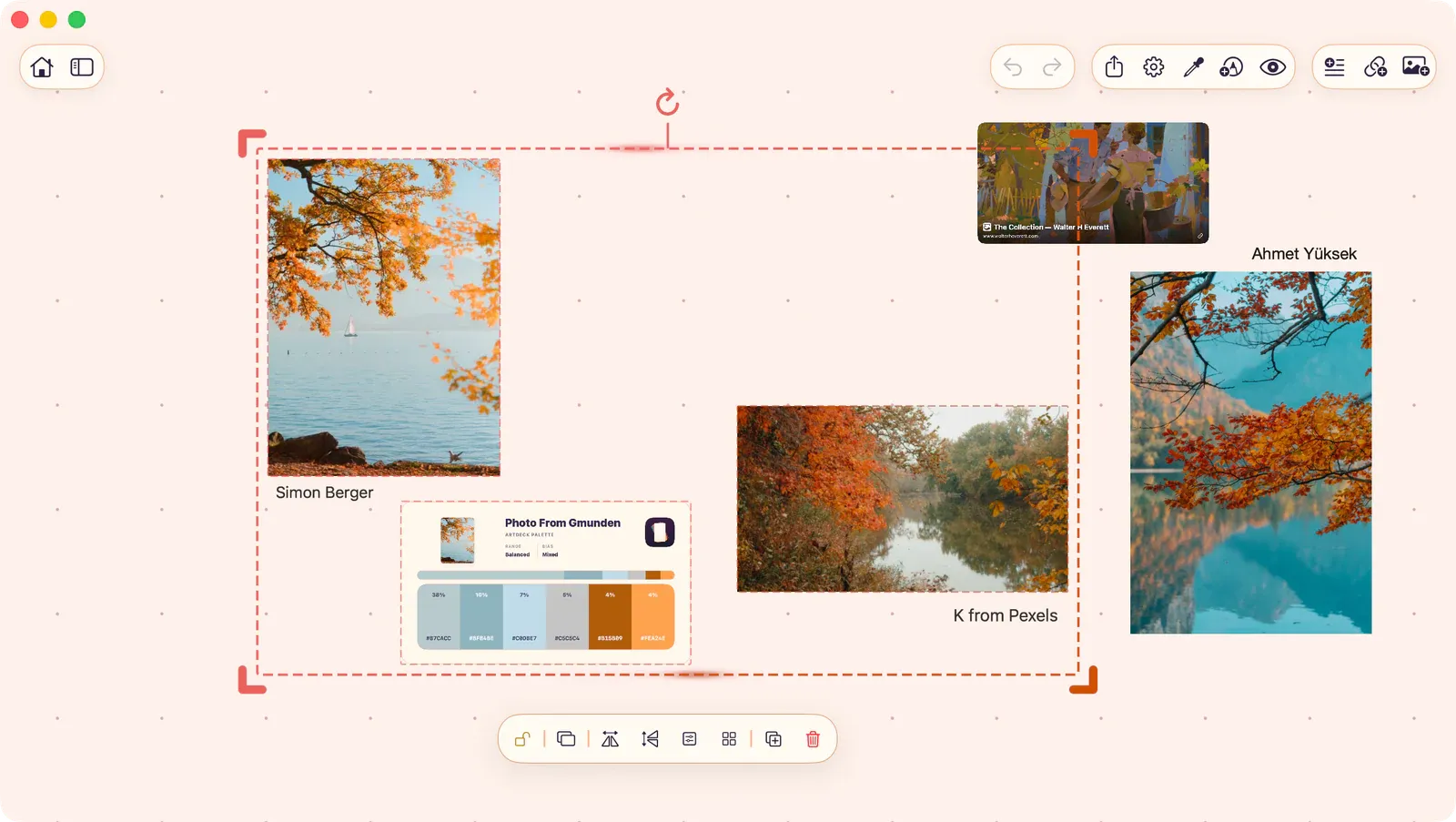
Selection (Marquee)
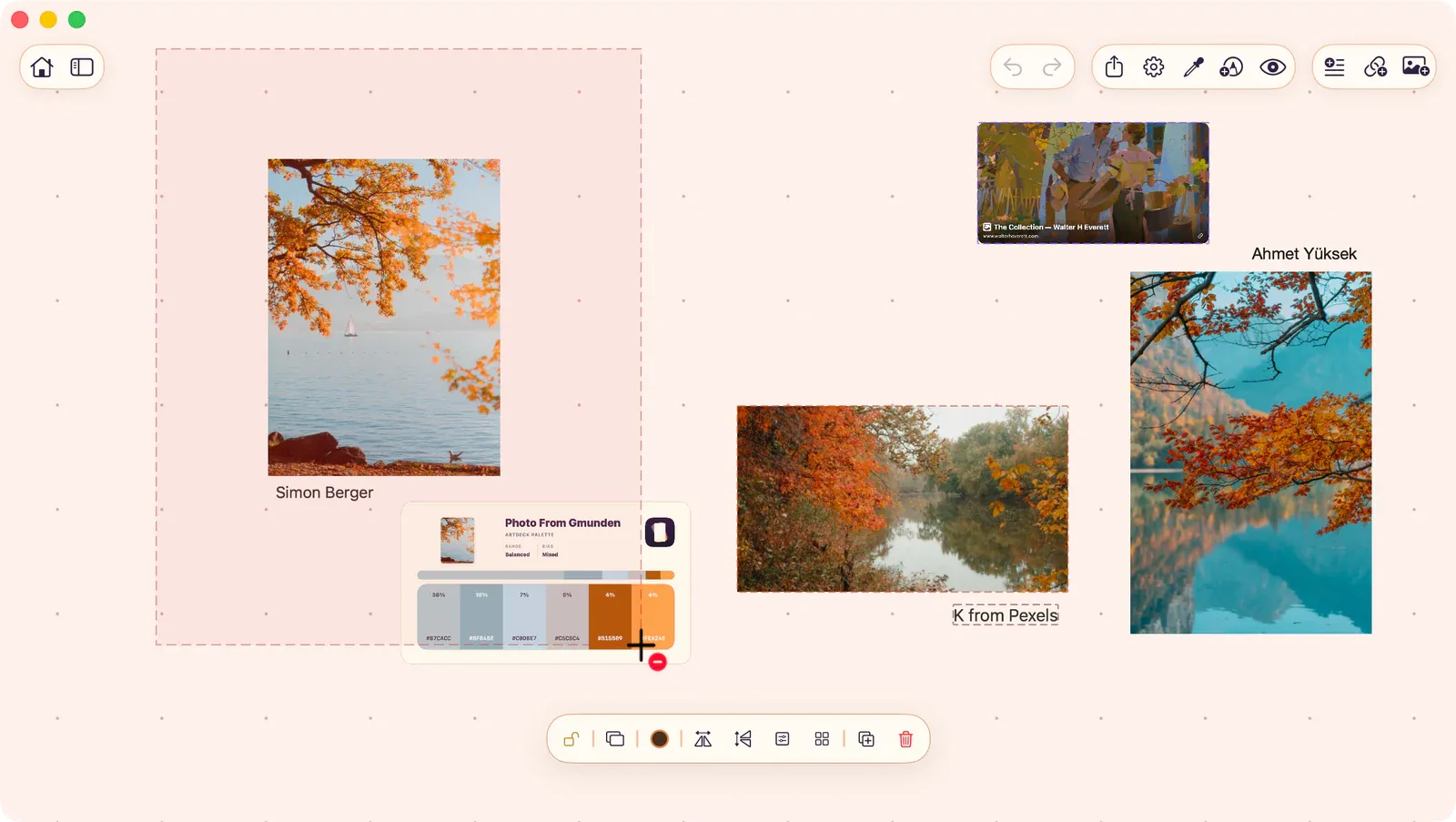
Section titled “Selection (Marquee)”Drag across an empty area of the board to draw a selection rectangle. Items whose center falls within the rectangle will be selected.
- iPhone and iPad: Long-press empty canvas, choose Selection, then drag on empty canvas when the hint appears.
- Mac: Click and drag on empty canvas space.
- iPad with keyboard: Hold Command and drag on empty canvas space.
Selection Modifiers
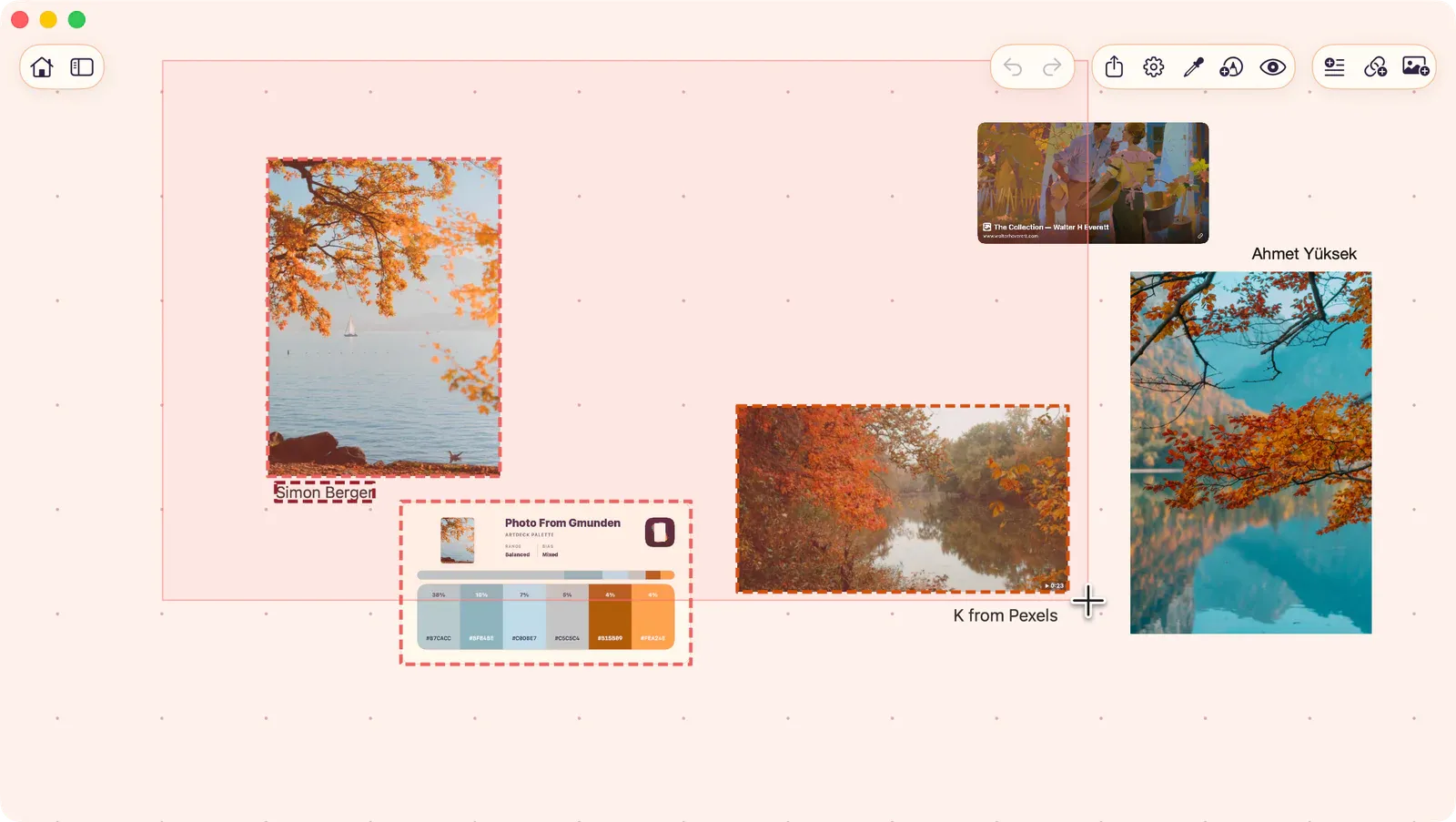
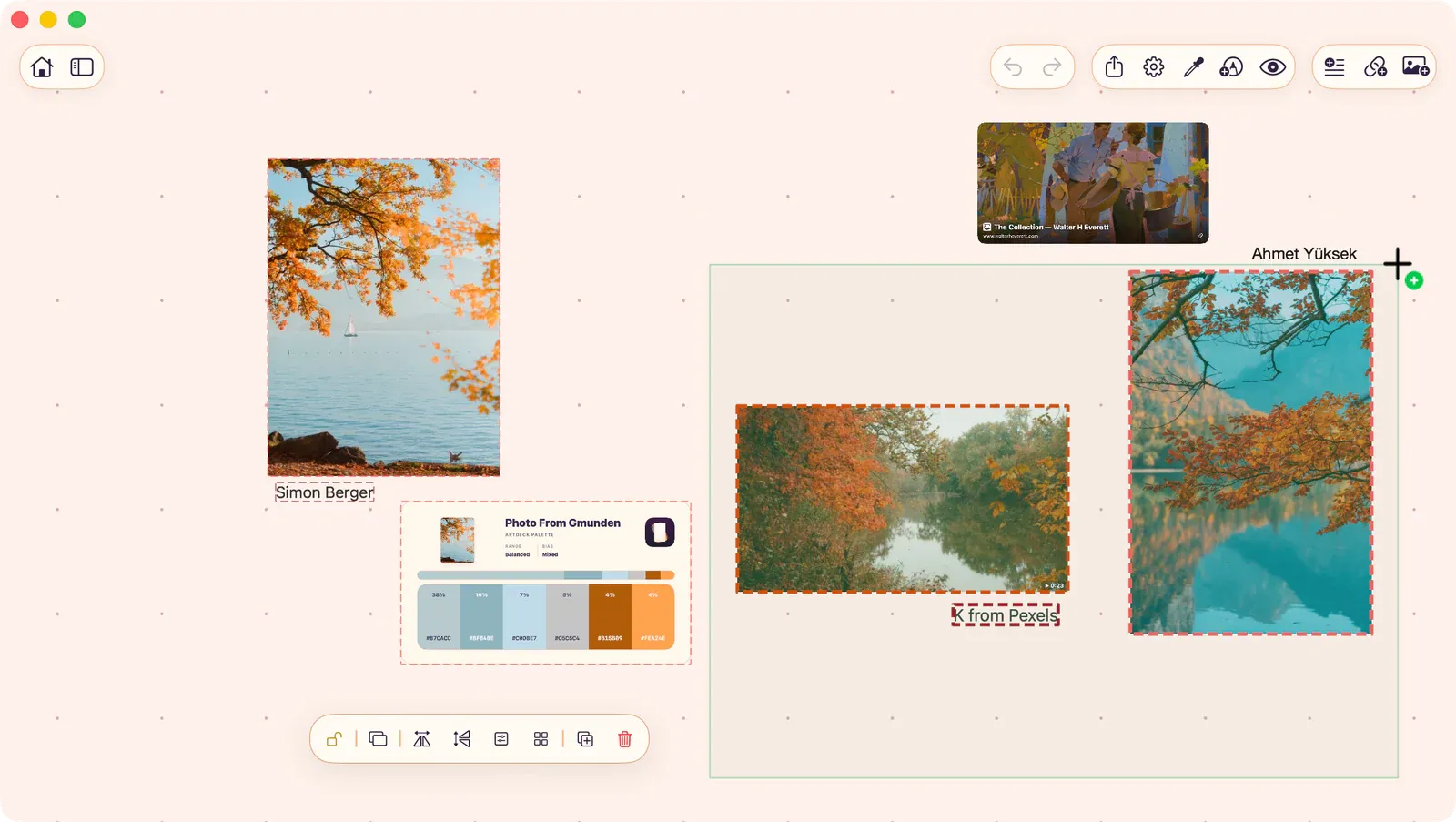
Section titled “Selection Modifiers”You can press or release modifier keys during the drag to switch modes. The marquee color and item outlines update instantly to preview the result.
- Shift while dragging: Add items to the existing selection. The marquee turns green.
- Option while dragging: Remove items from the existing selection. The marquee turns red with a dashed border, and items inside lose their outlines.
- No modifier: Replace current selection. Items outside the marquee dim to show they will be deselected.
Deselect
Section titled “Deselect”- Tap an empty area of the board.
- Press Escape.
When nothing is selected, tapping an empty board area opens the add content panel instead.
The Control Bar
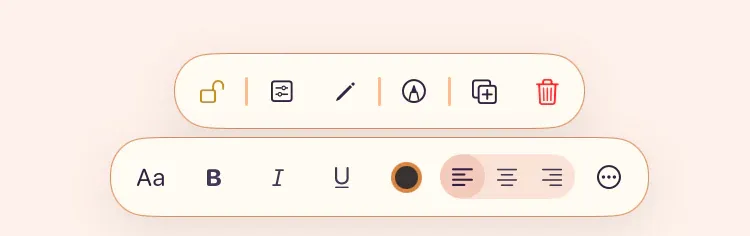
Section titled “The Control Bar”When one or more items are selected, the control bar appears with actions specific to the selection:
- Common actions: Lock, duplicate, delete.
- Type-specific actions: Crop (images), edit (text), play (media), and more.
- Layout actions: Arrange, layer order, alignment, distribution, pack, Match Scale, Match Visual Size, Match Width, and Match Height.
The control bar adapts based on item type and selection count. See the specific item type pages for details on each action.
Select All
Section titled “Select All”Press ⌘A to select all items on the board.