
Measure Lens
Open the Measure lens to check alignment, angles, proportions, and linear perspective directly on the board.
Placing and Resetting
Section titled “Placing and Resetting”Plumb Line, Angle Finder, and Ratio Comparison use the same placement flow:
- Tap Place on Board (or Place Again to re-place) to start placement.
- Tap on the board to set the initial position.
- Tap Reset to clear the current geometry and start over.
Note: On iPhone and iPad, an on-screen nudge pad fine-tunes the active point. On Mac, use Arrow keys.
Plumb Line
Section titled “Plumb Line”Place intersecting vertical and horizontal guide lines over the reference to check alignments and proportions.
- Tap to position the origin point. After placing, drag the origin to reposition.
- Vertical: Toggle the vertical guide line on or off.
- Horizontal: Toggle the horizontal guide line on or off.
Angle Finder
Section titled “Angle Finder”Measure any angle in the reference by placing three points.
- Tap three points to define the angle.
- Snap 15°: Toggle snapping to 15-degree increments.
- Swap Active Ray: Switch which ray is active for nudging.
Ratio Comparison
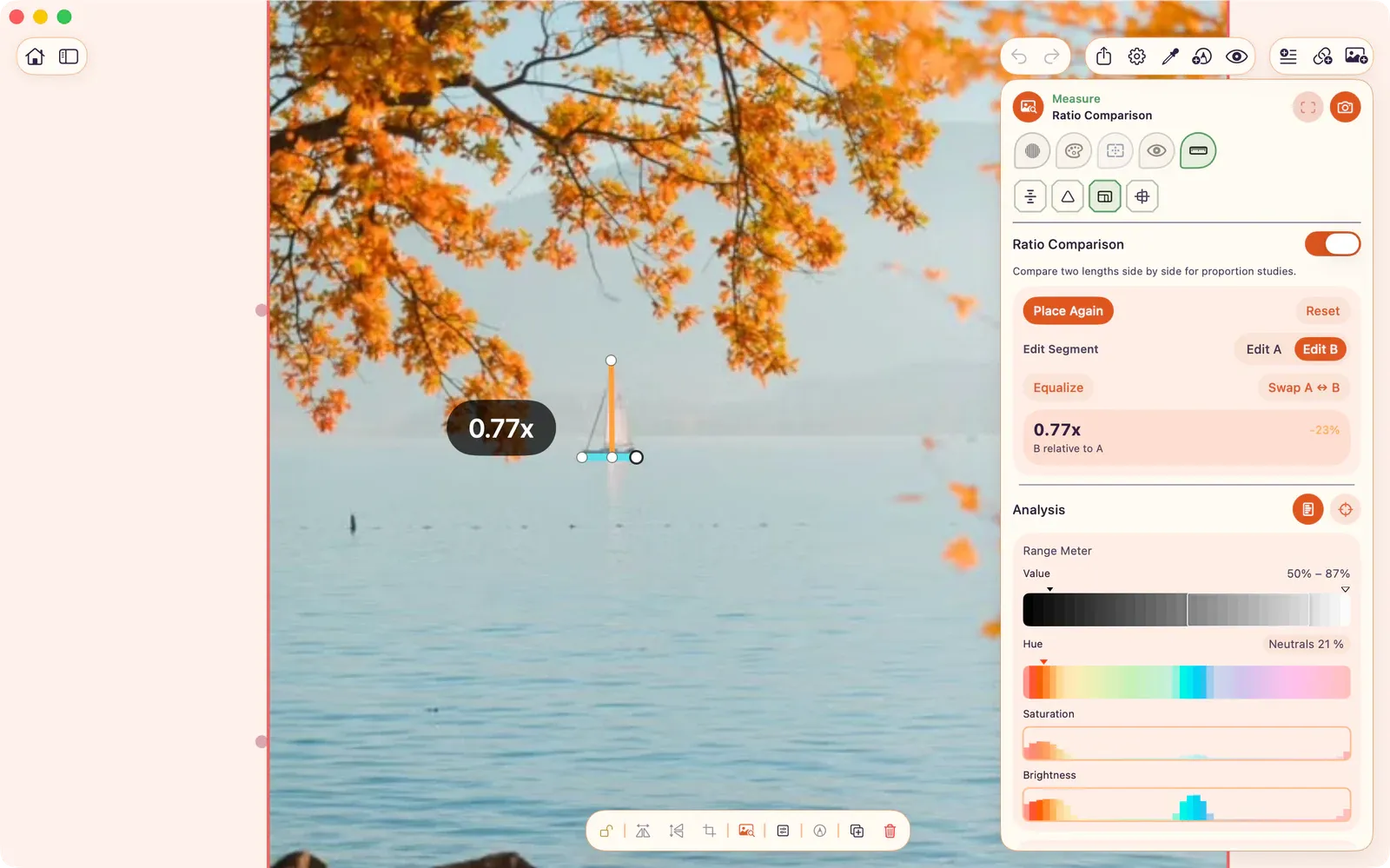
Section titled “Ratio Comparison”Compare two measurements side by side.
- Place segment A and segment B.
- Displays formatted ratio and percentage delta.
- Color-coded positive/negative indicators.
- Equalize: Normalize the active segment to unit length for side-by-side comparison.
- Swap A ↔ B: Swap the two segments.
Perspective
Section titled “Perspective”Place vanishing points and horizons over the selected image, video frame, or animated frame.
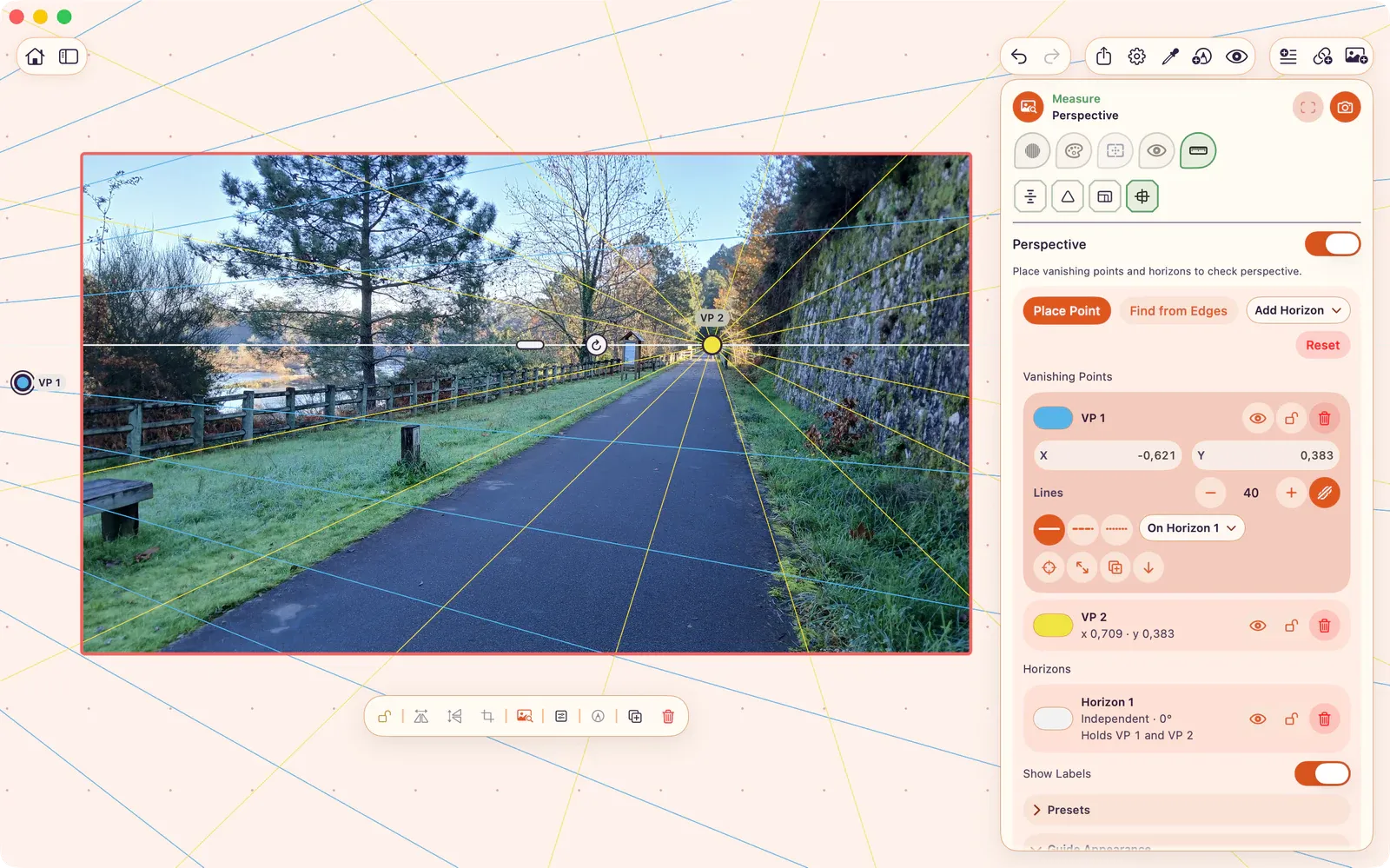
Start with a horizon or with vanishing points. Add an independent horizon and bind points to it, or place two points and add a horizon between them. ArtDeck does not read the horizon from the image, so a new independent horizon starts level near the middle of the source and you move it into place.
- Presets: Choose One-Point, Two-Point, or Three-Point to create a standard setup. Each preset adds an independent horizon and binds its horizontal points to it. Applying a preset to an existing setup replaces the current guides after you confirm.
- Place Point: Tap the canvas to place one point. Choose Place Point again for each additional point, or Cancel Placement to stop. Points can sit beyond the source edge. Perspective supports up to 12 vanishing points.
- Find from Edges: Trace two edges to place a point at their intersection. If the lines are nearly parallel, ArtDeck asks before placing a distant point. If they are exactly parallel, adjust one line and trace again.
- Add Horizon: Choose Independent Horizon for a line you can move and angle yourself, or a horizon between two named points, which follows wherever those points sit and cannot be dragged on its own. ArtDeck does not join points automatically.
- Bind to Horizon: Bind a point to an independent horizon. The point moves along the horizon and follows it when the horizon moves. Choose Release from Horizon to free it.
- Edit guides: Drag handles on the canvas. An independent horizon has two grips: drag the bar to move the line, and drag the circle beside it to change the angle. Select a point to edit its X/Y coordinates, or an independent horizon to edit its Height and Horizon Angle. Tap a labeled edge indicator to reveal an offscreen point.
- Manage guides: Reorder, duplicate, hide, lock, recolor, restyle, or delete a guide. Deleting a point removes horizons derived from it; deleting a horizon releases its bound points. With a keyboard, Delete removes the selected guide before the source item.
- Point actions: On iPhone and iPad, long-press a point handle to lock, hide, center, duplicate, or delete it. On Mac, right-click the handle or use the point’s row in the panel.
- Guide colors: New points take colors that stay separated by hue and lightness for common color vision differences. A three-point setup starts with sky blue, yellow, and vermillion. Recolor any guide from its row.
- Guide Appearance: Set the shared guide opacity, width, and fan Lines count. On a point, choose Override Lines to give it its own count, or Use Global Lines to restore the shared value. Use Show Labels to hide or show point labels.
- Reset: Remove all points and horizons after confirmation.
Guides appear only while Perspective is active and enabled. They hide when you switch tools or targets, turn Perspective off, or close ToolBox.
If a saved setup belongs to a different source or media frame, ArtDeck says so and offers Replace Setup to start again from the current source.
Snapshot to Board captures visible lines and horizons at the source dimensions. It omits handles, labels, trace marks, edge indicators, and ToolBox controls. Offscreen points do not enlarge the snapshot.