
App Settings
Open App Settings to change preferences that apply across ArtDeck. On Mac, press ⌘, (comma). On iPhone and iPad, open settings from the gallery or board header.
General Tab (⌘1)
Section titled “General Tab ()”Appearance
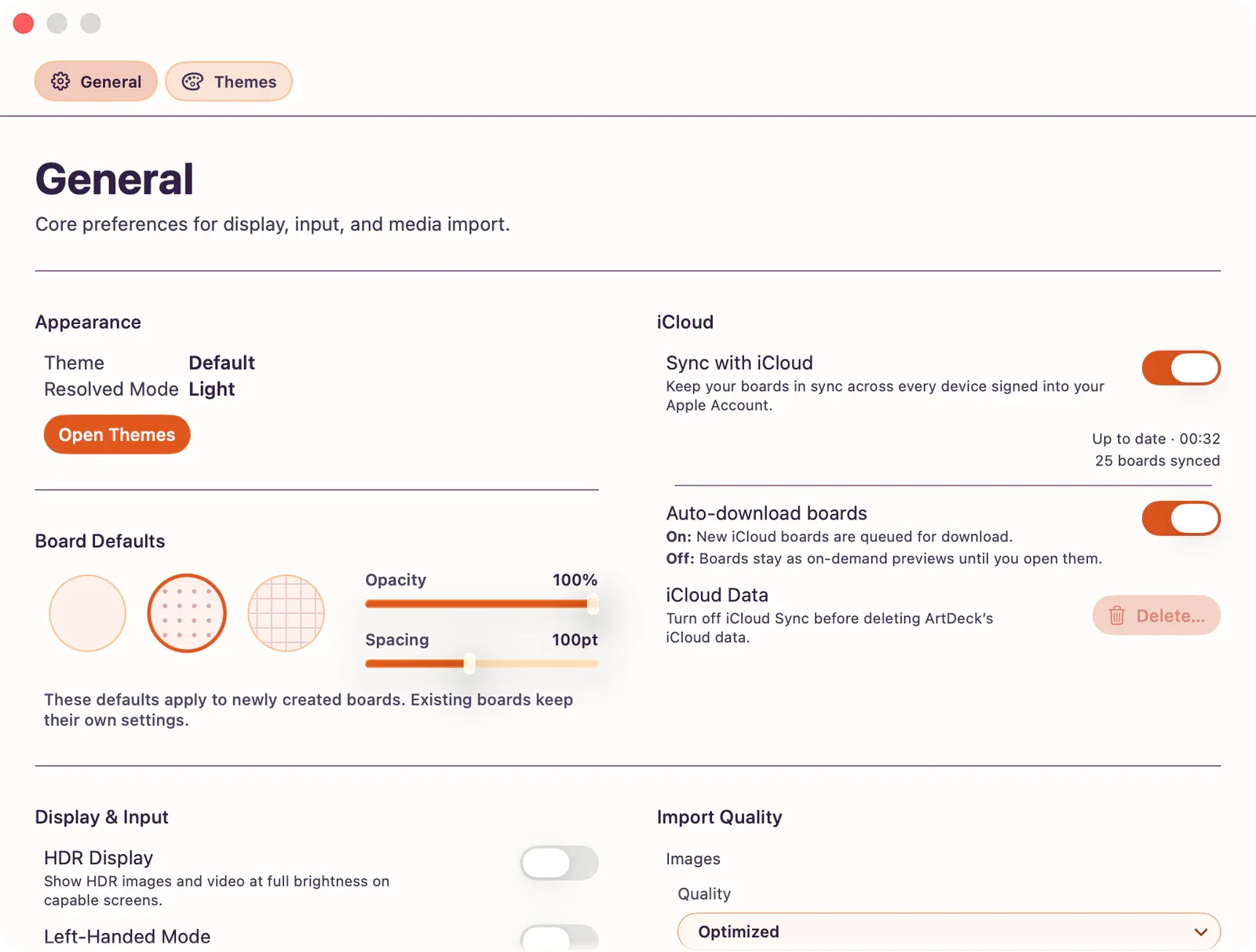
Section titled “Appearance”Shows the active theme name and, for adaptive themes, the resolved appearance mode (Dark, Light, High Contrast Dark, or High Contrast Light). Tap Open Themes to jump to the Themes tab.
Board Defaults
Section titled “Board Defaults”Sets the default background pattern, pattern opacity, and pattern spacing applied to newly created boards. Options are the same as in Board Settings.
iCloud
Section titled “iCloud”Controls all iCloud Sync behavior for the app. See iCloud Sync for the full reference.
- Sync with iCloud: Master toggle. When on, boards sync across every device signed into your Apple Account. When off, boards on this device stay local and cloud-only boards are hidden until you turn sync back on.
- Auto-download boards: When on, new iCloud boards are queued for download automatically. When off, boards remain as on-demand previews until you open them. (Enabled only while Sync with iCloud is on.)
- Use Cellular Data: Allows iCloud Sync to transfer over a cellular connection. When off, sync waits for Wi-Fi while your edits stay on this device. (iPhone and Wi-Fi + Cellular iPad models only.)
- Sync status summary: A live summary row shows whether sync is up to date, active, waiting for Wi-Fi, offline, paused, or blocked by iCloud account or storage issues.
- Recovery rows: When something needs attention, the iCloud card can show Retry, Retry Download, Ask Devices Again, or Use Available Content actions. These appear only for the affected sync state.
- Delete ArtDeck Data from iCloud: A destructive control that removes ArtDeck’s iCloud data while keeping local boards on this device. Available only after Sync with iCloud is turned off.
Note: iCloud Sync keeps your own devices up to date through your Apple Account. It is not a live collaboration or sharing feature.
Display & Input
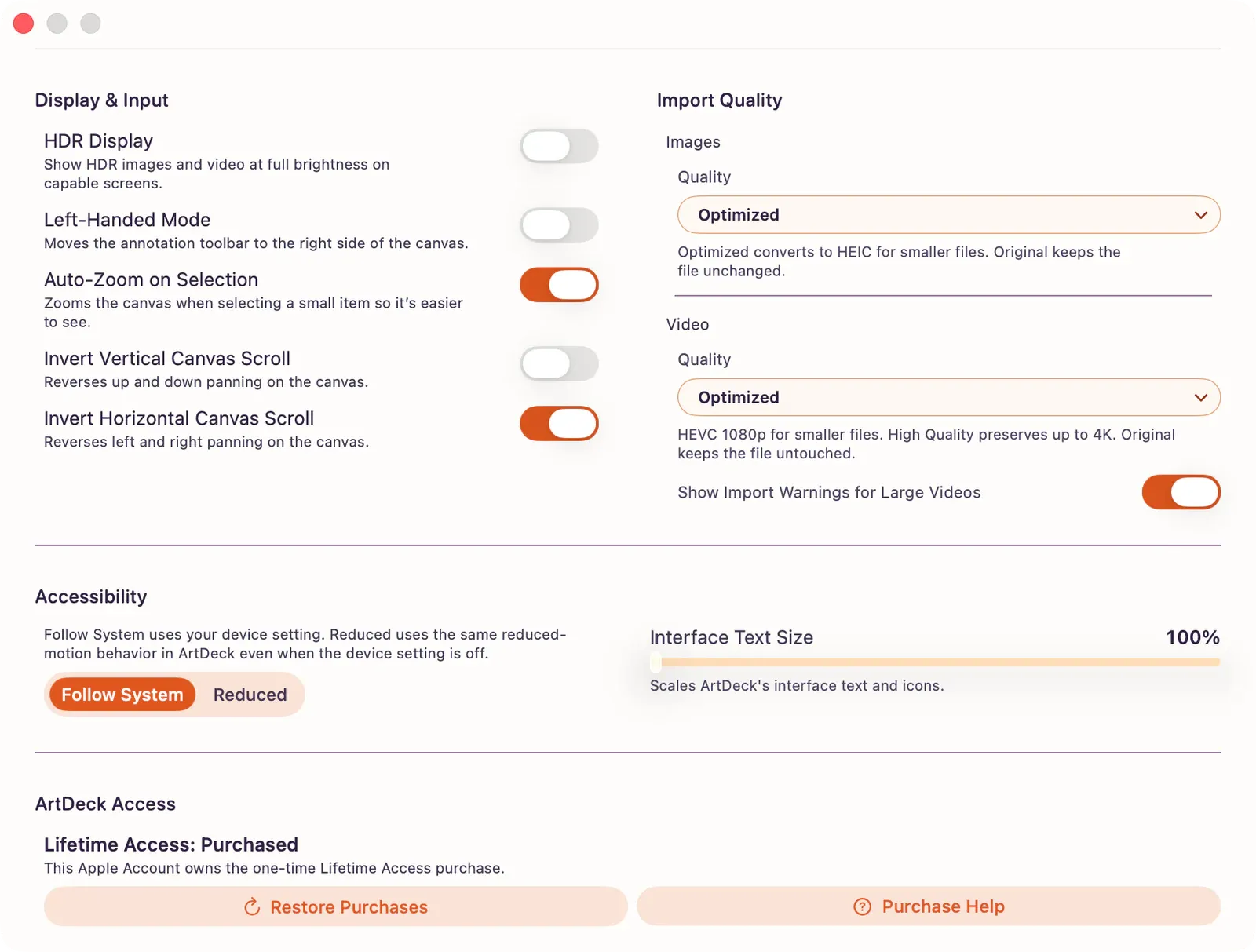
Section titled “Display & Input”- HDR Display: Shows HDR images and video at full brightness on capable screens. When on, other content may look slightly dimmer. (All platforms.)
- Left-Handed Mode: Moves the annotation toolbar to the right side of the canvas. (All platforms.)
- Auto-Zoom on Selection: Zooms the canvas when selecting a small item so it is easier to see. (All platforms.)
- Pencil Only Drawing: Only Apple Pencil can draw on the canvas; finger touches are ignored for drawing, but two-finger gestures still pan and zoom. (iPad only.)
- Invert Vertical Canvas Scroll: Reverses up and down panning on the canvas. (Mac only.)
- Invert Horizontal Canvas Scroll: Reverses left and right panning on the canvas. (Mac only.)
Note: Pencil Only Drawing appears only on iPad. The two scroll-invert toggles appear only on Mac.
Import Quality
Section titled “Import Quality”Sets the default quality for newly imported media. Individual boards can override these defaults in Board Settings.
Images
- Quality: Optimized converts to HEIC for smaller files; Original keeps the file unchanged.
Video
- Quality: Optimized encodes HEVC at 1080p for smaller files; High Quality preserves up to 4K; Original keeps the file untouched.
- Show Import Warnings for Large Videos: Re-enables the warning shown when importing a large video file.
Accessibility
Section titled “Accessibility”- Motion: Choose Follow System to use the device’s Reduce Motion setting. Choose Reduced to reduce motion in ArtDeck even when the device setting is off. A device request for reduced motion takes priority.
- Interface Text Size: On Mac, scales ArtDeck’s interface text and icons. On iPhone and iPad, ArtDeck follows the device’s Larger Text setting instead.
See Accessibility for VoiceOver, keyboard, contrast, motion, and text-size behavior.
ArtDeck Access
Section titled “ArtDeck Access”ArtDeck Access shows the status tied to the Apple Account signed in to the App Store. You may see a 7-Day Trial status, Lifetime Access, Family Sharing access, access from an earlier paid version of ArtDeck, or an App Store verification problem.
- Get Lifetime Access: Buys the one-time Lifetime Access purchase at the App Store price shown for the current storefront. It is not a subscription, and it appears only when this Apple Account does not already have access.
- Restore Purchases: Checks the current Apple Account for an earlier ArtDeck purchase or Lifetime Access. Restoring may ask you to sign in, but it never creates a charge.
- Purchase Help: Opens access troubleshooting and support actions, including Check Access Again and Email Support. Request a Refund appears there only when this Apple Account bought Lifetime Access.
For trial terms, Family Sharing, expired-trial recovery, and purchase troubleshooting, see Free Trial and Lifetime Access.
Support & Feedback
Section titled “Support & Feedback”- What’s New: Shows the latest release notes. A badge dot appears when there are unseen updates.
- Roadmap: Opens the public feature voting page.
- Rate ArtDeck: Prompts an App Store review.
- Report Bug: Opens a feedback email to the ArtDeck team.
- Help: Opens the ArtDeck documentation.
- Privacy: Opens the privacy policy.
- Terms: Opens the terms of use.
- Licenses: Shows software license notices.

Themes Tab (⌘2)
Section titled “Themes Tab ()”- Theme library browser with overview, preview, and diagnostics.
- Import and export themes.
See Themes and Theme Editor.