
Export a Board from Gallery
Use the Gallery entry point when you want to export a board without opening it first. It opens the same export panel used inside a board, with the board already chosen.
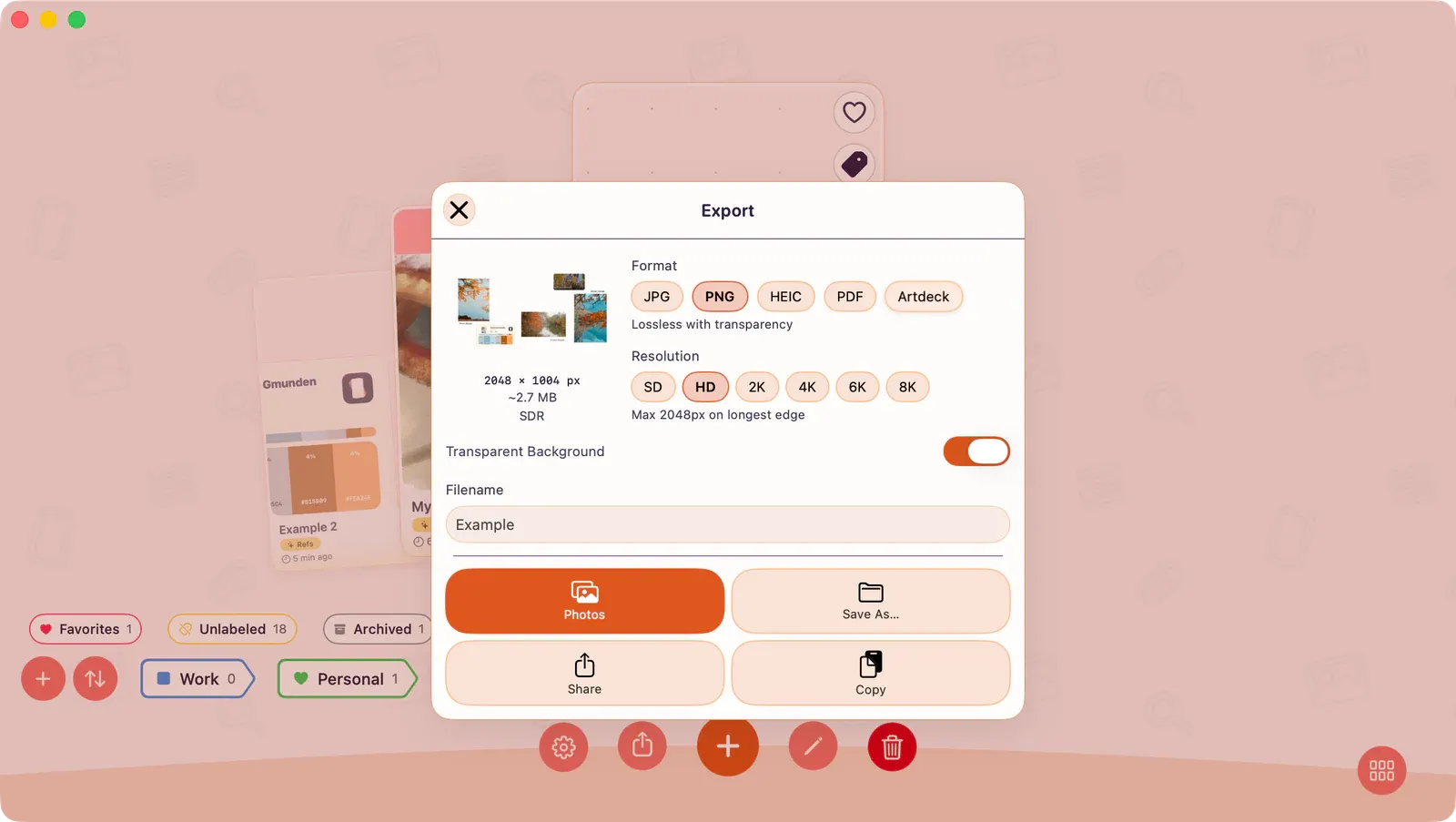
How to Export
Section titled “How to Export”- Open the board card’s action menu.
- Choose Export.
- Choose the export settings and destination.
- Choose Export.
Note: Open the board card’s contextual menu to reach Export. On iPhone and iPad, long-press the board card. On Mac, right-click the board card.
Use the Shared Export Panel
Section titled “Use the Shared Export Panel”For formats, resolution, background, HDR, destinations, board-file backups, and troubleshooting, see Export Your Work.
If the gallery is locked after the trial, or while ArtDeck cannot verify access, use Export All Boards to Photos on the access screen instead. That export has fixed settings and no options to choose. See Free Trial and Lifetime Access.