
Import and Export Themes
Share themes with others or back up your custom themes. The controls are in the library action row in App Settings > Themes.
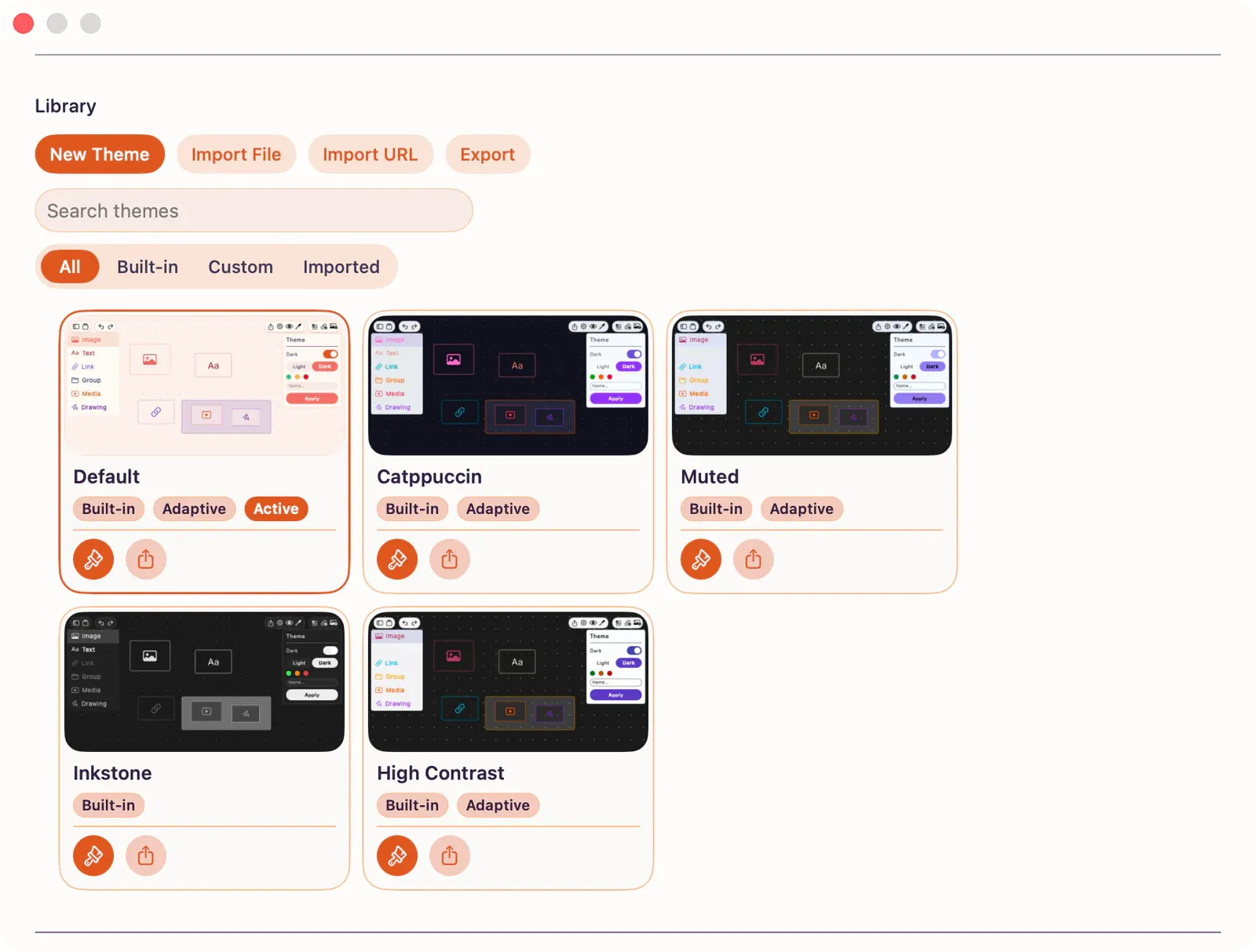
Exporting a Theme
Section titled “Exporting a Theme”- Open
App Settings > Themes. - Select the theme you want (or use the Export icon directly on its card).
- Tap Export.
- Choose where to save the file in the system save dialog.
The exported file is JSON in ArtDeck’s theme schema (v1.0/v2.0) and can be shared with anyone.
Importing from a File
Section titled “Importing from a File”- Open
App Settings > Themes. - Tap Import File.
- Pick a
.jsontheme file.
The theme is validated, added to your library, and made active. If it’s already in your library, ArtDeck just makes it active again.
Importing from a URL
Section titled “Importing from a URL”- Open
App Settings > Themes. - Tap Import URL.
- In the Import from URL card, enter an HTTPS URL that returns a theme JSON document (for example,
https://example.com/theme.json). - Tap Import.
ArtDeck fetches and validates the file before adding it. The URL must use HTTPS, and theme files are capped at 5 MB.
If a Theme Does Not Import
Section titled “If a Theme Does Not Import”| Situation | What to check |
|---|---|
| Invalid JSON | Export a fresh theme from ArtDeck and compare the file shape before editing it by hand. |
| Unsupported schema version | Ask the sender to export the theme again from the current ArtDeck version. |
| Duplicate theme | ArtDeck activates the existing copy instead of adding another one. |
| URL cannot be reached | Make sure the URL starts with https://, returns the JSON file directly, and is under 5 MB. |
| Colors look different after import | Open the theme in Theme Editor and check derived roles before saving. |