
Use Annotation Tools
Enter Annotation Mode when you want to sketch directly on the board, mark up an item, or add geometric shapes.
Enter Annotation Mode
Section titled “Enter Annotation Mode”- Choose Annotate or press D to enter Annotation Mode on the board.
- Select an item and choose Annotate to draw on it.
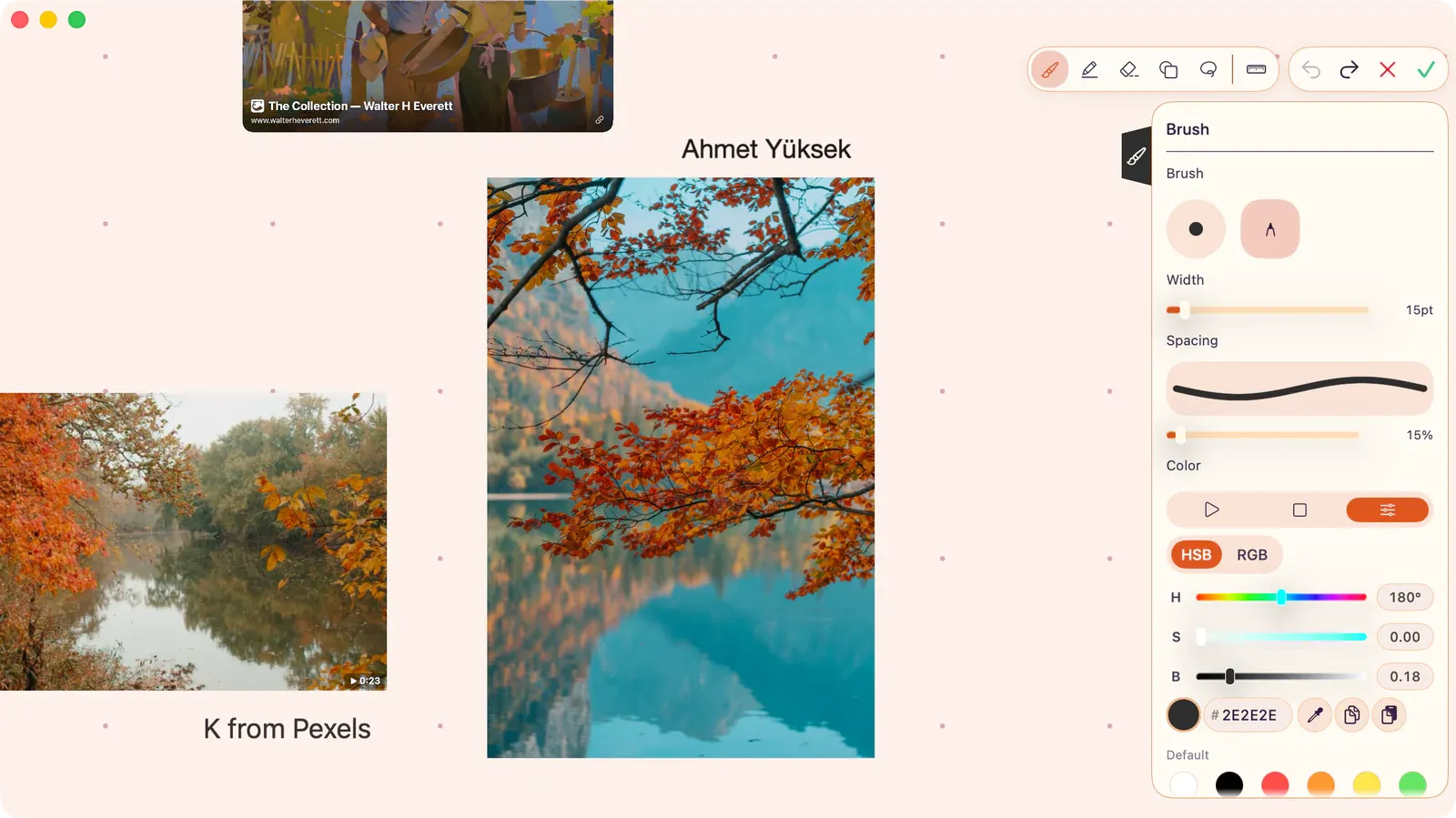
When you are done, tap Done. Use Cancel if you entered Annotation Mode by mistake and do not want to keep the new strokes.
A general-purpose freehand drawing tool.
- Width: Default 5pt
- Spacing: 5% to 200%
- Opacity: 1% to 100%
- Color: Fully customizable
Highlighter
Section titled “Highlighter”A semi-transparent overlay tool.
- Width: Default 20pt
- Opacity: Default 50%
- Color: Default yellow
Shapes
Section titled “Shapes”Geometric shapes drawn on the board. Five shape types are available: line, arrow, rectangle, ellipse, and triangle.
- Fill: Toggle fill on/off with a separate fill color
- Width: Stroke width
- Corner radius: 0 to 50 (rectangles only)
- Cap style: Round or square
Shape Snapping
Section titled “Shape Snapping”While drawing, pause briefly at the end of a stroke to convert it to a clean geometric shape. Shape snapping works with common shapes such as lines, rectangles, ellipses, triangles, and arrows.
Configure the hold delay in Drawing Settings. The delay can be set from 0.1 to 1.5 seconds, with optional haptic feedback on supported devices.
Stroke Eraser
Section titled “Stroke Eraser”Tap any stroke to erase it completely. The Stroke Eraser removes whole strokes — not portions — so a single tap deletes the entire stroke you touch.
Draw a freeform loop around strokes to select them. Once strokes are selected, use the Actions panel to Delete or Copy the selection.
The Ruler is a straight-edge toggle, not a separate tool. Activate it from the toolbar to constrain any freehand stroke to a straight line. Toggle it off to return to freehand drawing. The Ruler works with the Brush, Highlighter, and Shapes tools.
Tip: The keyboard shortcut R toggles the Ruler while in Annotation Mode.
Toolbar Layout
Section titled “Toolbar Layout”The annotation toolbar adapts to the platform:
- iPhone portrait - the toolbar appears along the bottom of the canvas so it stays reachable above the home indicator.
- iPhone landscape and iPad - the toolbar docks vertically along the side of the canvas.
- Mac: the toolbar runs horizontally in the header row, with the tool picker on the left and session controls (undo, redo, cancel, done) on the right.