
Work with Video
Import and play videos directly on your board. ArtDeck supports MOV, MP4, and M4V files with H.264, HEVC, and ProRes codecs.
Playback Controls
Section titled “Playback Controls”When a video is selected, the control bar shows:
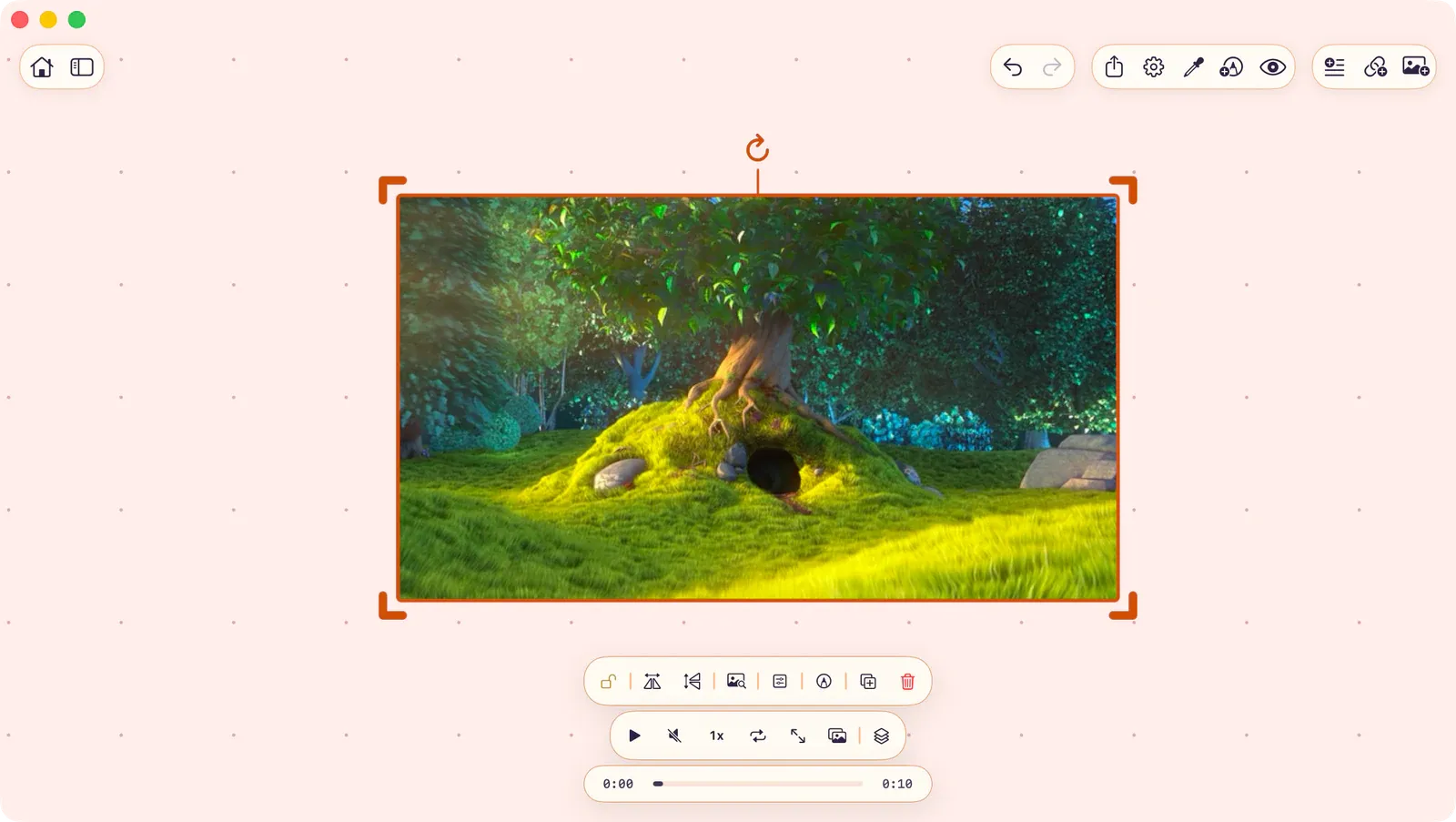
| Action | Description |
|---|---|
| Play/Pause | Start or stop playback |
| Mute/Unmute | Toggle audio |
| Speed | Cycle through speeds: 0.5x, 1x, 1.5x, 2x |
| Loop | Toggle looping on or off |
| Fullscreen | Enter fullscreen overlay (double-tap or tap the close button to exit) |
| Export Frame | Export the current frame as a still image |
Seek Bar and Frame Stepping
Section titled “Seek Bar and Frame Stepping”A seek bar appears below the video controls. Drag to scrub through the video. The current time and total duration are displayed.
With keyboard focus on the seek bar or fullscreen video controls, you can also step through frames precisely:
| Shortcut | Action |
|---|---|
| Left / Right | Step one frame back / forward |
| ⇧Left / ⇧Right | Jump several frames |
When the video is selected on the canvas, arrow keys move the video like any other item. Tab into the playback controls to use arrows for video time.
Onion Skin
Section titled “Onion Skin”Videos support onion skin overlay for frame comparison. See Onion Skin.
ToolBox
Section titled “ToolBox”Freeze any frame for analysis with the ToolBox. The frozen timecode is displayed in the ToolBox panel. See ToolBox Overview.
Large Videos and Preview Quality
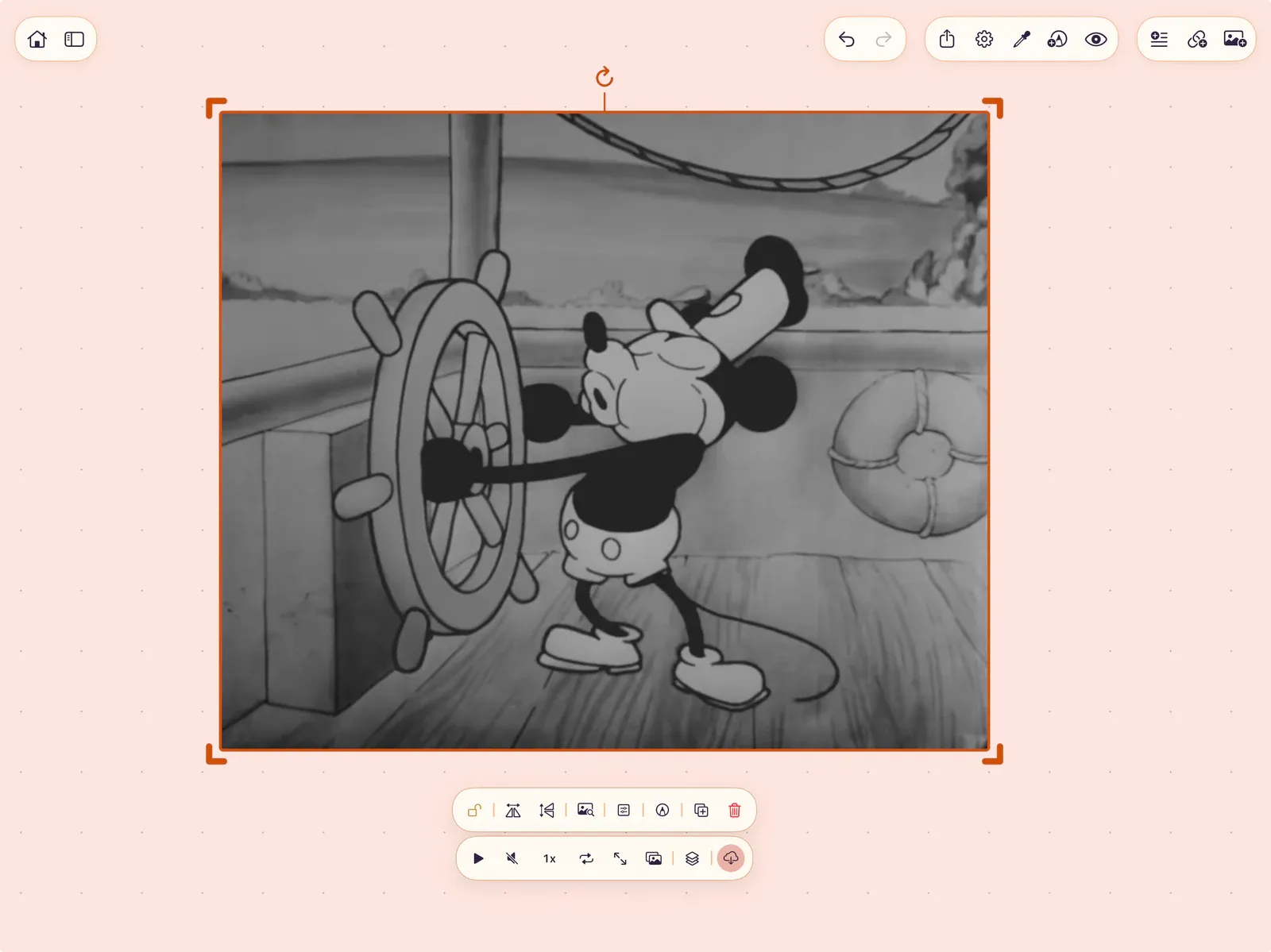
Section titled “Large Videos and Preview Quality”When iCloud Sync is enabled for the board, videos up to 100 MB upload the full original. For larger videos, ArtDeck first checks whether making a smaller HEVC preview would save meaningful iCloud space. A preview is never upscaled and is capped at the video’s own size or orientation-aware 720p, whichever is smaller.
ArtDeck keeps alpha transparency in previews. HDR originals may use an SDR preview: ArtDeck tone-maps them through the same HDR-to-SDR pipeline used elsewhere in the app, which reduces the preview size while keeping the original file unchanged.
Preview creation is skipped when the predicted saving is too small. ArtDeck also checks the finished preview and keeps it only when it saves at least 50% compared with the original. If the preview is not meaningfully smaller, cannot preserve required video properties, or cannot be created, ArtDeck automatically uploads the full original instead. The preview is only an iCloud storage optimization; it is never required for the video to sync.
When a useful preview is created, the device that imported the video keeps the original file. Other devices receive the preview until you or the source device chooses to upload the original.
| Status | What it means |
|---|---|
| Preparing preview for iCloud | The source device is making the smaller synced preview. |
| Preview will continue when ArtDeck is open | Preview creation paused while ArtDeck was not active. Open ArtDeck on the source device to continue. |
| Full video on this device · Preview synced to iCloud | The source device has the original, and other devices can receive the preview. |
| Preview quality · Full video available from source | This device has the proxy and can request the original. |
| Full quality arrives when the source device is online | The original has been requested; keep the source device online so it can upload. |
| Full quality upload paused — will retry when connected | Upload will continue when the source device can use iCloud Sync again. |
Use the quality controls that match the device you are on:
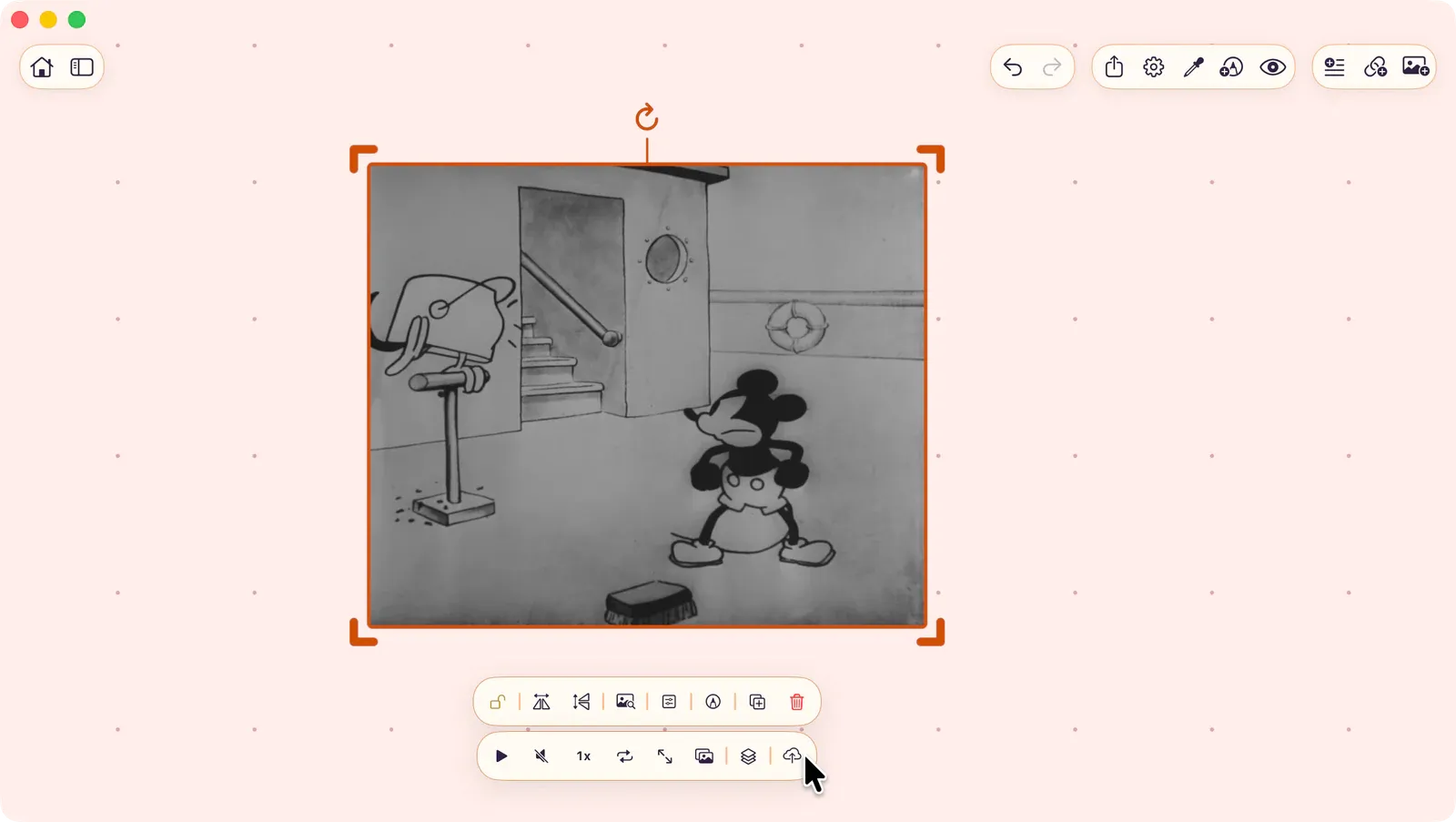
- Source device: Choose Upload Original in the video controls or status card. On Mac, you can also choose
Video > Upload Original Video. - Receiving device: Choose Get Original in the video controls or status card. On Mac, you can also choose
Video > Request Original Video. - After requesting: The receiving device shows Original requested until the source device uploads the full file and iCloud Sync delivers it.
If the upload or request control is not available, the video is already full quality on this device, the selected video is not in a proxy state, or the source file is not available on this device.
For more details, see iCloud Sync.
Annotation
Section titled “Annotation”Annotate a video item to draw on top of it. The annotation is linked and moves with the video.