
Choose and Manage Themes
Use themes to change interface colors, board defaults, accents, borders, and text contrast across ArtDeck.
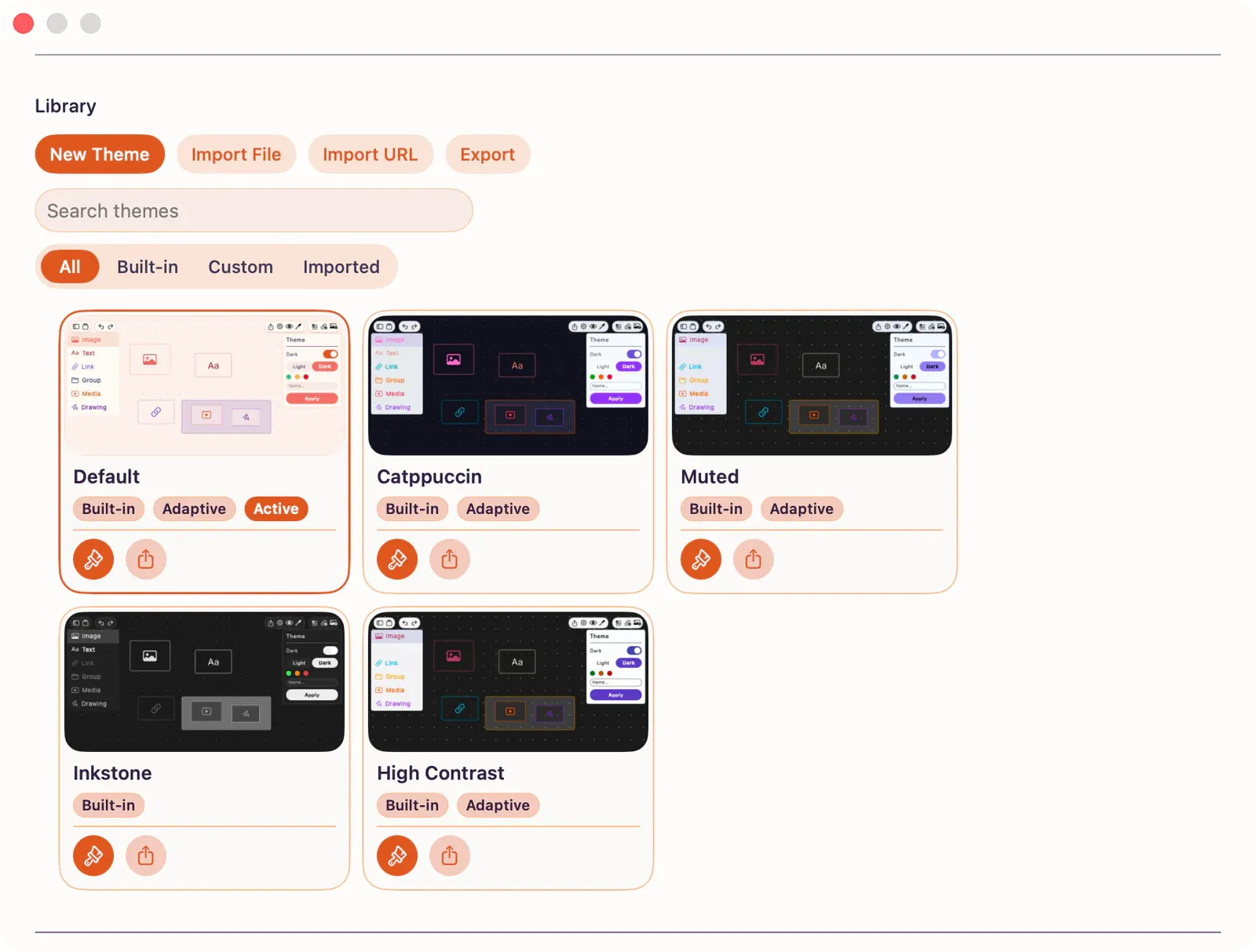
Switch the Active Theme
Section titled “Switch the Active Theme”- Open
App Settings > Themes. - In the theme library, tap a theme card.
That theme becomes active immediately, app-wide, on every board that doesn’t have its own override. The active card shows an Active badge. With a keyboard, use Arrow keys to move the highlight and press Return to activate the focused theme.
Appearance Mode
Section titled “Appearance Mode”A theme can adapt to your system appearance (Dark/Light) or use one fixed palette.
For an adaptive theme, open App Settings > Themes, look at the Overview section, and use the Appearance Mode picker:
- Light: always use the light palette.
- Dark: always use the dark palette.
- System: follow the device’s current light or dark appearance.
This preference is app-wide. A non-adaptive theme has no picker — it uses the same palette everywhere and ignores system appearance changes. High-contrast variants are driven by your system contrast setting, not a separate option here.
Built-In Presets
Section titled “Built-In Presets”| Preset | Description |
|---|---|
| Default | Balanced palette with good contrast across Dark and Light modes |
| Inkstone | Mostly black and white chrome with one fixed standard palette and a stronger system high-contrast version |
Built-in presets can’t be edited directly. To make changes, tap Customize on the card to create an editable copy — see Theme Editor.
Per-Board Override
Section titled “Per-Board Override”Each board can use a different theme. Open Board Settings, find the Theme section, and use the picker:
- The entry tagged (Default) means “use the app’s active theme”; no override is applied.
- Choosing any other theme applies it to this board only.
The colors a board actually shows are resolved in this order:
- Board override (if set)
- Default board theme
- Active app theme
- Built-in “Default”
The Themes button next to the picker jumps straight to App Settings > Themes to manage the library.
Managing Themes
Section titled “Managing Themes”App Settings > Themes is where you browse, preview, customize, import, and export your theme library.
See also: Theme Editor, Importing and Exporting Themes.