
Drawings and Annotations
Drawings are board items made from strokes and shapes. Use them as loose notes on the board, or link them to another item when the marks need to stay attached to an image, text item, link card, group, GIF, or video.
For brush, highlighter, shape, eraser, lasso, and ruler controls, see Use Annotation Tools. For the full linked-annotation workflow, see Annotating Items.
Standalone Drawings
Section titled “Standalone Drawings”A standalone drawing is a free-floating item on the board. Move, resize, rotate, layer, group, lock, or delete it like any other item.
Create one when you want sketch notes, loose arrows, shape callouts, or visual marks that should not follow a specific source item.
Linked Annotations
Section titled “Linked Annotations”A linked annotation is attached to another item. It inherits that item’s position and transforms, so the strokes stay aligned with what they mark up.
Use linked annotations when you are marking up a specific image, video frame, link card, text item, or group. Select the item and tap Annotate to draw directly on it.
Link an Existing Annotation Drawing
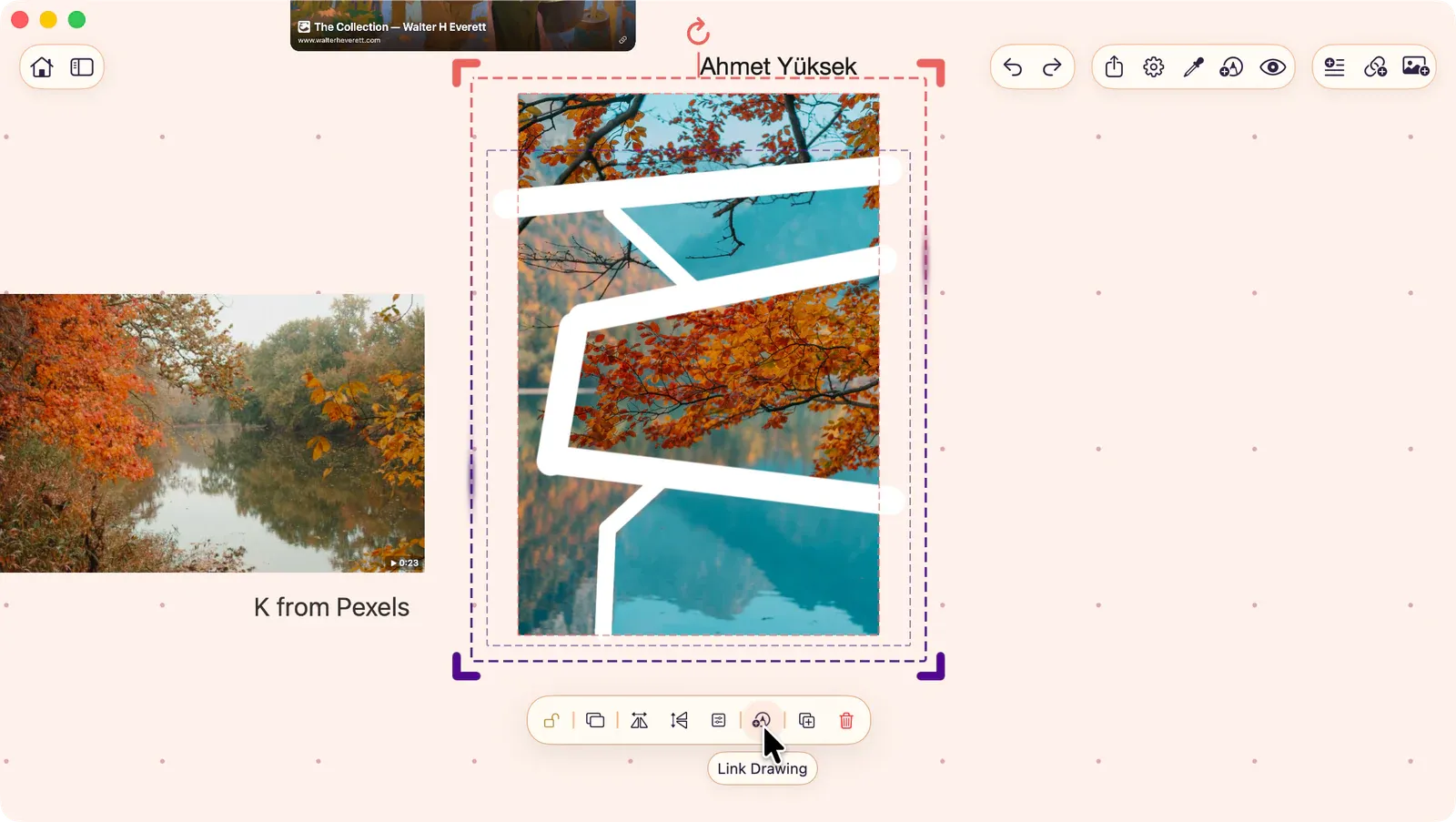
Section titled “Link an Existing Annotation Drawing”- Select the standalone annotation drawing and the item it should attach to.
- Use the link annotation button in the control bar.
- ArtDeck links the drawing to the item so it moves and transforms with that item.
If the item already has a linked annotation, ArtDeck merges the selected drawing into the existing annotation.
To edit a linked annotation later, select the item and tap Edit Annotation. To remove it, tap Clear Annotation.