
Add Your First Content
Open a board and use the board header or contextual menu to add the first image, note, file, drawing, or link.
Add from the Header
Section titled “Add from the Header”- Open a board.
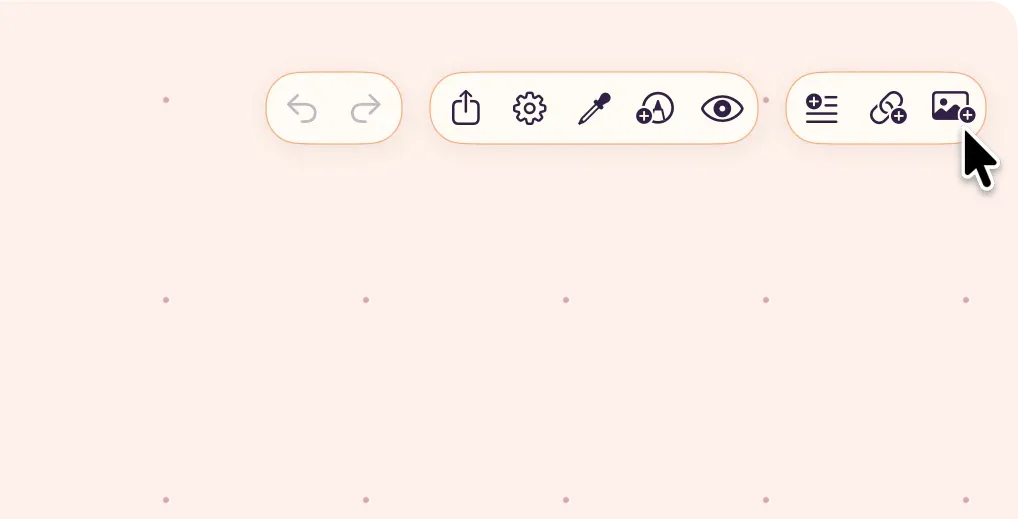
- In the board header, choose an item type: Add Text, Add Link, or Add Media. On compact layouts, open Add Content first, then choose the item type.
- For media, choose Photos, Files, Capture, or Paste.
- Select the content you want to add.
Note: On iPhone and iPad, long-press an empty area of the canvas to open the contextual radial menu. On Mac, right-click the canvas to open the same add actions.
Other Ways to Add Content
Section titled “Other Ways to Add Content”- Drag and drop: Drop images or files from other apps directly onto the board.
- Share Extension: Share content from any app into ArtDeck using the system share sheet.
- Add Text (⌘T): Create a new text item directly on the board.
- Add Link (⌘L): Create a link card from a URL.
If It Does Not Import
Section titled “If It Does Not Import”Check the file type first. Some video codecs need transcoding, and very large files may take longer to appear on the board. For the full import panel, platform-specific sources, and limits, see Importing Content.