
Add and Format Text
Add text items to your board for notes, titles, labels, or any written content.
Adding Text
Section titled “Adding Text”- Press ⌘T to create a new text item at the center of the board.
- Or use the board contextual menu and select Add Text.
Double-tap a text item to enter edit mode.
Formatting
Section titled “Formatting”Select a text item and use the control bar or press ⌘⇧T to open the formatting panel.
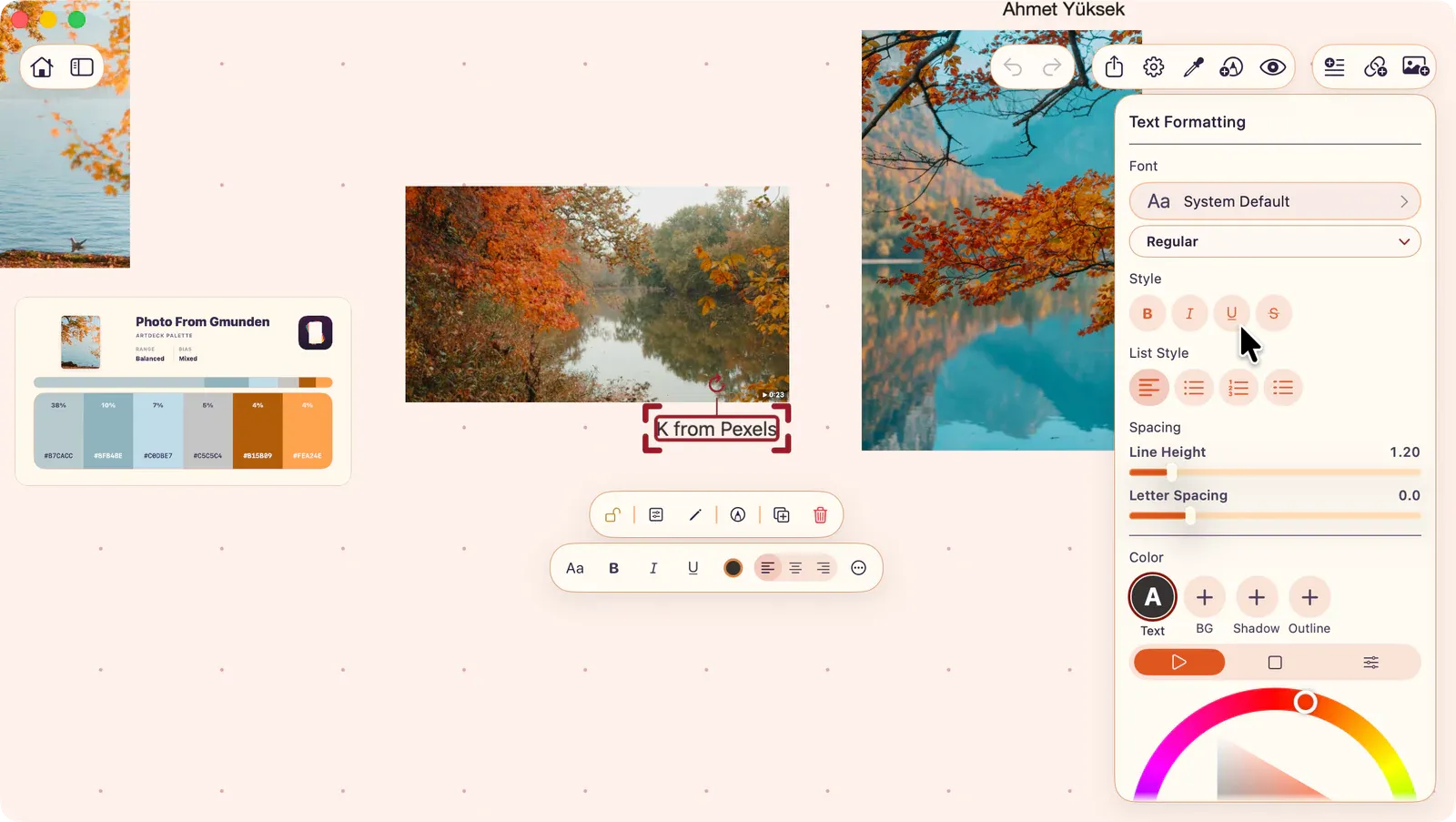
Choose any installed font via the font browser. Star fonts as favorites for quick access. Your five most recent fonts appear at the top.
Style Shortcuts
Section titled “Style Shortcuts”| Shortcut | Action |
|---|---|
| ⌘B | Bold |
| ⌘I | Italic |
| ⌘U | Underline |
| ⌘⇧X | Strikethrough |
Alignment
Section titled “Alignment”| Shortcut | Action |
|---|---|
| ⌘⌥L | Align left |
| ⌘⌥C | Align center |
| ⌘⌥R | Align right |
| Shortcut | Action |
|---|---|
| ⌘] | Increase font size |
| ⌘[ | Decrease font size |
| Shortcut | Style |
|---|---|
| ⌘⇧8 | Bullet list |
| ⌘⇧7 | Numbered list |
| ⌘⇧9 | Dash list |
Advanced Formatting
Section titled “Advanced Formatting”The formatting panel provides additional controls:
- Line height: Adjust spacing between lines (1.0x to 2.5x)
- Letter spacing: Adjust spacing between characters (-5 to +20)
- Text color: Set the text color
- Background: Add a colored background behind the text with adjustable padding and corner radius
- Shadow: Add a drop shadow with configurable color, radius, and offset
- Outline: Add a text outline with configurable color and width