
Playback Controls
Select a GIF or video to play, pause, scrub, step frames, change speed, loop, or export the current frame from the control bar.
Common Controls
Section titled “Common Controls”These controls work for both GIFs and videos:
| Action | Shortcut | Description |
|---|---|---|
| Play / Pause | Space | Toggle playback |
| Loop | L | Repeat from the beginning when playback ends |
| Step | Left / Right | Move one frame back / forward when GIF or video controls are focused |
| Jump | ⇧Left / ⇧Right | Skip several frames back / forward when GIF or video controls are focused |
| Playback Speed | — | Cycle through speed options (shown in control bar) |
| Export Frame | — | Save the current frame as a still image on the board |
Frame Stepping and Scrubbing
Section titled “Frame Stepping and Scrubbing”Arrow keys follow focus. On the canvas, arrows move selected items, including GIFs and videos. In GIF controls, the video seek bar, or fullscreen playback controls, arrows step through media. Stepping a playing item pauses it first.
- Tap Left or Right for one frame.
- Hold Left or Right while media controls are focused to repeat frame stepping.
- ⇧Left / ⇧Right jumps a larger fixed amount. Each press moves the same distance, so you can count presses to land a known offset.
Keyboard stepping needs a hardware keyboard (iPad or Mac).
GIF Controls
Section titled “GIF Controls”GIF speed options: 0.25x, 0.5x, 1x, 2x.
Filmstrip
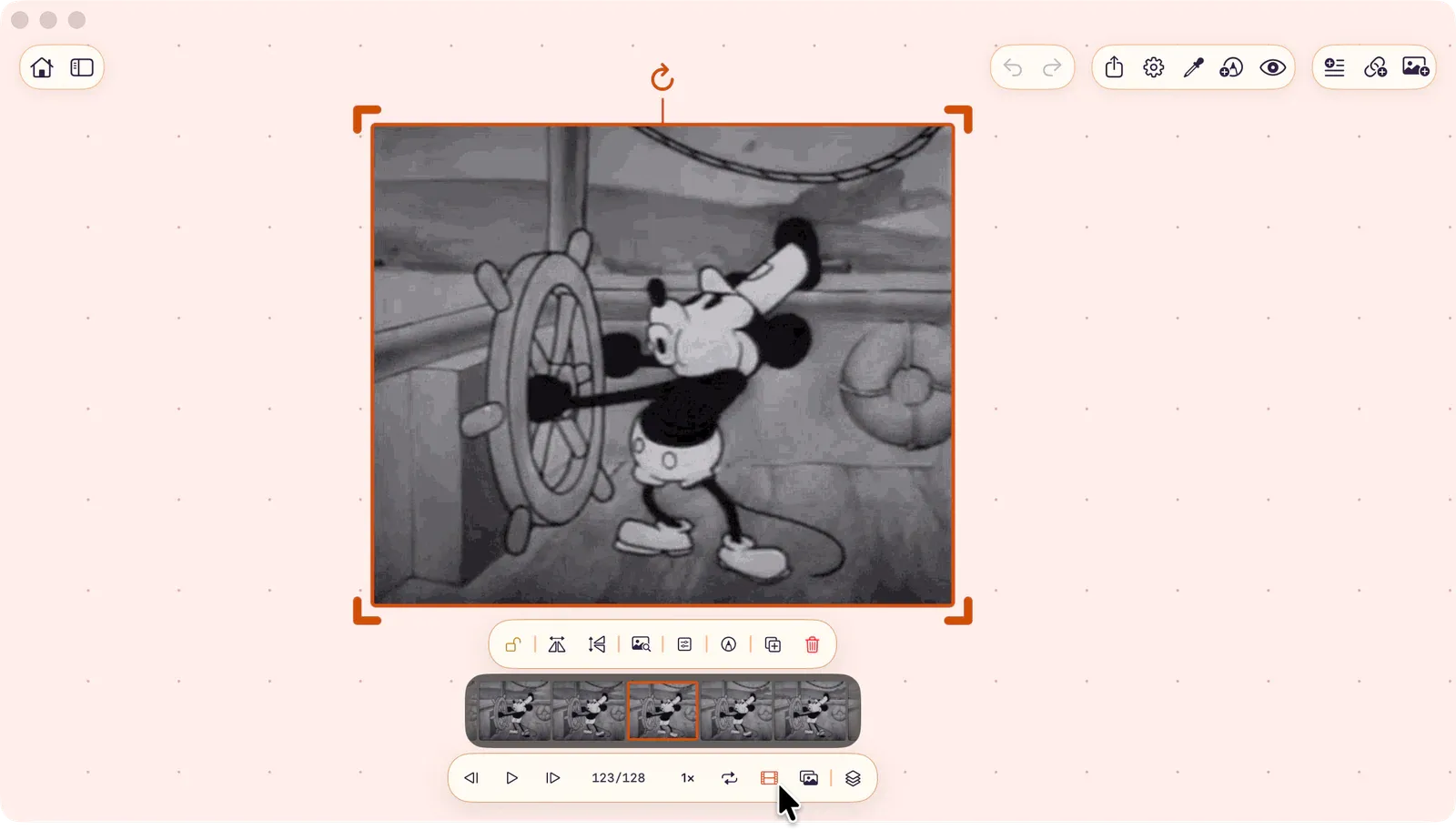
Section titled “Filmstrip”Tap the filmstrip button to show all frames as scrollable thumbnails below the GIF. Tap any thumbnail to jump to that frame.
Long-press and drag a thumbnail to extract that frame as a new image on the board.
Batch Controls
Section titled “Batch Controls”When multiple GIFs are selected, controls apply to all of them at once. If any GIF is playing, the pause button stops all of them.
Video Controls
Section titled “Video Controls”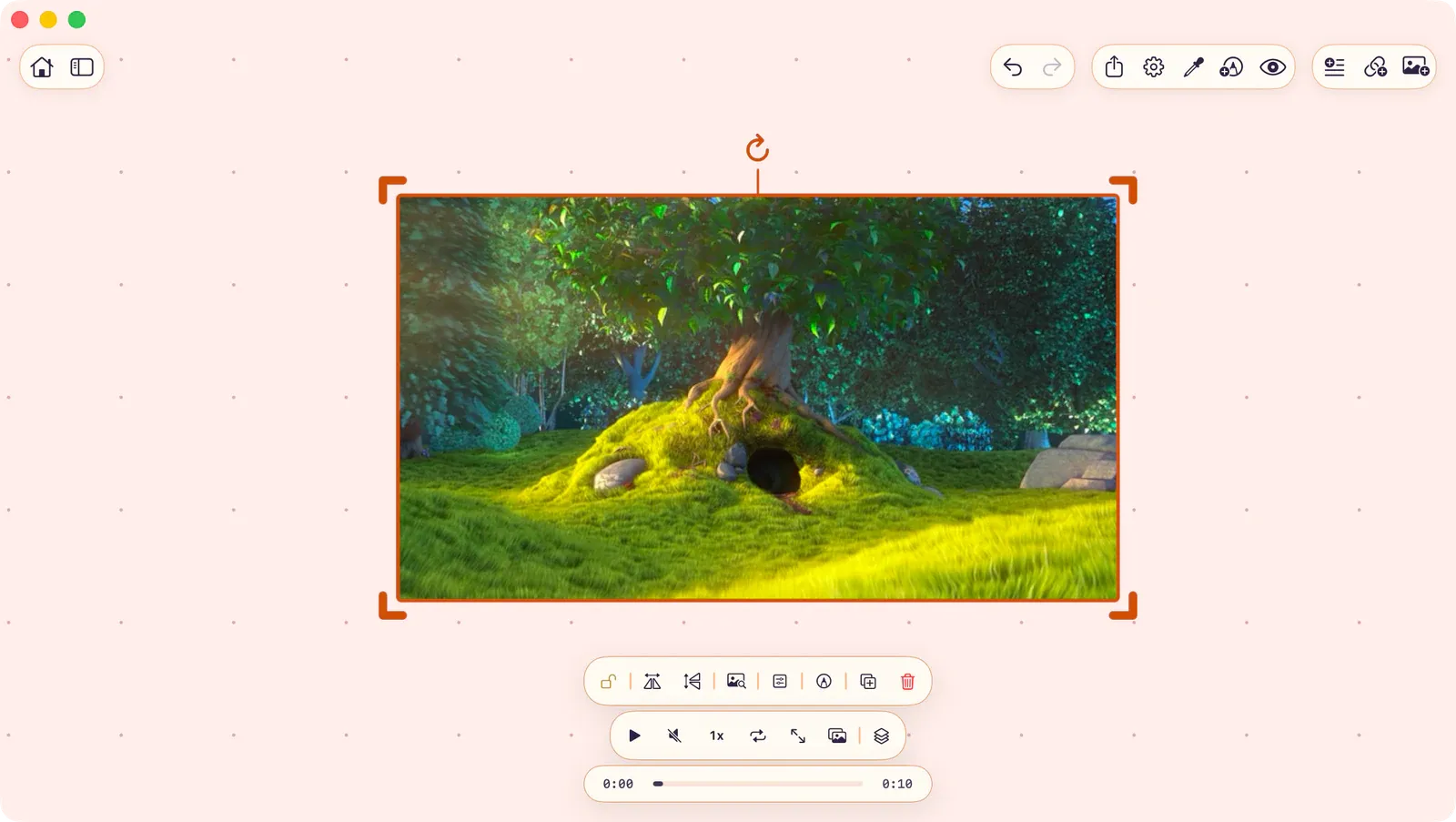
| Action | Shortcut | Description |
|---|---|---|
| Mute / Unmute | M | Toggle audio (muted by default) |
| Fullscreen | F | Enter fullscreen overlay |
Video speed options: 0.5x, 1x, 1.5x, 2x.
Seek Bar
Section titled “Seek Bar”A seek bar appears below the video controls. Drag the bar to scrub through the video. Current time and total duration are displayed at each end.
Fullscreen
Section titled “Fullscreen”Press F or tap the fullscreen button to view the video in a large overlay. All playback controls remain available. Double-tap or tap the close button to exit.