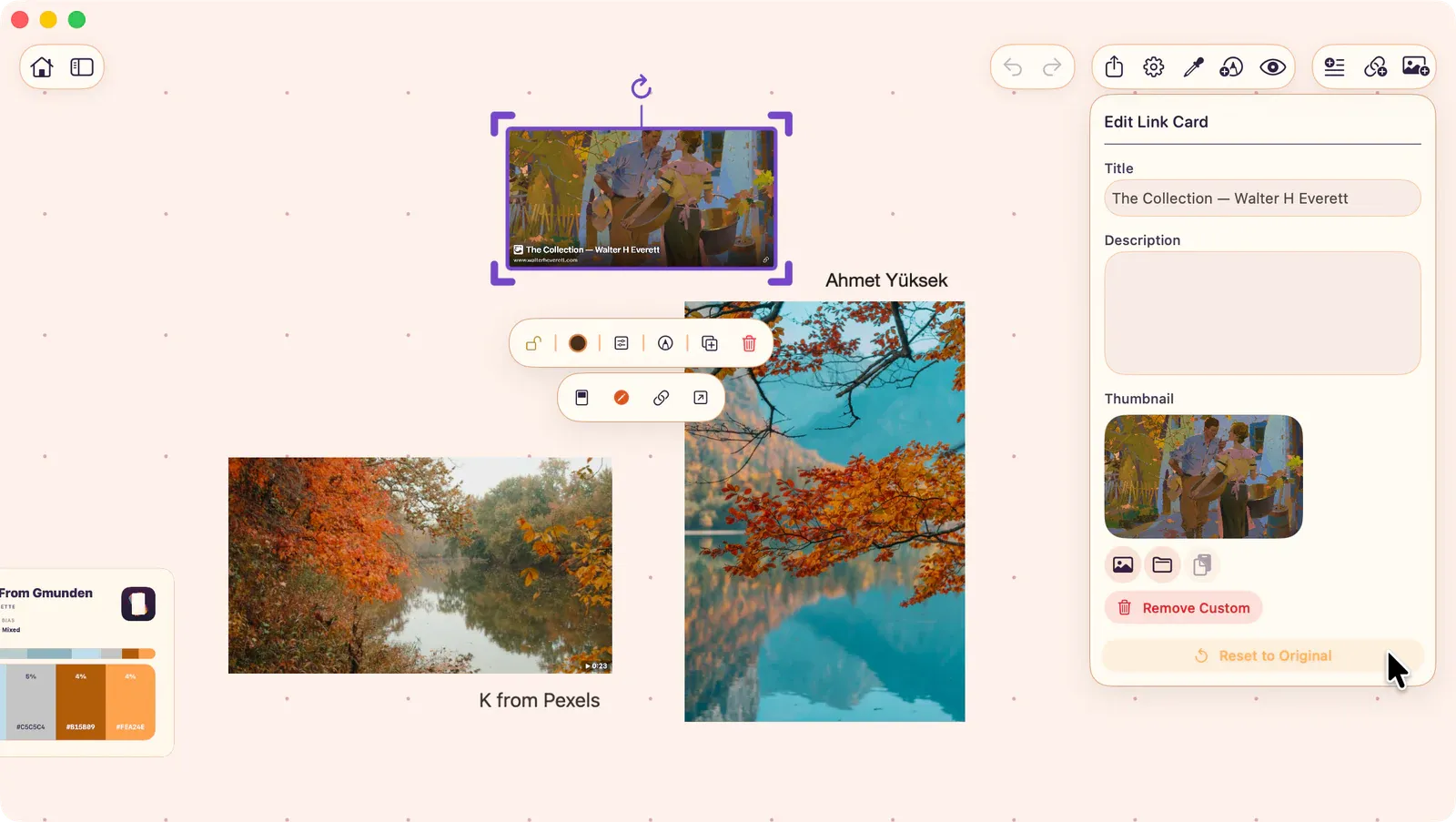
Add and Fix Link Cards
Link cards are visual bookmarks that display a link with its title, description, and preview image.
Adding a Link Card
Section titled “Adding a Link Card”- Press ⌘L to create a link card.
- Paste a URL from the clipboard.
- Or use the board contextual menu and select Add Link.
ArtDeck automatically fetches the page title, description, and preview image.
If the Preview Is Missing
Section titled “If the Preview Is Missing”Some pages block preview fetching, require a login, or do not publish title, description, or image metadata. The link still works. Use Edit Metadata to enter a title, description, or replacement preview image yourself.
If a private or unsupported video link does not embed, keep it as a link card and use Open Link to view it in the browser.
Card Styles
Section titled “Card Styles”Link cards support two display styles:
- Showcase: Large preview image with title and description below.
- Standard: Compact card with a small thumbnail.
Toggle between styles from the control bar or contextual menu.
Actions
Section titled “Actions”| Action | Description |
|---|---|
| Open Link | Open the URL in your browser |
| Copy Link | Copy the URL to clipboard |
| Edit Metadata | Customize the title, description, and preview image |
| Card Style | Toggle between showcase and standard |
| Card Color | Set a solid color or gradient |
| Annotate | Draw on top of the card |
Card Color
Section titled “Card Color”The Card Color action lets you set a background color for the card. Choose a solid color or switch to a gradient with two color stops and an angle. The gradient fills the card body, giving each link card a distinct visual identity on the board.
Editing Metadata
Section titled “Editing Metadata”Tap Edit Metadata to customize what the card displays. You can override the auto-fetched title, description, and even replace the preview image.