
Board Settings
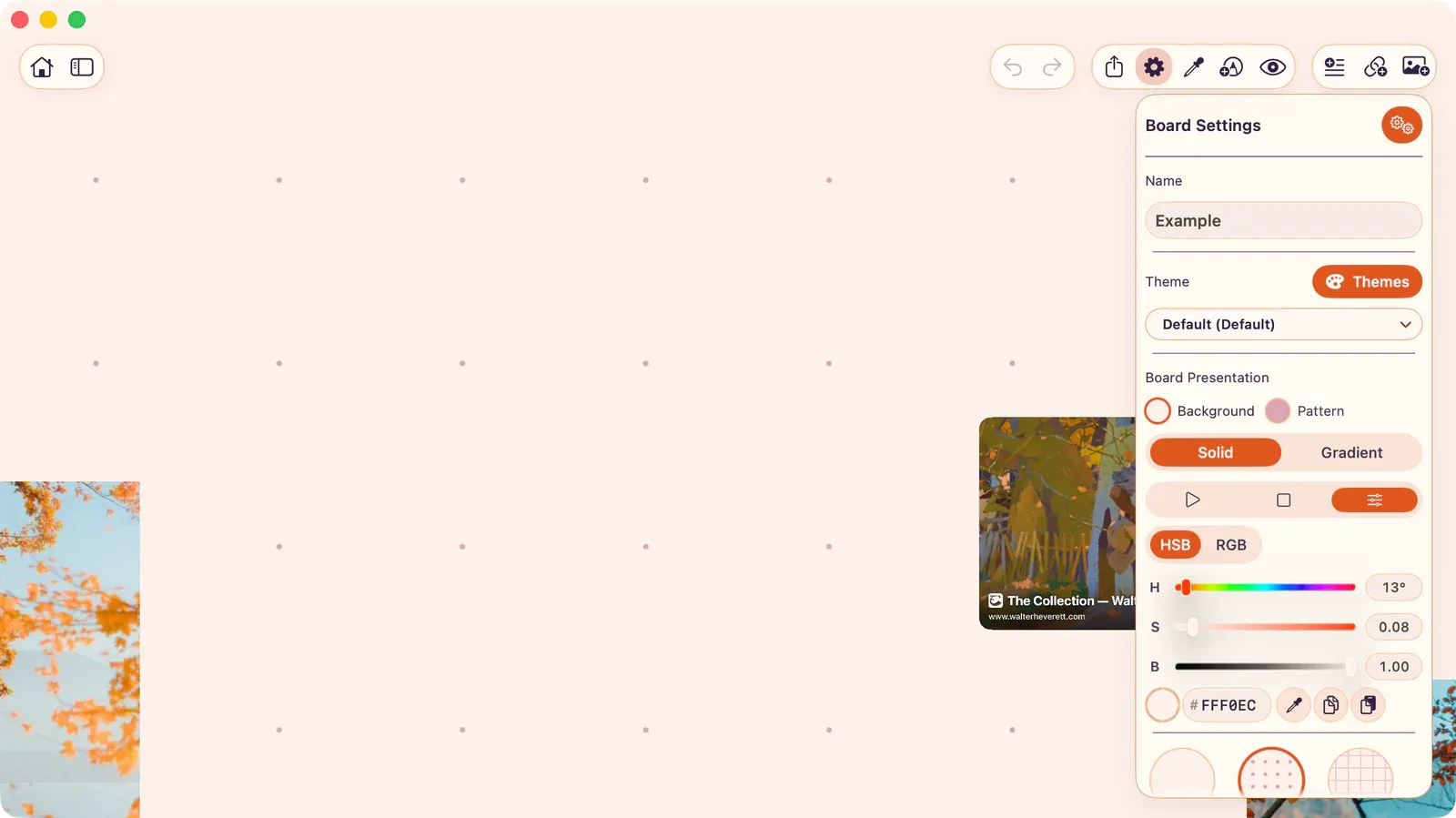
Each board has its own settings. Open Board Settings with ⌘⇧S or tap the gear icon in the board header.
Board Identity
Section titled “Board Identity”- Board name: Tap to rename.
- Link to App Settings: Quick access to global settings.
Select a per-board theme override, or use the app default. See Themes.
Board Presentation
Section titled “Board Presentation”- Fill type: Solid color or gradient.
- Color: Choose background colors.
- Pattern: Solid, Dots, or Grid.
- Pattern opacity: 0% to 100%.
- Pattern spacing: 20pt to 200pt.
- Reset to Default: Restore app-wide defaults.
Snapping
Section titled “Snapping”- Objects: Align to nearby items.
- Grid: Align to the background grid.
- Rotation 90°: Lock rotation to 90-degree steps.
Import Settings
Section titled “Import Settings”- Keep Original Images: Full resolution or optimized.
- Keep Original Videos: Original quality or transcoded.
Board Storage
Section titled “Board Storage”View the total storage size of the board and expand the per-item breakdown. When the board contains videos, the breakdown includes Manage Videos.
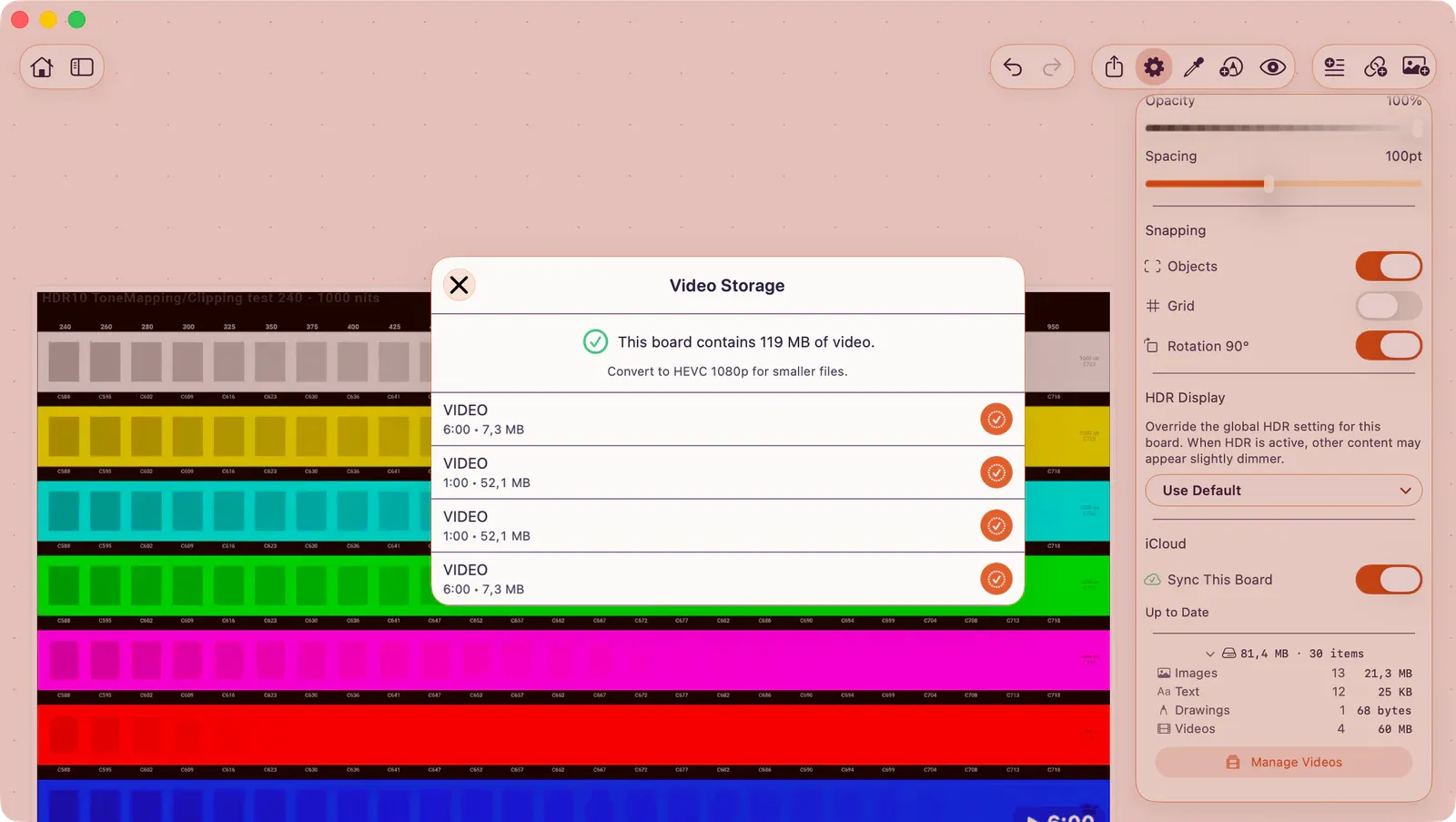
Use Manage Videos to open the Video Storage overlay. It lists each video with its name, duration, and file size, then lets you convert large or incompatible videos to HEVC 1080p for smaller files.
- Convert: Starts conversion for a video that still uses its original storage file. If that video is playing, ArtDeck stops playback before converting it.
- Converting: Shows progress while the conversion runs.
- Converted: Means the video is already optimized.
- Video conversion failed: Tap the retry control to try again.
ArtDeck can also offer Manage Videos after an AV1 video fails to play on the current device. Open the overlay, convert the video, then try playback again.