
iCloud Sync
Turn on iCloud Sync to keep boards available on devices signed into the same Apple Account. Sync is opt-in at the app level: on first setup, ArtDeck asks whether to turn on iCloud Sync. Boards can be marked for sync, but no transfer starts until app-level iCloud Sync is on.
Note: iCloud Sync keeps boards available on devices signed into your Apple Account. It is not a live collaboration feature and does not share boards with other people.
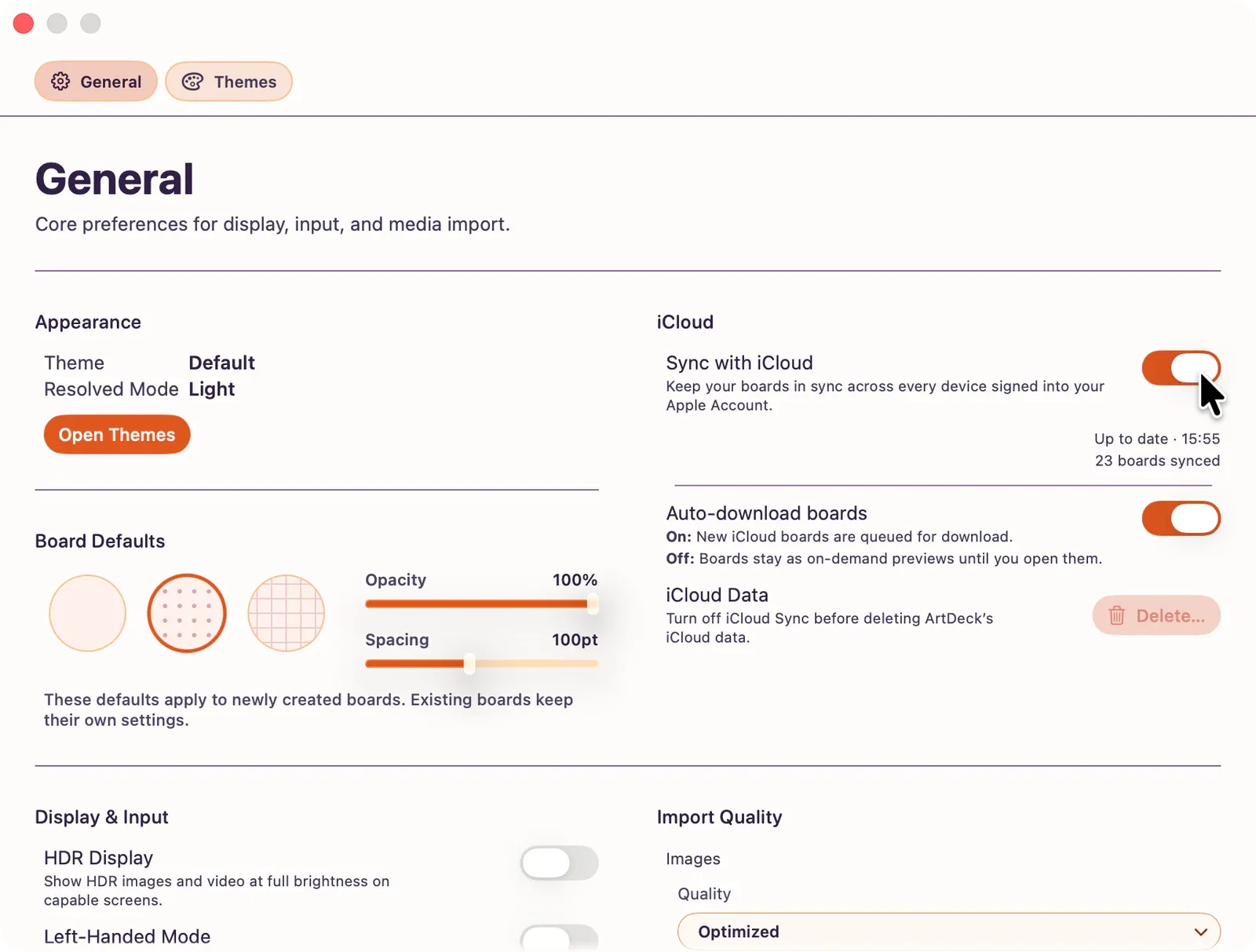
Quick Setup
Section titled “Quick Setup”- Open
App Settings > General > iCloud. - Turn on Sync with iCloud.
- Choose whether new boards from iCloud should Auto-download or stay as on-demand previews until you open them.
- On iPhone and Wi-Fi + Cellular iPad models, turn on Use Cellular Data only if you want sync to transfer away from Wi-Fi.
New boards are marked to sync automatically while app-level iCloud Sync is on. You can still turn sync off for one board from the board settings panel.
How Sync Works
Section titled “How Sync Works”ArtDeck syncs board content through your iCloud account: items, positions, styles, thumbnails, and the files needed to reopen the board on another device. Each board has its own sync space, so one board can finish while another is still uploading or waiting.
Sync happens in the background when the device is online and the current network is allowed. On iPhone and Wi-Fi + Cellular iPad models, cellular transfer is off by default; choose Use Cellular Data in the first setup prompt or in Settings if you want iCloud Sync to use cellular data. On Mac, cellular data is not shown as a setting.
ArtDeck saves your edits locally first. If the network is unavailable, iCloud storage is full, or sync is waiting for Wi-Fi, you can keep working; the pending changes upload when sync can run again.
Open the Right Sync Topic
Section titled “Open the Right Sync Topic”- Download Boards from iCloud covers Auto-download, on-demand board previews, and cloud download states.
- Per-Board Sync and Conflicts covers Sync This Board, local-only boards, and re-enable choices.
- Fix iCloud Sync Issues covers waiting, paused, missing-file, storage, account, and video-original states.
Delete ArtDeck Data from iCloud
Section titled “Delete ArtDeck Data from iCloud”Settings includes a destructive Delete ArtDeck Data from iCloud control. It is available only after app-level iCloud Sync is turned off.
This removes ArtDeck’s iCloud data while keeping local boards on the current device. It is different from deleting a board: deleting a board removes that board from this device and, when it has already synced, from iCloud. Deleting ArtDeck data from iCloud resets the iCloud data instead. Other devices that still have iCloud Sync on keep their local boards and may upload them again when they open ArtDeck.
Account Changes
Section titled “Account Changes”If you sign out of iCloud or switch Apple Accounts, ArtDeck asks what to do with existing boards. The required choice is Keep as Local Only: boards remain available on this device, previous iCloud sync information is removed, app-level iCloud Sync is turned off, and existing board sync toggles are turned off. You can turn iCloud Sync back on later, then choose which boards to sync into the current Apple Account.